Why headings are more than large text
In a long report, guide, or set of meeting notes, readers rarely move from the first page to the last without stopping. They look for the part they need. Clear headings act as signposts, showing where one subject ends and another begins. They also help the person writing the document spot gaps, repeated points, and sections that have grown too long.
A heading style does more than change how text looks. It identifies a line as a heading within the document. Many word processors can use that structure to show a navigation pane or document outline, so you can jump between sections. Readers who use assistive technology may also be able to move from heading to heading. Simply making a line bold or increasing its font size does not reliably provide those benefits.
Build a simple hierarchy
Think of headings as a map with main routes and smaller paths. Use the document title for the name of the whole piece. Use Heading 1 for its main sections, Heading 2 for topics within those sections, and Heading 3 only when a subsection needs another layer. A short document may need nothing beyond Heading 1 and Heading 2.
Keep the order logical rather than choosing a heading level for its appearance. For example, a guide to planning a community event might have Heading 1 sections called “Choose a venue” and “Invite participants.” Under “Invite participants,” Heading 2 sections could cover email invitations and printed notices. Skipping directly from Heading 1 to Heading 3 can make that relationship harder to follow. If you dislike the way a heading level looks, adjust its style instead of selecting the wrong level.
Apply styles as you write or revise
In most word processors, built-in heading styles appear in a Styles menu, toolbar, or formatting panel. Select a heading line, then choose the appropriate style. You can do this while drafting, or work through an existing document section by section. If a line is ordinary body text with bold formatting, remove that formatting if necessary and apply the heading style.
Write headings that tell readers what they will find. “Set sharing permissions” is more useful than “Other information” in a guide about a shared file. Try to keep headings fairly short and use similar wording for sections at the same level. There is no need to force every section to have subsections; add them when they help readers distinguish substantial topics.
Use the outline to test the document
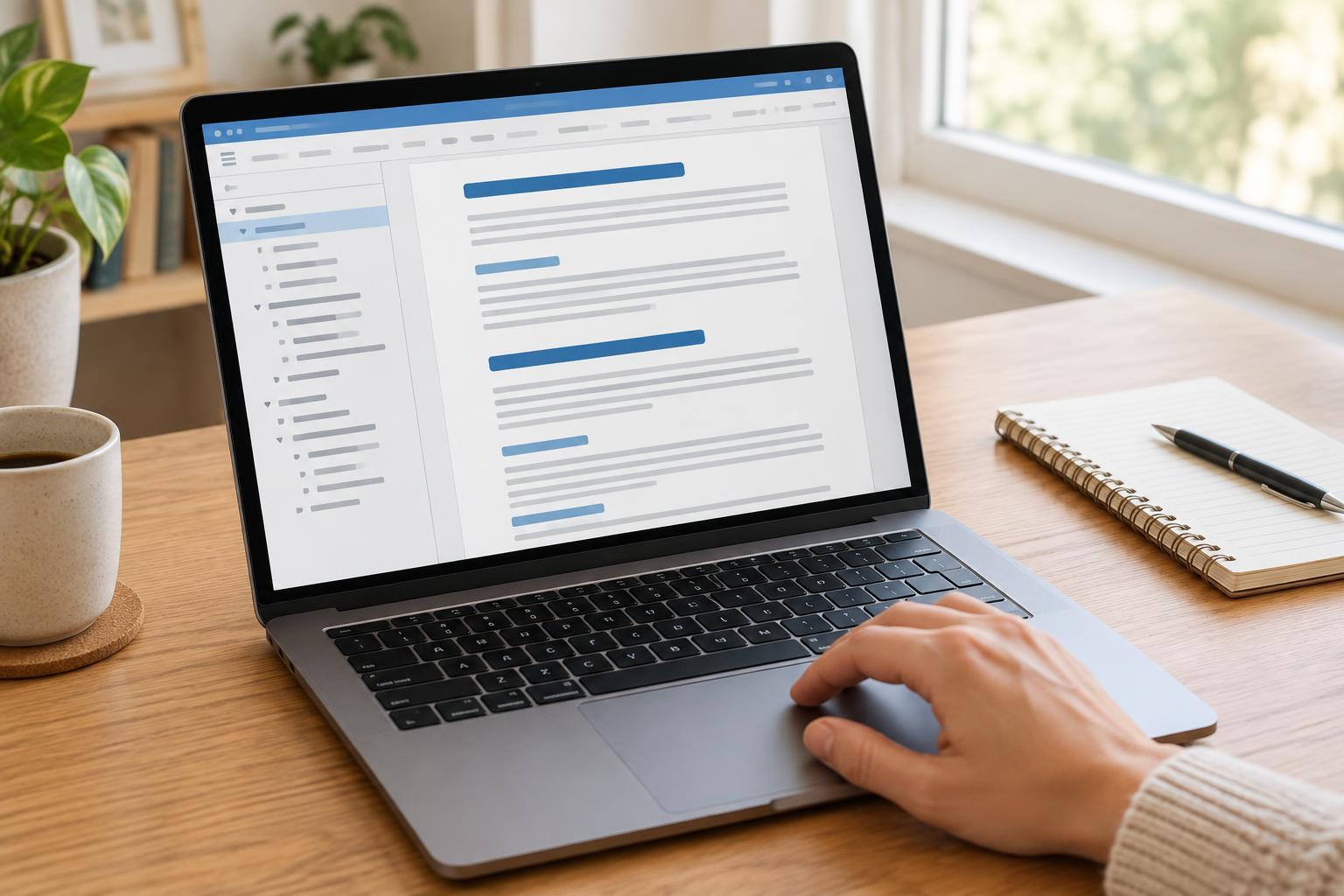
Once styles are in place, open your word processor’s navigation pane or outline view if it has one. You should see the main sections and their subsections in order. Click a heading to check that it takes you to the expected place. Some programs also let you collapse sections or move them from the outline, which can make a large draft easier to reorganize.
Read the outline on its own. Does it give a reasonable summary of the document? Are two headings saying almost the same thing? Is an important topic buried under an unrelated section? Fixing those problems may improve the document more than changing fonts or spacing. Before sharing, scan the outline once more for empty headings, skipped levels, or ordinary paragraphs that were accidentally given a heading style.
Make the structure useful to others
Heading styles can support features such as an automatically generated table of contents. If your word processor offers one, insert it after the document structure is stable and update it after major edits. A table of contents is especially helpful when readers will download or print a lengthy guide, while the navigation pane is useful during on-screen editing.
If you export the document to PDF, check the result rather than assuming every navigation feature carried over. Export settings and software differ, so open the PDF and look for usable bookmarks or a document outline if those matter to your readers. Whatever format you share, meaningful headings and a consistent order make it easier for people to understand where they are and find their way back.