Start with a copy and choose a tool
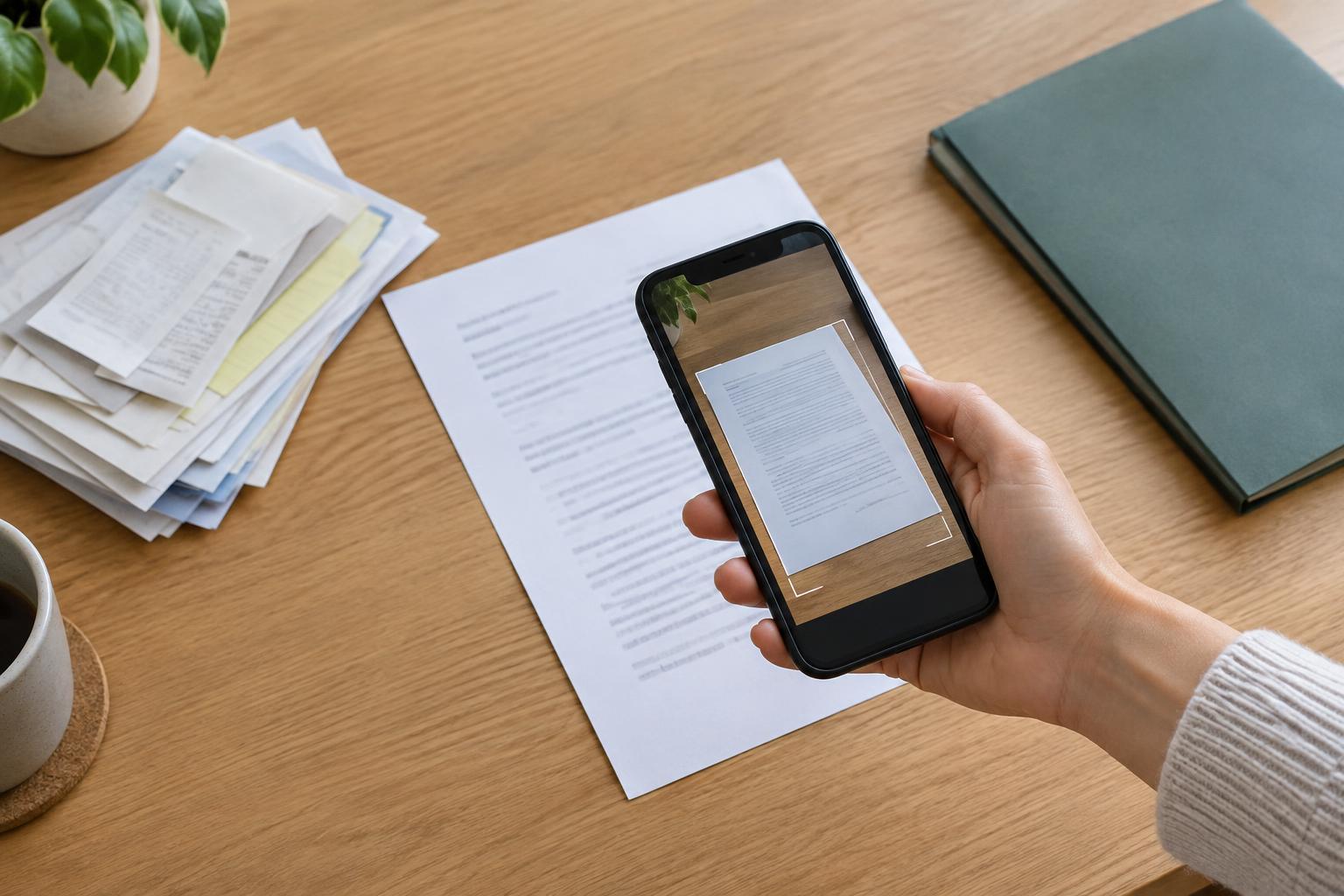
Download the PDF to your device and make a copy before changing it. Give the copy a name you will recognize, such as “Application-completed.pdf.” Keeping the original makes it easier to start again if text lands in the wrong place or a form behaves unexpectedly.
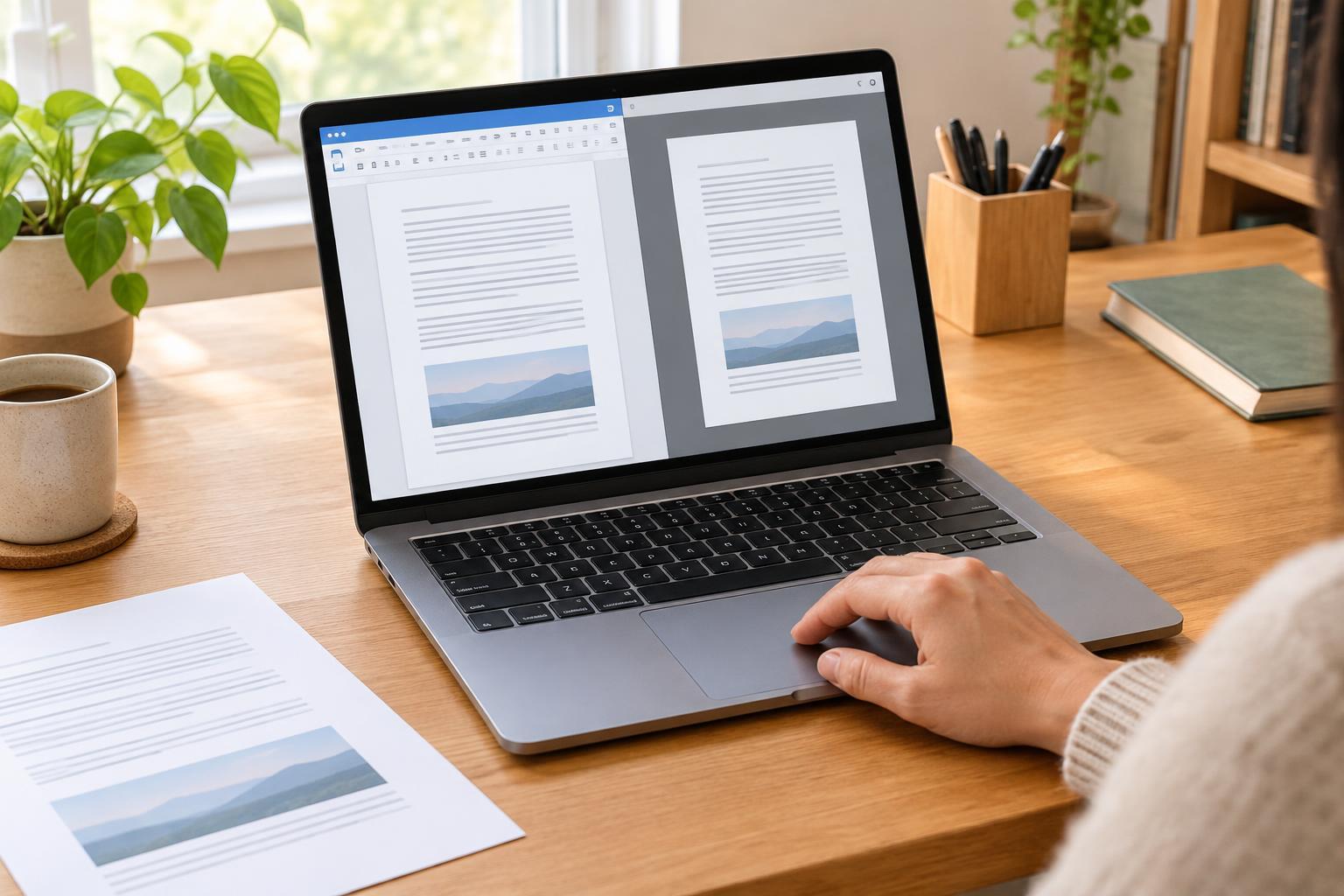
Open the copy in a PDF reader or editor you already have. Many desktop browsers, built-in preview apps, and mobile PDF apps can fill fields or add text, although their features vary. Look for controls labeled Fill, Edit, Annotate, Markup, or Sign. If you only need to complete a straightforward form, try a built-in tool first. You may not need to install anything or upload the document to a website.
Fill in fields, or add text if there are none
First, click or tap a blank area where an answer belongs. If a cursor appears inside a box, the PDF has an interactive form field. Type your answer, then move through the remaining fields with a mouse, touch, or the Tab key. Check boxes and menus may also be interactive. Save a draft partway through, especially if the form is long.
Some PDFs only look like forms: their blank lines are part of a flat page, so clicking them does nothing. In that case, use an Add text or Text box tool and position each answer over the appropriate space. Zoom in for accurate placement, and choose a readable text size. If the PDF is a scan, text-recognition software may make its contents searchable, but it may misread characters. You can still place text boxes over a scan without relying on recognition.
Add notes without obscuring the document
Annotation tools are useful when you need to ask a question, point out a correction, or draw attention to a passage. Common options include highlights, sticky-note comments, underlines, shapes, and freehand marks. Use comments for longer explanations rather than squeezing words into the page margin. If you are returning a form for processing, add only notes that the recipient has asked for or is likely to understand.
Keep annotations easy to read. A highlight may cover text in one app but appear faint in another; freehand writing can become hard to decipher when the page is viewed on a phone. After adding a note, zoom back out to check that it points to the right place and does not hide information. If the recipient needs a clean completed form, save an annotated working copy separately from the version you will send.
Choose the right kind of signature
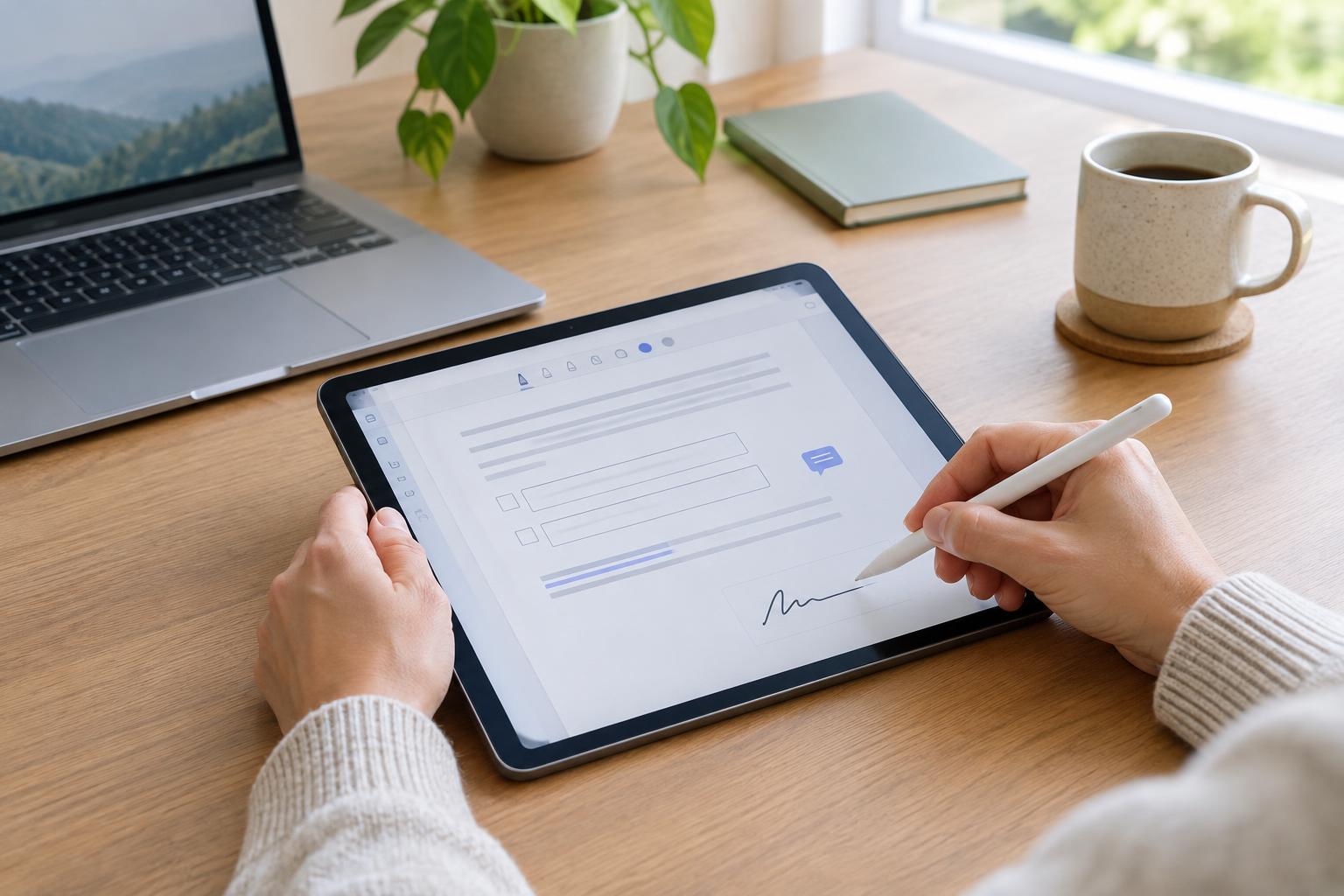
A PDF app may let you type your name, draw it with a mouse or finger, or insert an image of your handwritten signature. These methods place a visible signature on the page. Position it in the signature area, resize it if needed, and add the date separately when the form requests one. Avoid placing a signature image over text or leaving it stored in a shared app account unnecessarily.
A visible signature is not the same as every form of electronic or certificate-based digital signature. Some organizations require a specific signing service, identity check, or certificate, while others accept a simple signed PDF. Read the recipient’s instructions before choosing a method. If the document is important and the requirements are unclear, ask the recipient which type of signature they accept rather than assuming that a drawn name is sufficient.
Check, save, and share the finished PDF
Save the document, close it, and reopen the saved file. Review every page at a comfortable zoom level. Confirm that answers have not shifted, check marks remain selected, comments are visible if needed, and the signature is in the intended place. If your app offers an export or “print to PDF” option, use it only when necessary: it may turn editable fields into fixed page content and can affect accessibility or later corrections.
Before sharing, check the filename and destination. Forms can contain personal information, so avoid uploading them to an unfamiliar online editor merely for convenience. If you must use an online service, consider what information the file contains and whether you are comfortable with that service handling it. Send the completed copy through the channel the recipient specifies, and keep a copy of exactly what you sent.