Choose a scanning app that fits the job
A phone camera can photograph a page, but a scanning app offers tools better suited to documents. It can straighten a tilted page, crop out the table around it, improve contrast and combine several pages into one file. Some phones include these features in a built-in notes, files or camera app, so check what you already have before installing something new.
For a searchable file, look for a feature called text recognition, OCR or searchable PDF. This feature identifies words in the image so you may be able to search for them later. An ordinary photo or image-only PDF may look clear while containing no searchable text. App features vary: some recognize text automatically, while others require an extra step or offer the feature only for certain file types.
Before using an app for private papers, review where it saves scans and whether it sends them to a cloud account. Check which permissions it requests. Camera access is necessary to scan; access to every photo or contact on your phone may not be necessary for your task.
Prepare the page for a clear scan
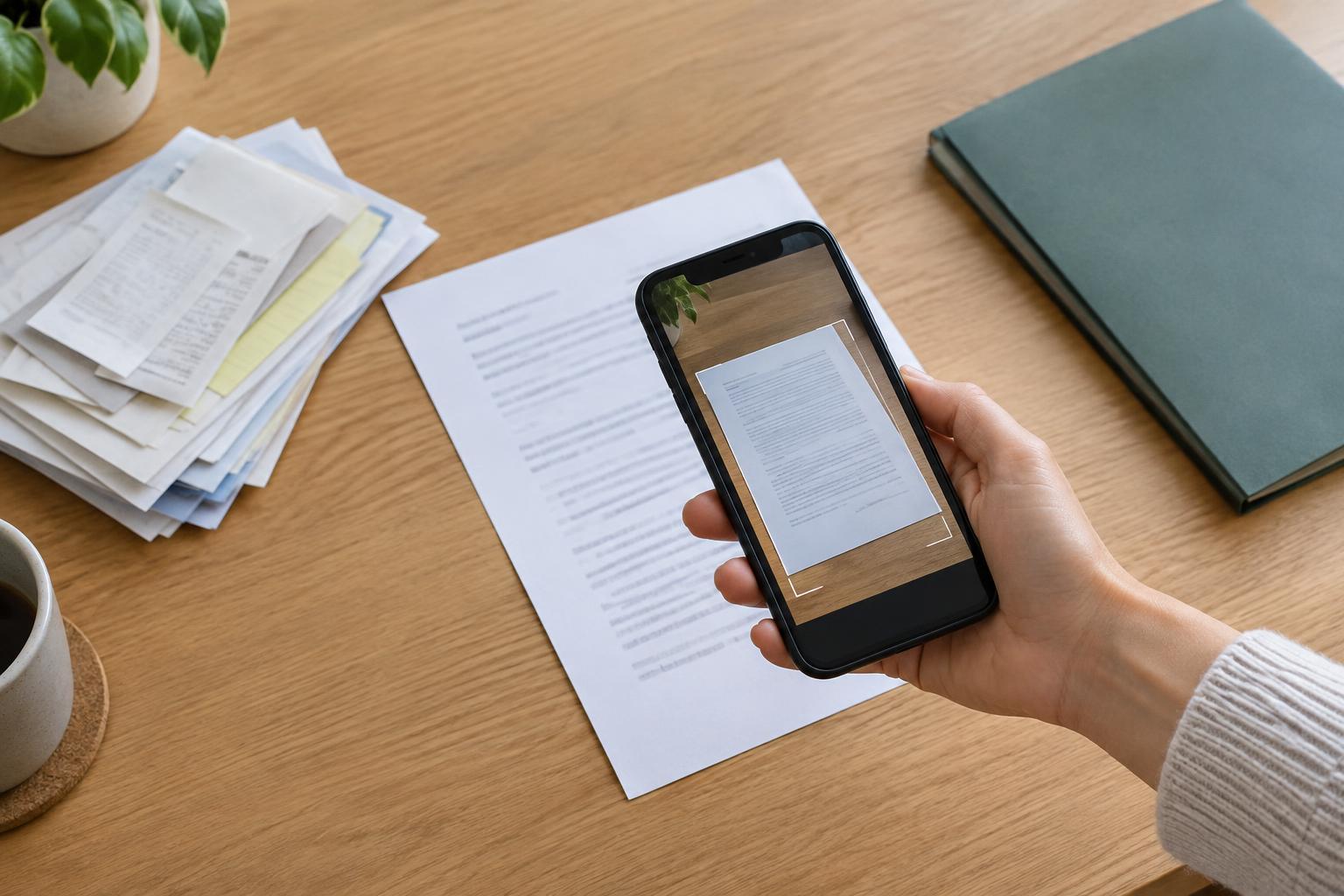
Place the document flat on a plain surface with its edges visible. Use bright, even light, but watch for shadows from your hand or phone. Glossy paper can reflect overhead lights, so moving the page or changing the angle may help. If the sheet is folded, flatten it gently before scanning.
Hold the phone steady and keep the whole page in the frame. Many apps detect page edges and take the picture automatically; you can usually capture it yourself if detection struggles. Afterward, inspect the crop. A neat-looking scan is not useful if it cuts off a signature, a page number or the last line of text. Adjust the corners when needed.
Choose a display mode that keeps the content readable. High-contrast black and white can work well for a clean printed letter, but color may be better for highlighted notes, stamps or diagrams. For a multi-page document, add the pages in order and review each one before saving the combined file.
Make the file searchable and check it
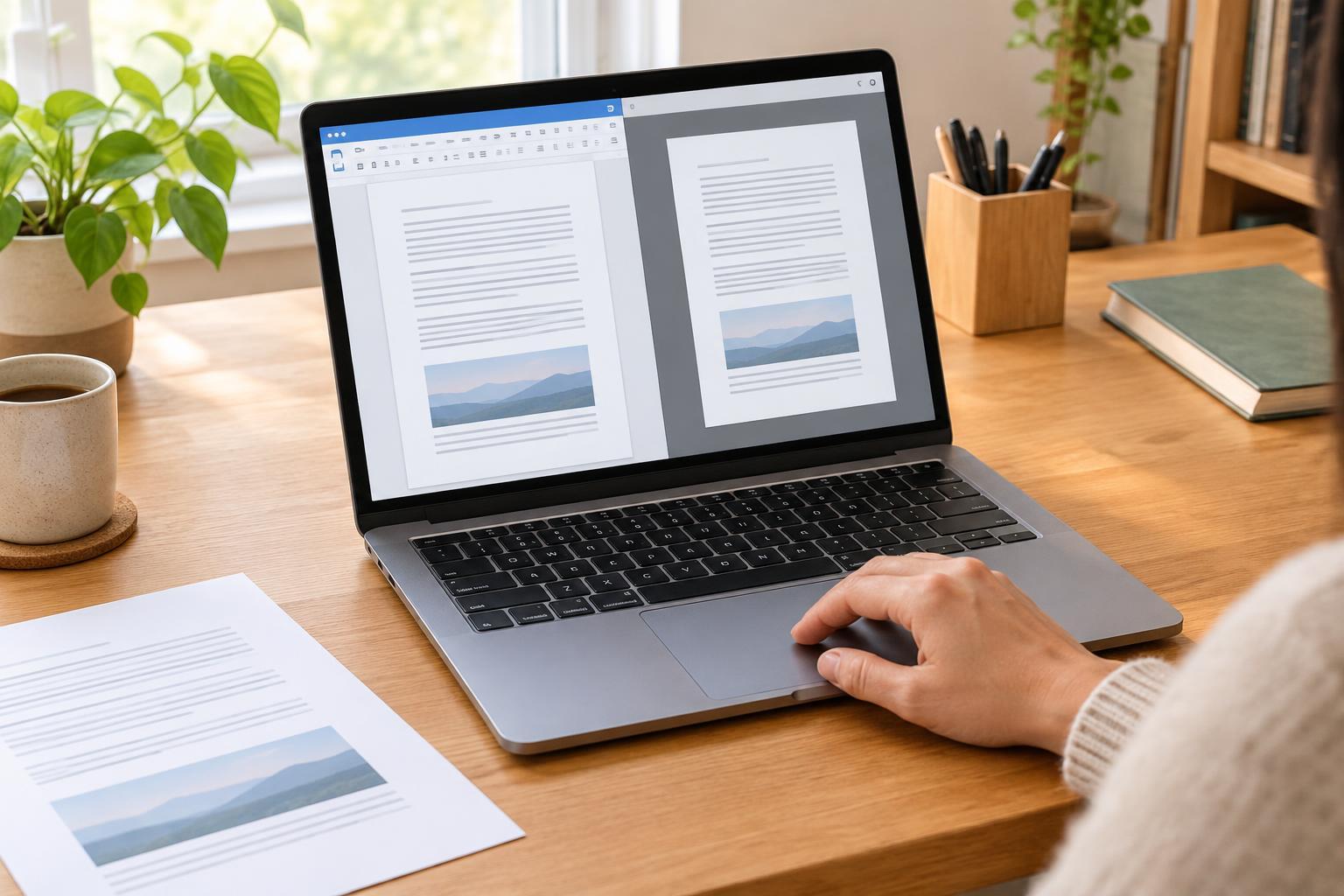
Once the pages look right, run the app’s text recognition feature if it has not already done so. Save or export in a format that preserves searchable text, often a searchable PDF. If you need to edit the wording rather than simply find it, the app may also offer a text export option. Keep the scanned image alongside extracted text when the original layout matters.
Test the result instead of assuming recognition worked. Open the saved file and search for an unusual word that is clearly printed on the page. If the app lets you select text, try selecting a sentence as another check. Search may fail because the file is image-only or because the app misread that particular word.
Text recognition is helpful, not exact. Small print, handwriting, faded copies and unusual layouts can cause mistakes. Compare any extracted text you plan to reuse against the page image, especially names, amounts and reference numbers. If a page is blurry, rescanning it is often easier than correcting many errors.
Name and store documents so you can find them
A searchable file is more useful when it also has a meaningful name. Replace a generic name such as “Scan 12” with a short description, such as “Library membership form” or “Appliance instructions.” Add a date to the name when it helps distinguish similar documents, using a consistent format so files sort predictably.
Create a small number of folders based on how you look for things: household, community activities, work or manuals, for example. Avoid making the system so detailed that filing becomes a chore. If you use cloud storage to reach files from different devices, check that a scan has finished uploading before relying on it elsewhere. An offline copy may be useful when you need access without an internet connection.
Decide whether to keep the paper original. Scanning can make everyday reference easier, but a digital copy may not replace an original document when a particular organization requires one. If you are unsure, retain the paper until you have confirmed what is needed.
Share carefully and maintain your collection
Before sending a scan, open the final file and check every page. Make sure it is readable, in the right order and free of unrelated pages captured by mistake. Share only the pages the recipient needs. If the document contains personal information, use a trusted sharing method and double-check the recipient rather than sending it to a large group or public link.
Periodically clear out test scans and duplicates, and make sure important files have a backup you can access. If you remove information from a copy before sharing, use a proper redaction feature and verify that the hidden text cannot be selected or recovered; simply drawing a dark mark over text may not remove the underlying content.
A simple routine makes scanning less of a project: capture the page clearly, confirm that its text is searchable, give it a useful name and put it in the right place. Those few checks turn a quick phone scan into a file you can reliably use later.