Why export a PDF?
A PDF is useful when you want someone to read or print a document without needing the app you used to create it. It usually preserves the page layout more consistently than an editable document. That makes it a good choice for a notice, application, meeting agenda or finished report.
Keep the original editable file too. A PDF is not always convenient to revise, and exporting again is usually simpler than trying to edit the PDF. Before you begin, make your changes in the original document and save it. Then give the PDF a final check: an export can succeed even when a page break, image or font does not look the way you expected.
Prepare the document before exporting
Read through the document in your writing app first. Check the title, spelling, page numbers and any details a reader will rely on, such as a meeting location or contact address. If the document contains comments, tracked changes or notes meant only for you, decide whether they should be removed or hidden before sharing. Hiding them in the editor does not necessarily guarantee they will be absent from every export setting, so check the finished PDF as well.
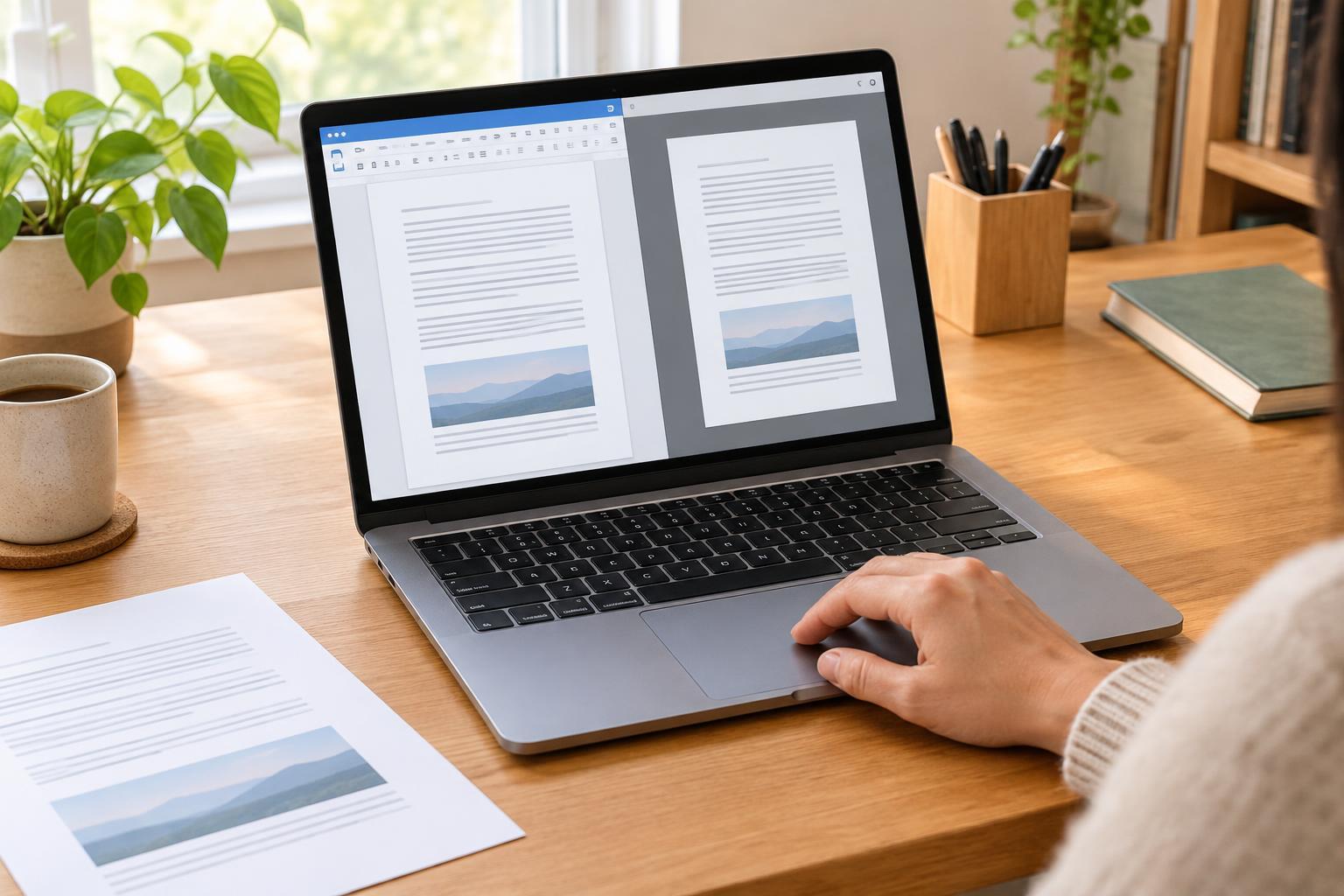
Look at the page layout, especially where tables, images and headings meet the bottom of a page. A heading stranded on its own can make a document harder to follow. Use your app’s page preview if it has one. If people may read the PDF using assistive technology, use real headings and meaningful link text in the original document rather than relying only on bold type or pasted web addresses. Exporting may preserve some of this structure, depending on the app and its settings.
Export and name the file
In many writing apps, PDF is under File, then Export, Download or Save As. Some apps offer a PDF option under Print instead. On a phone or tablet, look in the app’s Share or menu options. Choose PDF, select where to save it, and confirm. Menu names vary, but the goal is to create a separate file ending in .pdf, not to replace your editable original.
If the app offers export choices, select the pages you actually want to share. A standard or high-quality option is usually appropriate for a document with images; a smaller-file option may be more convenient for email but can make images less clear. If you are unsure, start with the standard setting and judge the result after opening it.
Use a filename that helps both you and the recipient identify the document, such as Community-meeting-agenda.pdf. Avoid names like final-final if several versions may circulate. Save it somewhere you can find it again, such as a clearly named folder, rather than assuming it will appear in your recent files.
Open the PDF and inspect it
Open the newly created PDF in a PDF reader or browser. Do not rely only on the thumbnail in your file manager. Check that it opens, that the page count is right, and that the first and last pages contain what you intended. Then scroll through every page, looking for cut-off text, blank pages, misplaced images, odd characters and tables that run beyond the page edge.
Try any links or bookmarks that readers will need. Zoom in to check small text and zoom out to see the overall page layout. If the document will be printed, a print preview can help you spot awkward margins or page breaks without using paper. For a document intended to be accessible, check whether text can be selected in a sensible order and whether headings are available to a PDF reader, if it provides a navigation panel. These quick checks do not prove that a PDF is fully accessible, but they can reveal problems worth fixing in the original.
Check the file before sharing
Make sure the PDF is the version you mean to send. If you changed the original after exporting, create a fresh PDF and check it again. Inspect any sensitive content too: names, addresses, comments or details in an image may be easy to miss. Cropping a page or covering text visually may not remove information from the underlying file. For anything confidential, use an appropriate redaction tool or remove the information from the original before exporting, then verify the new PDF.
Finally, attach or upload the PDF itself and confirm its filename in the message or upload form. If the recipient needs to make changes, ask whether they also need an editable copy. A short routine—save the original, export, open the PDF, inspect it and then share—helps prevent the most common surprises.