Get ready before you start
Online forms are used for everything from joining a community group to requesting an appointment. Some take only a minute; others ask for details you may need to look up. Before typing, scan the page for instructions, required fields, a list of documents, and any indication that the form has a time limit. If you will need an account, check that you can sign in before gathering the rest of your answers.
For a longer form, prepare information you are comfortable providing in a separate document or note. This can make it easier to check names, addresses, and longer written answers, and it gives you a copy if the page closes unexpectedly. Avoid keeping sensitive details in an unprotected note on a shared device. If you are using a public computer, consider whether you can complete the task on a device you control instead.
Work through fields one at a time
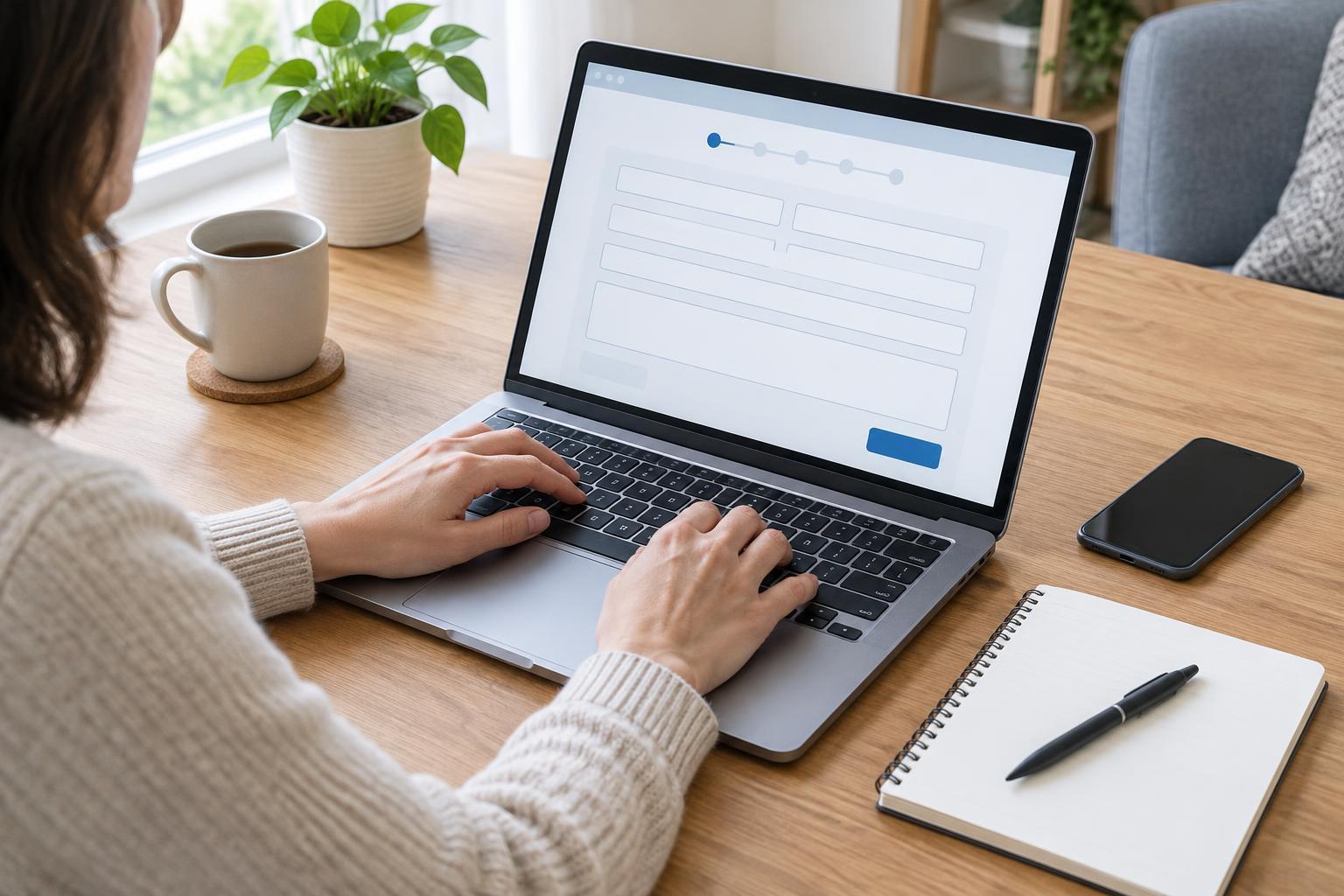
A field is a place where the form asks for an answer. Some accept free text, while others use checkboxes, menus, or buttons that let you choose one option. Labels such as “required” or an asterisk often identify questions you cannot leave blank. Read the label and any example beside a field before entering information; a date or phone number may need a particular format.
On a computer, the Tab key often moves to the next field, though it is worth checking where the focus goes. On a phone, tapping a field usually opens the appropriate keyboard. If a menu seems difficult to use, try tapping its label or opening it with the keyboard. Move slowly enough to notice whether an answer was selected: a tap near a checkbox does not always change it.
Protect longer answers and watch for interruptions
Forms do not all save progress in the same way. Some save each page, some save only when you press a button, and others discard unfinished answers if you leave. Do not assume that “Next” means your work is permanently saved. Look for options such as “Save draft” or “Continue later,” and note whether using them requires you to sign in. If the form gives no clear save option, finish it in one sitting when possible.
For a long written answer, drafting it elsewhere first can reduce the risk of losing it to an accidental page refresh. Copy it into the form, then reread the pasted text to make sure it is complete. Avoid opening the same unfinished form in several tabs, since it may become unclear which copy contains your latest changes. If you need to pause, follow the form’s own instructions rather than relying on the browser’s Back button.
Review messages before you submit
When a form rejects an answer, look near that field and at the top of the page for an error message. The problem may be a missing required answer, an unsupported character, or a value entered in the wrong format. Correct the named field and check that other answers remain in place. If the message is unclear, compare your entry with any example provided, rather than repeatedly pressing Submit.
Before the final click, review the information most likely to cause trouble if mistyped: your contact details, selected options, and any date or reference number. Check that you understand what the submission button does. If the form includes a consent checkbox, read its wording before selecting it. Submitting a form can be difficult to undo, even when an organization later allows corrections.
Confirm what happened and keep a useful record
After submitting, wait for the page to respond. A confirmation screen, reference number, or email may indicate that the form was received, but the exact process varies. If you see a reference number, record it along with the name of the form. If a confirmation email is expected, check the address you entered and allow time for it to arrive; its absence alone does not always mean the submission failed.
If the page freezes or shows a vague error, do not immediately send the form again. First check whether a confirmation appeared or an email arrived, especially if duplicate submissions could cause confusion. If you must ask for help, describe the point where the problem occurred without sharing passwords or unnecessary personal information. A simple record of what you submitted and when can make that conversation easier.