Start by protecting the original
Before editing, make a copy of the image. On a computer, you can duplicate the file in your file manager and give the copy a descriptive name, such as garden-photo-web.jpg. On a phone, look for a Duplicate option in the photo app. If there is no such option, open the image in an editor and use Save a copy or Export instead of Save. The wording varies between apps, so check where the new file will be stored before confirming.
Keep the untouched original in a folder you can find again. This matters because cropping discards parts of the picture from the exported version, and shrinking an image reduces the detail available in that version. An editor may offer an Undo button or let you reverse edits later, but a separate original is more dependable if you switch apps or share the file.
Decide whether to crop, resize, or do both
Cropping changes what appears in the frame. Use it to remove distracting edges, straighten the composition, or fit a particular shape. Resizing changes the image’s pixel dimensions, such as its width and height. Use it when a website asks for a smaller image or when you want a file that is easier to send. A picture can be resized without losing any of its edges, and it can be cropped without being made smaller in pixel dimensions afterward.
Consider where the finished image will go before you edit. A square profile picture needs a different crop from a wide banner. If someone has given you required dimensions, note them down. If not, avoid making the image smaller than necessary: you can usually produce another, smaller copy later, but enlarging a small export will not restore the detail that was removed.
Crop the copy with the subject in mind
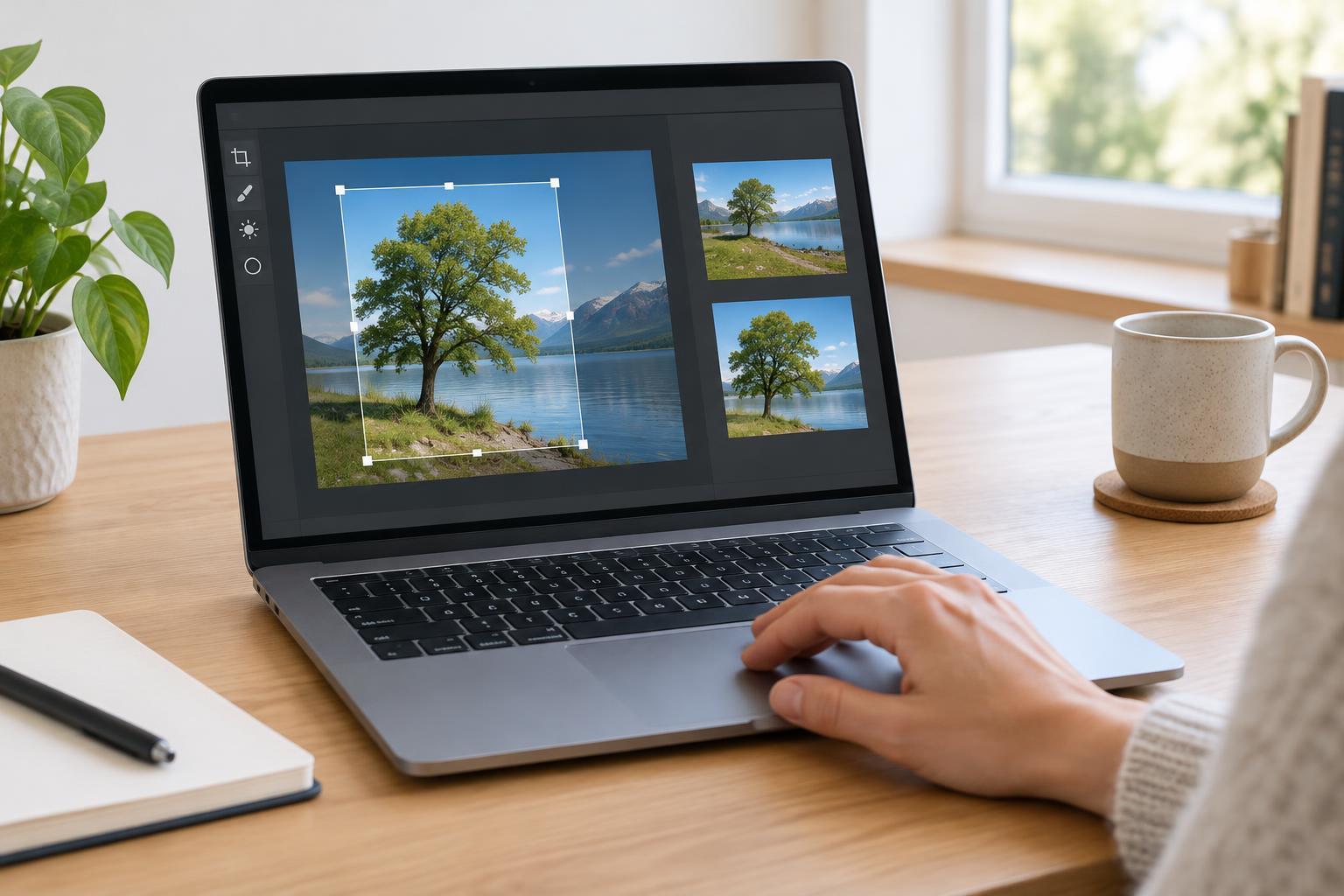
Open your duplicate or use an editor that can export a new file. Select Crop, then drag the frame to keep the important content. Many editors offer aspect-ratio choices such as square or 16:9. An aspect ratio describes the shape, not the size: a square crop can still be saved at many different pixel dimensions. Choose a fixed ratio if the destination requires one; otherwise, a free-form crop gives you more control.
Pause before applying the crop. Check that faces, text, and other important details are not too close to the edge, especially if the image may be displayed as a small thumbnail. If you are cropping a document or screenshot, make sure instructions, labels, and context needed to understand it remain visible. Apply the crop only when the frame includes everything your reader needs.
Resize without distorting the picture
Look for Resize, Image Size, or Export Size. Most editors let you enter a width or height in pixels. Keep the option called Maintain aspect ratio, Lock proportions, or a linked-chain symbol enabled. Then changing one dimension adjusts the other automatically. If you turn this off and enter unrelated values, people and objects may look stretched or squashed.
For everyday screen use, pixel dimensions are more useful than a resolution setting expressed in dots per inch. Think about how large the image needs to appear and follow any size limits supplied by the place you are uploading it. Reducing dimensions often reduces file size, though the result also depends on the file format and export settings. If you are unsure, make one moderately sized copy, view it at the size people will see, and adjust if needed.
Export, check, and name the finished copy
When you finish, choose Save a copy, Export, or Save as, and use a new filename. For example, garden-photo-square-800px.jpg tells you both the crop and the width. JPEG is commonly useful for photographs; PNG can work well for screenshots or graphics with sharp text. If the editor offers a quality control, check that the exported image still looks clear rather than choosing the smallest possible file automatically.
Open the exported file outside the editor. Confirm that it has the right crop, is not distorted, and is readable at its intended viewing size. Check its pixel dimensions in the file information if you have a specific requirement. Finally, make sure the original is still present. If you used an online editor, consider whether the picture contains private information before uploading it; an editor already installed on your device may be a better choice for sensitive images.