What a ZIP file does
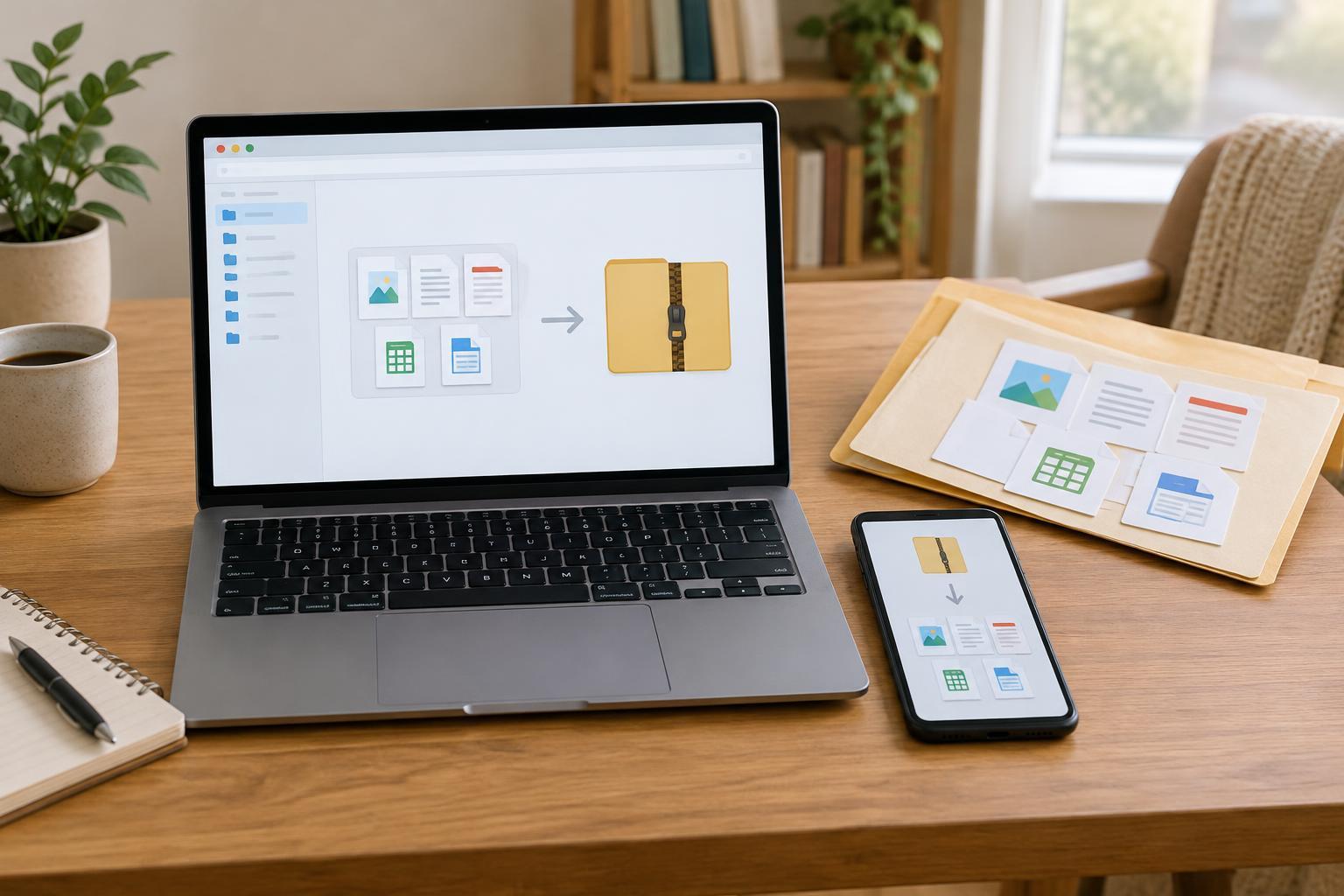
A ZIP file is an archive: a single file that can hold other files and folders. It is useful when you need to send a group of documents, keep a project together, or make a collection easier to move. Its name usually ends in .zip. Many computers and phones can create and open ZIP files without installing extra software.
ZIP files can also reduce the space some files use, but the savings vary. Text documents may become noticeably smaller, while photos, videos, and other files that are already compressed may change very little. If a service has an upload size limit, check the finished ZIP file’s size rather than assuming it will fit. A ZIP file organizes its contents; it does not, by itself, make them private.
Prepare your files before compressing them
First, gather the items you want to include. If they belong together, place them in a clearly named folder, such as Community meeting notes. Open that folder and check for drafts, duplicate files, or personal information you did not mean to share. Give important files descriptive names so someone receiving the archive can understand its contents after extraction.
Decide whether to compress the folder itself or select the files inside it. Compressing the folder usually gives the recipient one containing folder when they extract the ZIP file. Compressing only the contents may place those items directly in the extraction location. Either approach works, but keeping a containing folder can make a collection easier to find.
Create a ZIP file on a computer or phone
On Windows, find the files or folder in File Explorer, select them, then right-click. Look for a command such as Compress to ZIP file or Send to, followed by Compressed (zipped) folder. On a Mac, select the items in Finder, control-click or right-click, and choose Compress. The wording and location of these commands can vary by operating system version. A new .zip file should appear nearby; rename it if the default name is unclear.
On a phone or tablet, start in its file-management app rather than in a photo viewer or messaging app. Select the files or folder, open the more-options menu, and look for Compress or a ZIP option. Some devices or apps may not offer this feature. If you cannot find it, you can create the ZIP file on a computer or use a file-management app you trust. Before sending the archive, open it to confirm that the intended items are listed.
Extract the files when you need them
Extracting means unpacking a ZIP file so its contents are available as ordinary files and folders. On Windows, right-click the ZIP file and choose Extract All, then pick a destination and confirm. On a Mac, double-click the ZIP file in Finder; an extracted folder or group of files normally appears in the same location. On a phone or tablet, tap the ZIP file in a file-management app and follow its extract or uncompress option. If prompted, choose a location you will remember, such as a project folder.
After extraction, open the destination folder and check that the files are present and readable. If you cannot find them, look beside the original ZIP file or check the destination shown in the extraction prompt. You may still have both the ZIP file and the extracted copies, so deleting one does not necessarily delete the other. Keep the original until you have confirmed that the extracted files work.
Share and open ZIP files with care
Before sharing, check the archive’s name, contents, and size. A ZIP file makes a group of files convenient to send, but it does not remove sensitive details from the documents inside. Some ZIP tools offer password protection, though the available methods differ. If confidentiality matters, use a sharing method with appropriate access controls rather than relying on an ordinary ZIP file.
Treat an unexpected ZIP attachment as you would any other unexpected file. Confirm with the sender through a channel you already trust before opening it, and be cautious about running programs found inside. If extraction fails, the download may be incomplete or the archive may be damaged. Try downloading it again or ask the sender to create a new ZIP file. If it asks for a password you do not have, request it from the sender through a separate, trusted channel.