What a default app does
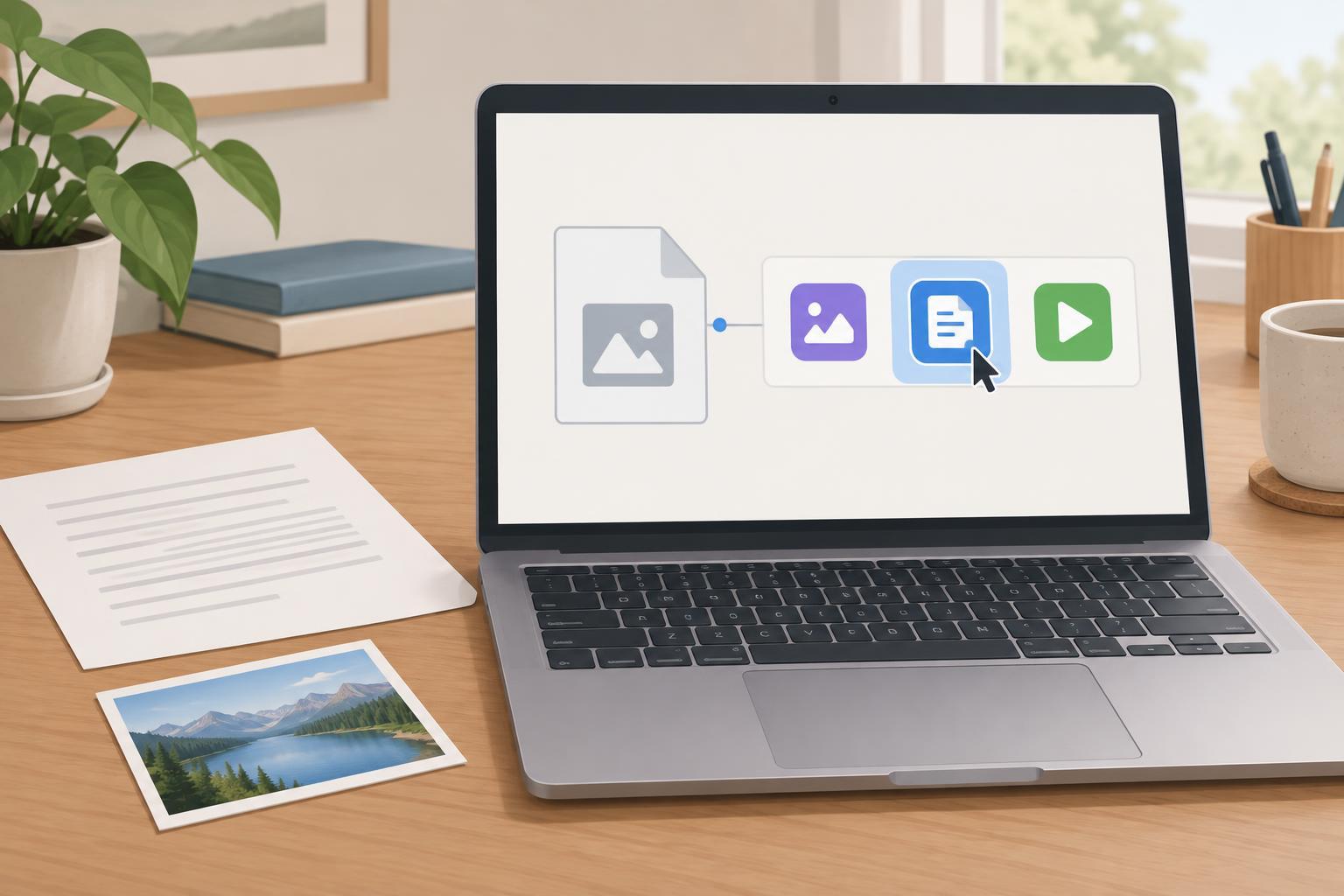
When you double-click or tap a file, your device chooses an app to open it. That choice is called a default app. For example, PDF files might open in a web browser even though you prefer a PDF reader. Changing the default tells your device which compatible app to try when you open that kind of file in the future.
A default is usually tied to a file type, such as .pdf, .jpg or .txt. Changing it does not convert your files or change their contents. It may not affect files opened from inside another app, such as an email attachment displayed in an email preview. If you only need a different app once, look for an “Open with” option instead of changing the default.
First, identify the file and a suitable app
Check the file’s name and type before making a change. The letters after the final dot in a filename are its extension: “meeting-notes.pdf” is a PDF, while “meeting-notes.docx” is a word-processing document. Some devices hide extensions. On Windows, File Explorer can show them through its View options; on a Mac, you can select a file and choose Get Info to see its kind.
Choose an app that actually supports the file type. A photo editor may open a .jpg image, for instance, but it may not handle a spreadsheet. If the app you want is not listed, make sure it is installed and try opening the file from within that app. Avoid renaming a file’s extension just to make it appear compatible: a new name does not change the file’s format.
Change the default on Windows or macOS
On Windows, right-click a file of the type you want to change and choose Open with, then Choose another app if it appears. Select your preferred app and look for an option to always use it for that file type. The wording varies between Windows versions. You can also open Settings, go to Apps, then Default apps, and search for an app or a file extension such as .pdf. Select the listed default for that extension and choose a replacement.
On macOS, select a file in Finder and choose File, then Get Info, or press Command-I. Expand Open with, select the app you prefer, and click Change All to apply the choice to files of the same kind. Confirm if prompted. If you select an app without clicking Change All, the choice may apply only to the selected file.
These steps change what happens when you open a file through the usual file manager. If a file still opens differently from a particular website, cloud service or email app, check that app’s own download and preview settings.
What to expect on phones and tablets
On Android, open a file and check whether the device offers an app chooser with options such as Just once and Always. Choosing Always can set a default for that action. To undo a choice, open Settings, find Apps, select the app currently opening the file, and look under Open by default or Set as default. Menu names differ by device and Android version, and some file types are handled by the file manager rather than a system-wide default.
On an iPhone or iPad, there is not a universal setting for choosing a default app for every file extension. In the Files app, touch and hold a file to look for Open With, or use Share to send it to a compatible app. Some apps let you choose how they open or import files in their own settings. Default browser and email app settings are separate from choosing an app for a document or image.
If the change does not work
Try opening a different file with the same extension to see whether the change applies broadly or only to one file. Check that the preferred app remains installed and can open that file from its own menu. A damaged file, an unusual format or an app that supports viewing but not editing can make a default choice seem broken.
You can reverse a default change by repeating the same steps and choosing another app. Before opening an unfamiliar download, check where it came from and whether you expected to receive it. Choosing a different default app can make a file easier to use, but it does not make an untrusted file safe.