Start with what you need to complete the payment
An accessible payment option is one you can understand, operate and verify without unnecessary difficulty. Before opening a service portal, gather the bill, its reference number and any account details you may need. Decide whether you want to make a single payment, arrange future payments or simply check what you owe. This helps you avoid selecting a convenient-looking option that does not fit the task.
Think about the tools and conditions that make online tasks easier for you. You might need keyboard navigation, a screen reader, larger text, clear instructions, extra time or a way to pause and return later. If you use a shared device, also consider whether you can finish the payment privately. Accessibility includes being able to review the amount and recipient before you commit, not just being able to reach the payment button.
Check the portal before entering payment details
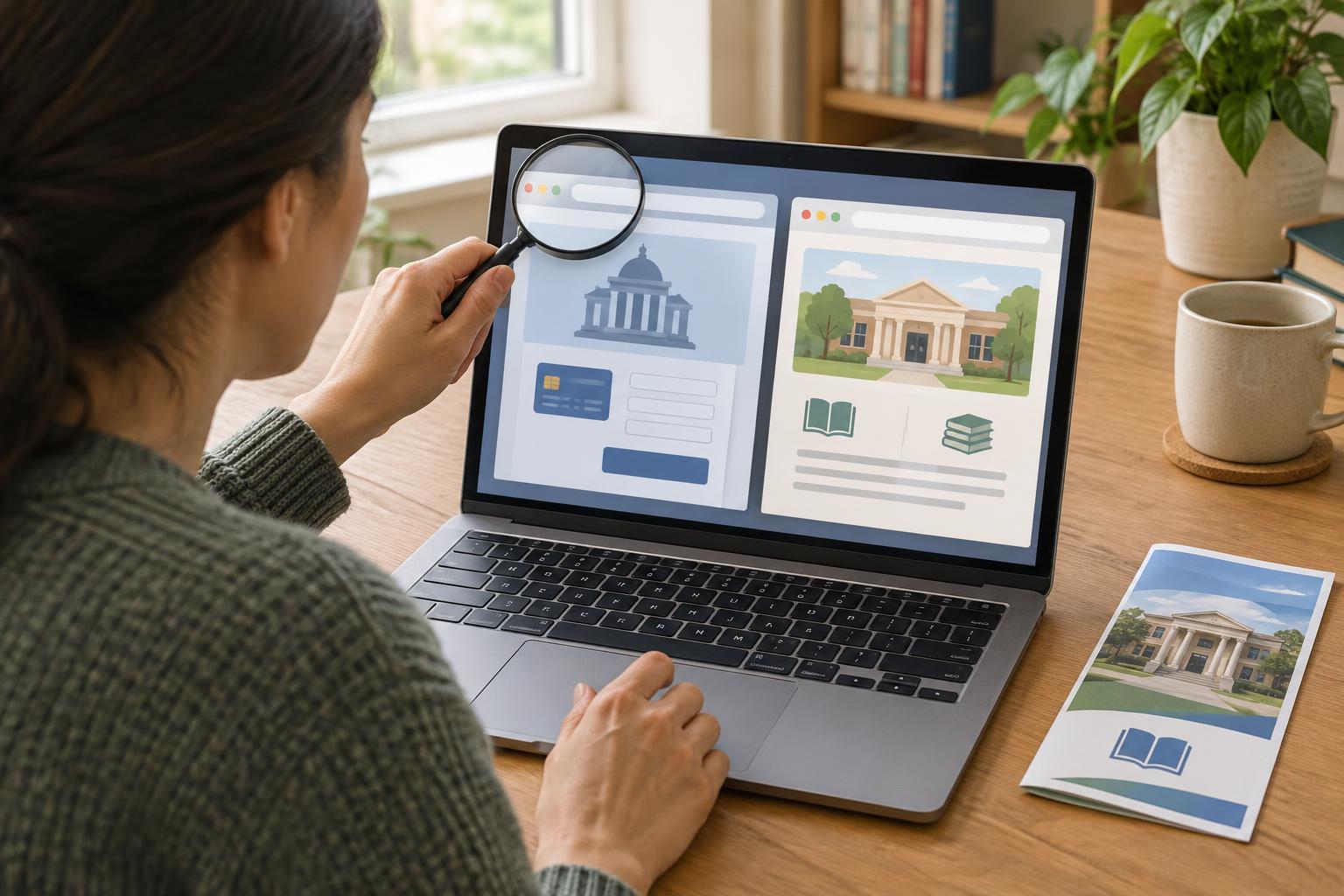
Open the portal through the service provider’s usual website or an address you have already verified, rather than relying on an unexpected message. Look for clear labels on fields and buttons. Try moving through the page with the Tab key if you use a keyboard. The focus should be visible, and you should be able to reach the amount, payment choices, review screen and help information without a mouse. If you use a screen reader, check whether it announces field names, errors and payment status in a useful order.
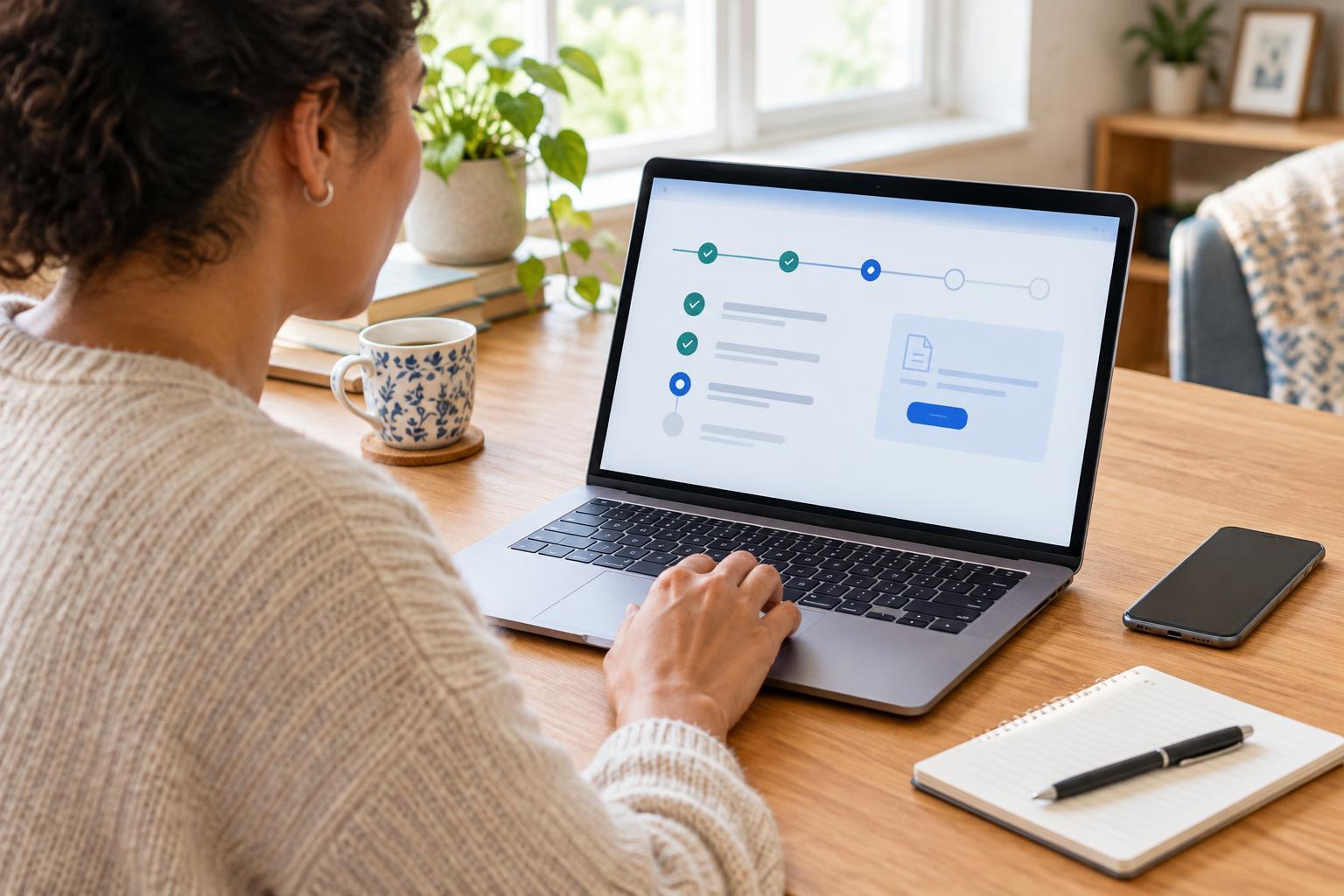
Notice how the portal handles mistakes and interruptions. A helpful form explains what needs correcting near the relevant field and preserves information you have already entered when possible. If there is a time limit, look for a warning or a way to request more time. Do not enter sensitive details just to test a page that you cannot navigate reliably. Instead, look for another supported payment route or contact the provider.
Compare methods by effort, cost and control
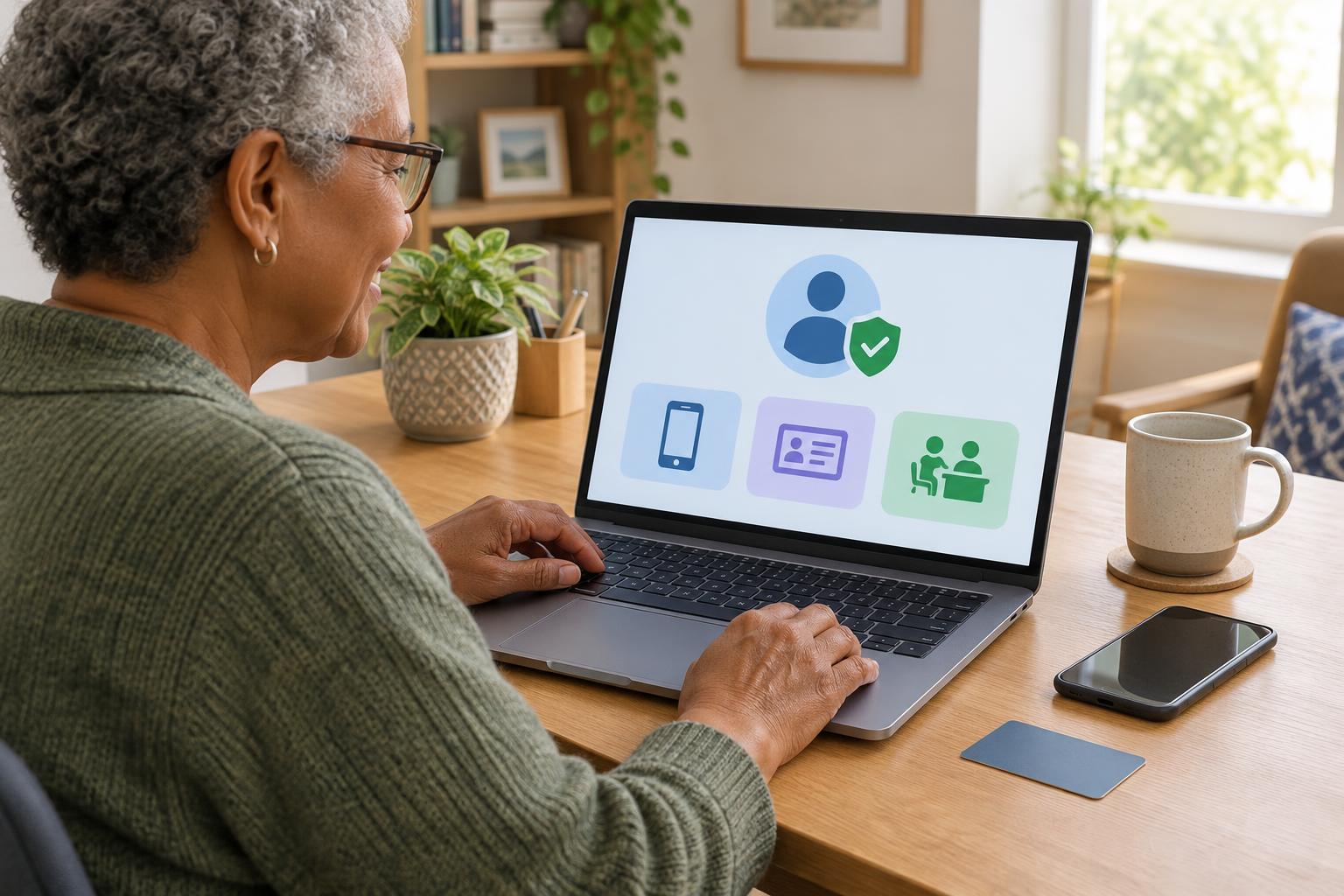
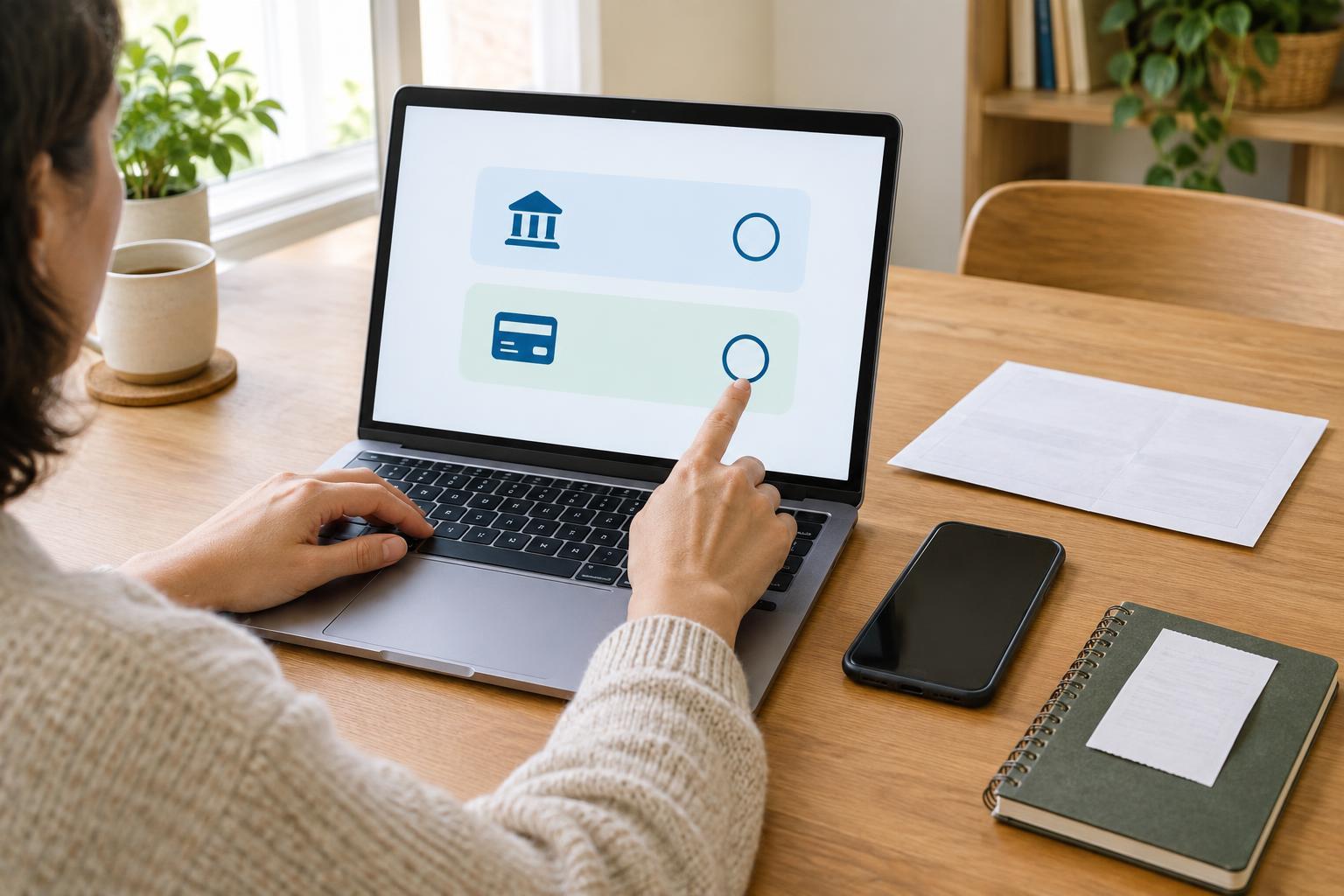
Portals may offer a card payment, a bank-based payment, a digital wallet or a recurring-payment arrangement. Availability varies by provider. Compare the steps each method requires, not just the number of buttons on the first screen. One method may send you to a separate sign-in page; another may require a code from your phone. Check whether those extra steps work with your device and accessibility tools before choosing.
Read any displayed fees, payment dates and confirmation details. If you need a bill paid by a particular deadline, check when the provider says it will count the payment as received; pressing “pay” may not always mean the account updates immediately. Recurring payments can reduce repeated form-filling, but they also require you to understand when money will be taken, how to review the arrangement and how to change or stop it. Choose the method whose terms and steps you can manage confidently.
Review the transaction and save proof
Before the final confirmation, check the provider name, bill reference, amount, payment method and any fee shown. If the page makes those details hard to find or read, take a moment to use your browser’s zoom controls or an assistive tool. Avoid submitting the form twice if it appears slow. Look for an on-screen status or check your account before trying again, since a delayed response does not necessarily mean the payment failed.
After paying, save the confirmation number, receipt or confirmation email somewhere you can find it. A downloaded receipt can be useful, but check that it opens and contains readable text if you depend on a screen reader. Record when you paid and which bill the payment covered. If the portal says the payment is pending, keep that status separate from a completed confirmation and follow the provider’s instructions for checking it.
Use another route when the portal is a barrier
You do not have to keep struggling with a payment page that blocks you. Check whether the provider offers an accessible phone service, an in-person option or another way to pay. When asking for help, describe the specific barrier: for example, “I cannot reach the payment button using a keyboard” is more useful than “the site does not work.” Ask what information you need, whether any fee applies and how you will receive confirmation.
If a trusted person assists you, keep control of sensitive information where possible. Do not share a password or a one-time sign-in code simply because a page is difficult to use. For a lasting improvement, report the barrier to the provider and include the page or step where it occurred, the device or tool you used, and what you expected to happen. That feedback may help the provider identify a problem, while an alternative payment route lets you deal with the bill now.