What a security update does
A security update is a change to software that fixes a weakness someone might otherwise use to access a device, account or data. Updates can also repair bugs and improve how a product works, but security fixes are a particularly important reason to install them. A device does not need to seem broken to need an update: many weaknesses are not visible during ordinary use.
Phones, computers, web browsers and apps all need attention. So do less obvious devices, such as home routers, smart TVs and printers. Keeping them updated reduces avoidable risks, though it cannot prevent every scam or security problem. Strong passwords, care with unexpected messages and regular backups still matter.
Find updates through trusted settings
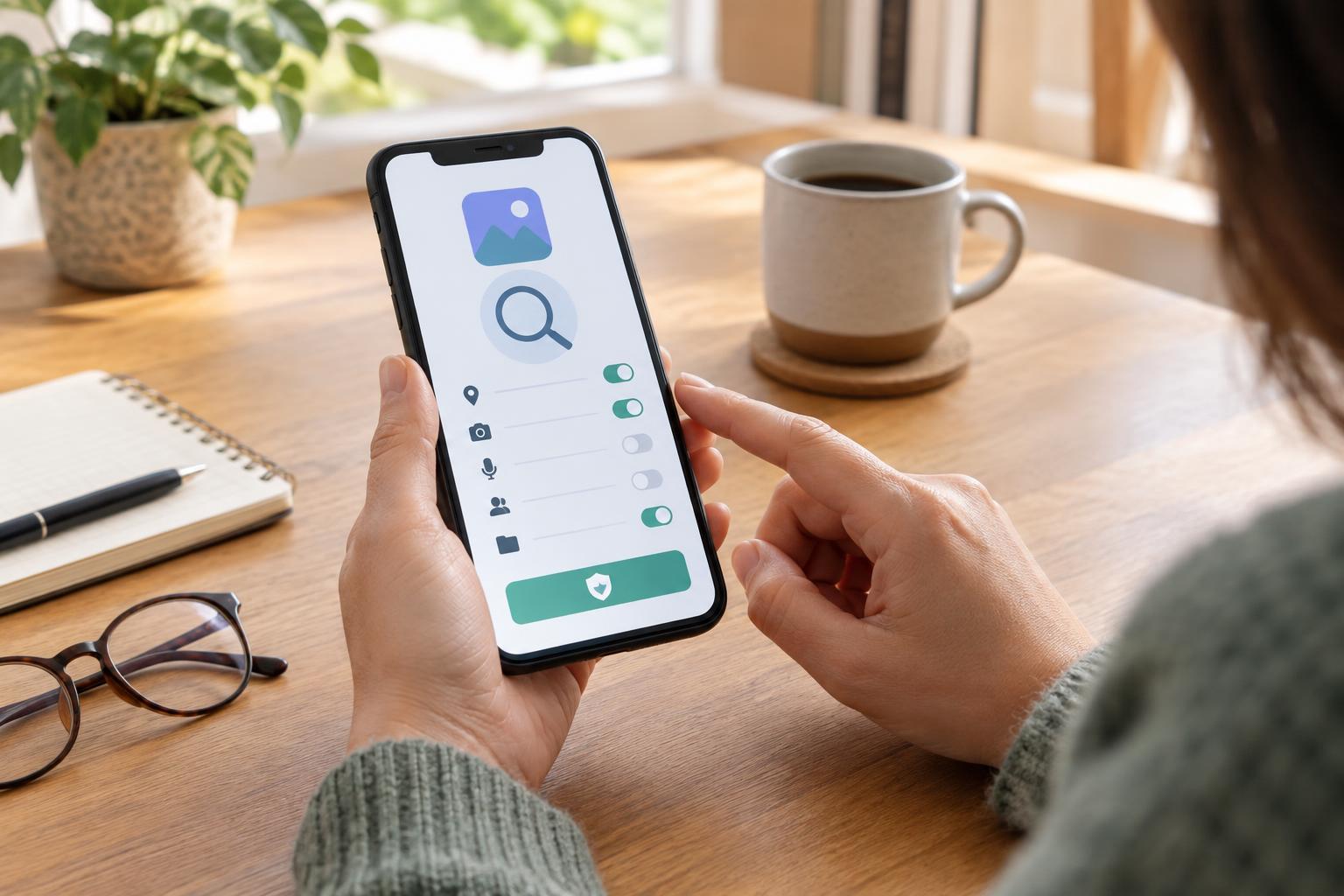
The safest starting point is the device’s own settings or the app store you normally use. On a phone or tablet, look in Settings for a system or software update option. On a computer, look for the operating system’s update settings. Web browsers often update automatically, but you can check their Help or About menu for the installed version and any available update. For apps, open your usual app store or use the update feature inside an app you obtained directly from its developer.
Be cautious if a pop-up, email or text message says your device is infected and demands an immediate download. An update notice can be genuine, but you do not have to follow its link to check. Close the message and open the relevant settings or app store yourself. Avoid installing an “update tool” from an unfamiliar website, and do not give someone remote access to your device just because they claim an update is required.
Install an update without losing your work
Before a substantial update, save open documents and, if possible, back up important files and photos. Connect a laptop or mobile device to power, or make sure its battery is well charged. A stable internet connection helps, especially when an update is large. If you rely on a limited data plan, check whether your device is set to download updates over mobile data and use Wi-Fi when that better suits your needs.
Open the trusted update settings, review what is offered and choose the option to download or install. Follow the prompts and allow the device to restart if asked. Do not turn it off while an update is actively installing unless the device’s instructions tell you to. After it restarts, return to the update screen to see whether another update is waiting. Some devices install updates in stages, and apps may have separate updates from the operating system.
If an update fails, note any error message and try again after checking the connection and available storage. Restarting the device may help. If the problem continues, use the device maker’s built-in help or official support information rather than trying a download from a search result you cannot verify.
Make updates a manageable habit
Automatic updates are useful because they reduce the number of fixes you have to remember to install. Check the settings for your operating system, browser and app store, and turn on automatic updates where they fit your needs. A device may still wait for a restart or for you to approve an update, so it is worth checking its update screen regularly. Pick a time when an unexpected restart will not interrupt an important task.
Shared devices need a little coordination. If several people use the same computer or tablet, agree on who will check for updates and when the device can restart. For a home router or another connected device, look for an update option in its management app or settings. If you are unsure how to access those settings, consult the instructions that came with the device or its maker’s support guidance.
Know when an update is not available
Older devices and apps may eventually stop receiving security updates. If a product says it is no longer supported, repeatedly checking for updates will not add new protection. Consider whether you can move to a supported app or device, particularly for activities involving sensitive accounts or personal information. Until you can make a change, avoid installing unfamiliar software and keep the rest of your devices and accounts well protected.
The goal is not to install every prompt the moment it appears. It is to have a reliable way to check, install genuine fixes and notice when something is no longer maintained. A few minutes spent reviewing update settings can make that routine much easier.