What a screen lock does
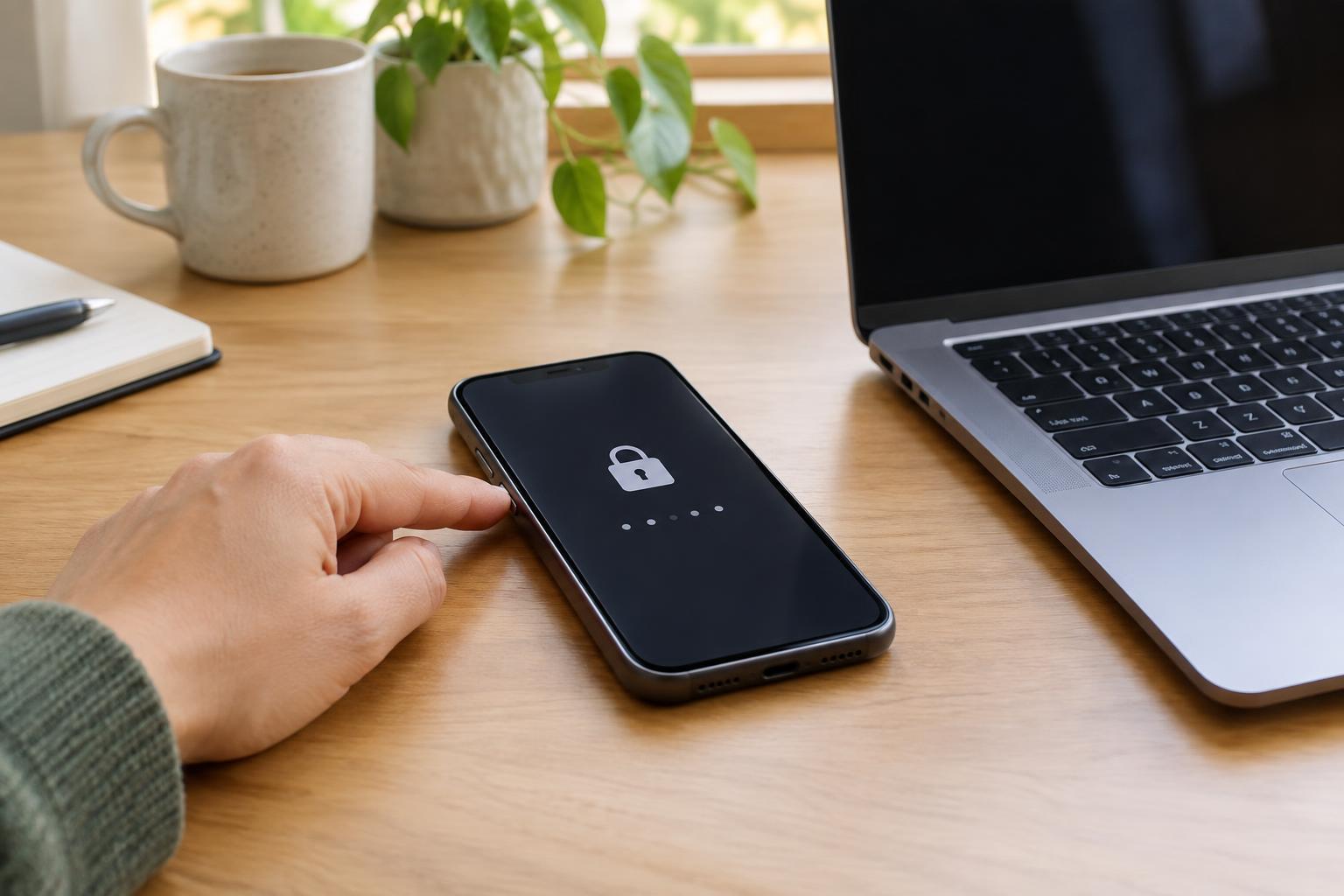
A screen lock asks for a PIN, password, pattern or another form of verification before someone can use your device. It is especially useful when you leave a computer on a shared desk, set a phone down in a public place or lose track of a device. A lock does not prevent every kind of security problem, but it puts an important barrier between a stranger and your messages, photos, files and signed-in apps.
Locking the screen is different from turning the device off. Your apps can remain open in the background, and you can usually resume where you left off after unlocking. For that reason, it is worth setting both an unlock method and an automatic lock: the first controls who can get in, while the second helps when you forget to lock the screen yourself.
Find the setting and choose an unlock method
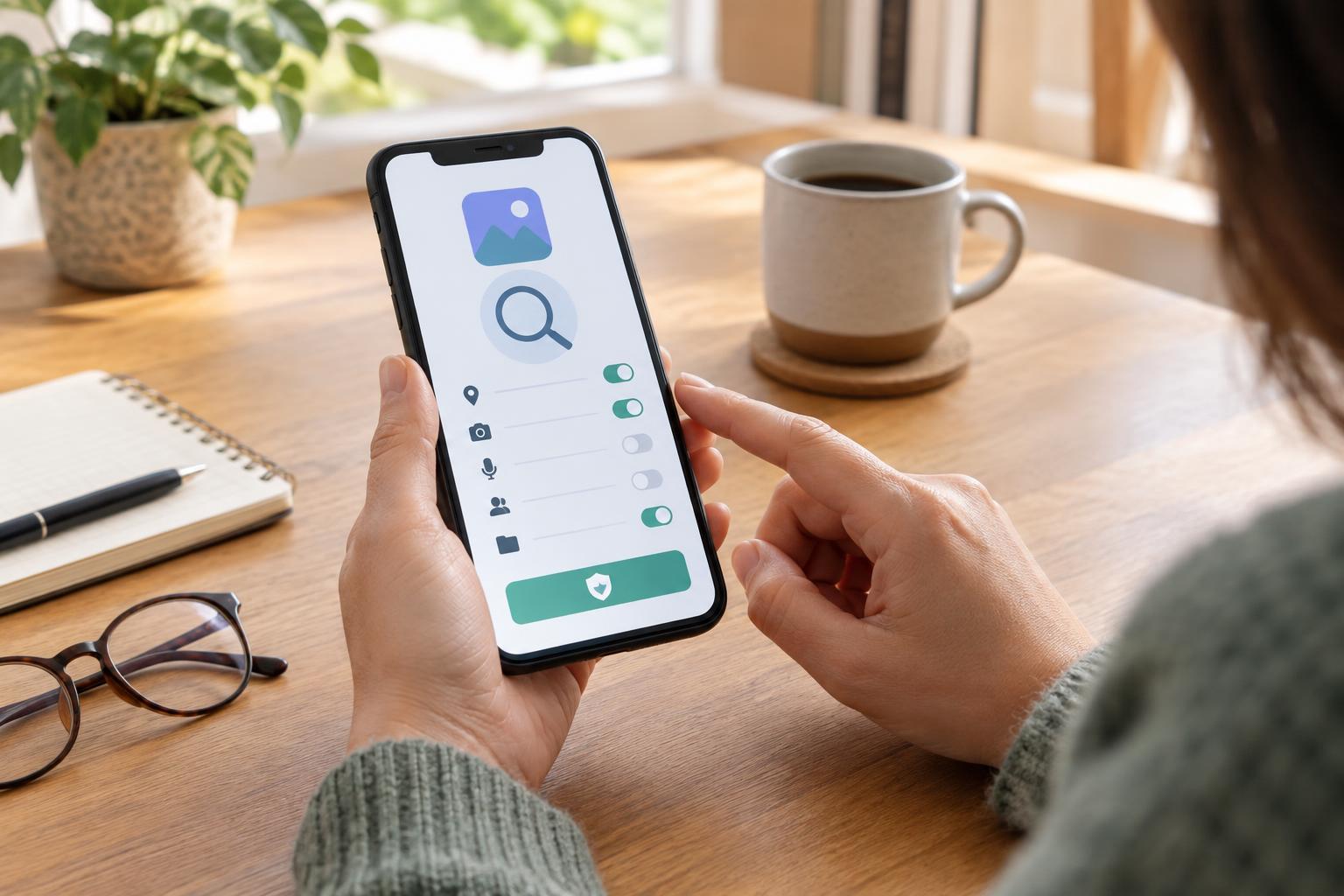
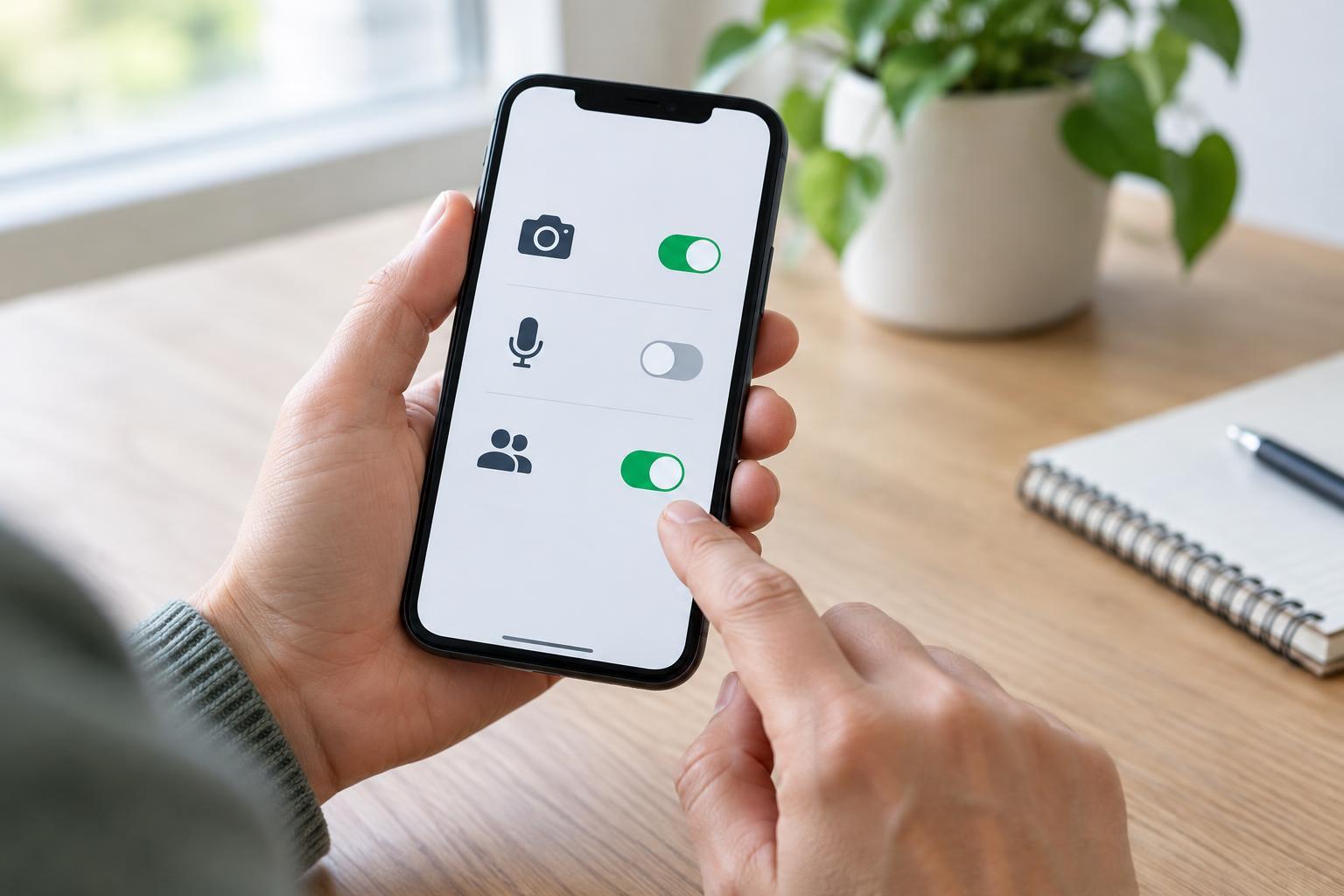
On a phone or tablet, open Settings and look for a section named Security, Lock screen, Passcode, Face ID, Touch ID or something similar. On a computer, check the system settings for Sign-in, Accounts, Lock screen or Security. Names vary by device and software version, so using the search box in Settings may be quicker than following a menu path from someone else’s device.
You will generally be asked to create a PIN or password before adding fingerprint or face unlocking. Choose something another person would not easily guess. Avoid simple sequences and information people may know about you, such as a birthday. A longer PIN or a strong password can provide better protection, provided you can enter it reliably. If your device offers a pattern, avoid an obvious shape.
Fingerprint and face unlocking can be convenient, particularly if typing is difficult, but keep the required PIN or password private: you may still need it after a restart or when biometric unlocking does not work. Follow the device’s prompts to register only your own fingerprint or face. If other people use the same device, consider separate user accounts where available rather than sharing one unlock code.
Make automatic locking work for you
Look for an option that locks the device after the screen turns off, after a period of inactivity or when it wakes from sleep. A shorter delay reduces the time an unattended device remains open. Choose a delay you can live with in everyday use, then shorten it if you notice the screen often stays accessible after you walk away.
Get into the habit of locking a computer before leaving your desk, even briefly. Most systems offer a Lock command in the main menu, and many have a keyboard shortcut. On a phone, pressing the power or side button will usually turn off and lock the screen, though it is worth checking that your settings actually require an unlock afterward.
After setup, test the lock. Close or put the device to sleep, wait for the chosen delay, then wake it and check that it asks you to verify your identity. If it opens straight to your apps, revisit the settings. Also check whether notifications show private message contents on the locked screen; many devices let you hide previews while still showing that a notification arrived.
Plan for access without weakening the lock
A useful lock should protect your device without making it impossible for you to use. If a code is hard to enter, explore accessibility options such as larger text, input assistance or biometric unlocking. Avoid switching the lock off merely because the first method you tried was inconvenient. You may be able to change the method or timing instead.
Before changing a code, check what recovery options your device provides and make sure you can access the account linked to it. Store important recovery details somewhere safe rather than in an unlocked note on the same device. If you forget an unlock code, the available recovery steps depend on the device; they may involve your account or a reset, and a reset can remove locally stored data. Regular backups make that possibility less disruptive.
Finally, remember that a screen lock protects access to the device, not every account on it. Keep important accounts protected with their own strong passwords and any additional sign-in protection they offer. Together with a working screen lock, these habits make it easier to use a device in shared spaces without leaving your personal information casually exposed.