Start with the source
Before you tap Install, check where the app came from. An official app store is usually a safer starting point than a download link in a message, advertisement or unfamiliar website. Stores may screen submissions and provide a place to report problems, but a store listing is not a guarantee that an app is safe. Be especially cautious if a message creates urgency or tells you to download an app to fix an unexpected problem with your device.
If a school, workplace, local service or company has asked you to install an app, find its official website independently rather than following a link you were sent. Check whether the site points to the same app and publisher shown in the store. Avoid installing a separate app file unless you have a clear reason to do so and trust the source; files obtained outside a store can be harder to assess and may miss some of the store’s safeguards.
Check who made it and what it promises
Read the publisher name carefully. Similar icons and names can make an imitation look convincing, especially when you are searching for a popular service. Compare the publisher, app name and description with information on the service’s official website. Look for a clear explanation of what the app does, who it is for and how to get support. Vague descriptions, inconsistent branding or a listing that promises many unrelated features are reasons to pause.
Ratings and reviews can add context, but do not rely on the overall score alone. Read a mix of recent and critical reviews to see whether people describe specific problems, such as unexpected charges, intrusive ads or features that do not work. Reviews can be incomplete or misleading, so treat them as one clue among several. If you cannot confidently identify the publisher, consider using the service’s website instead or looking for another app.
Match permissions to the app’s purpose
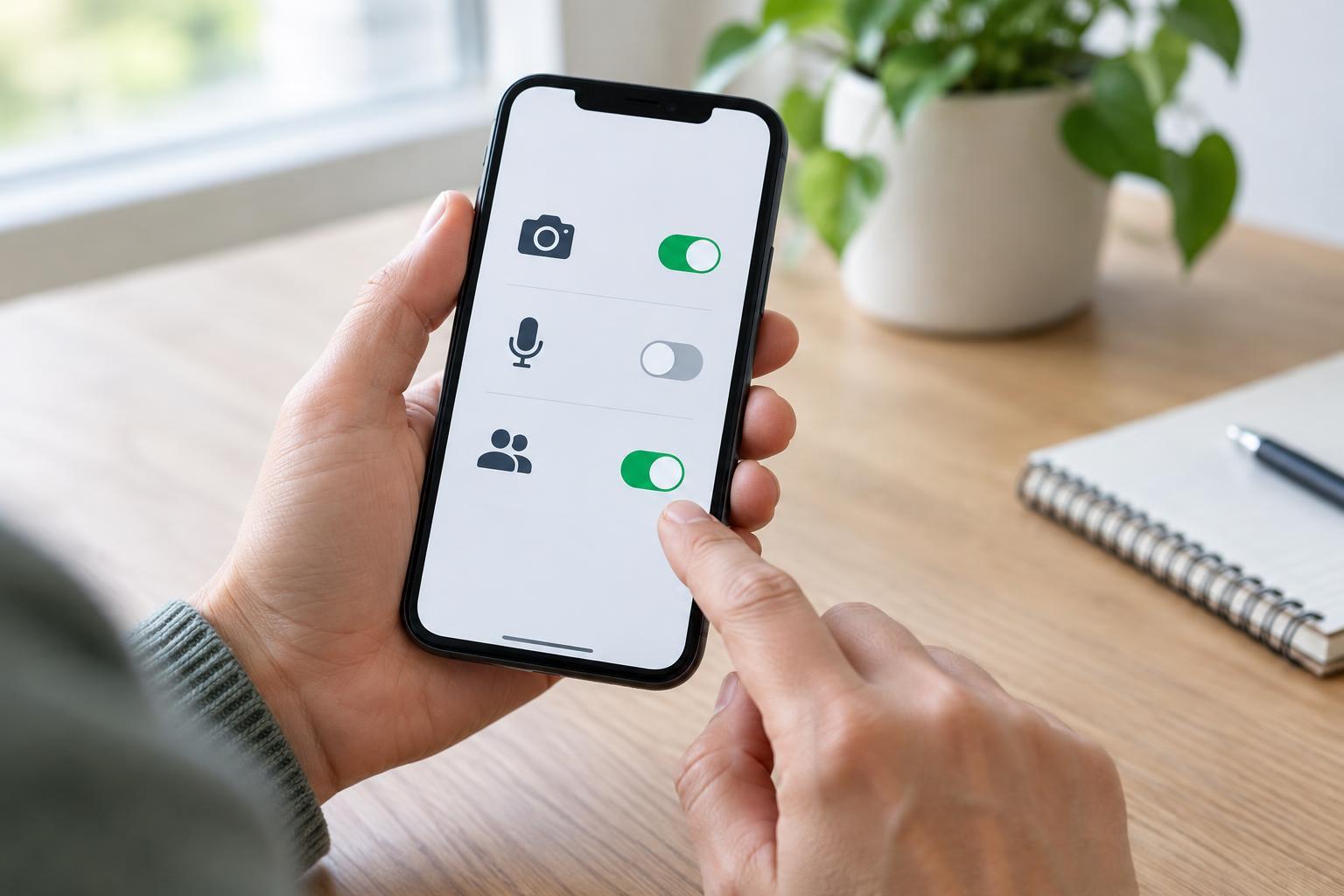
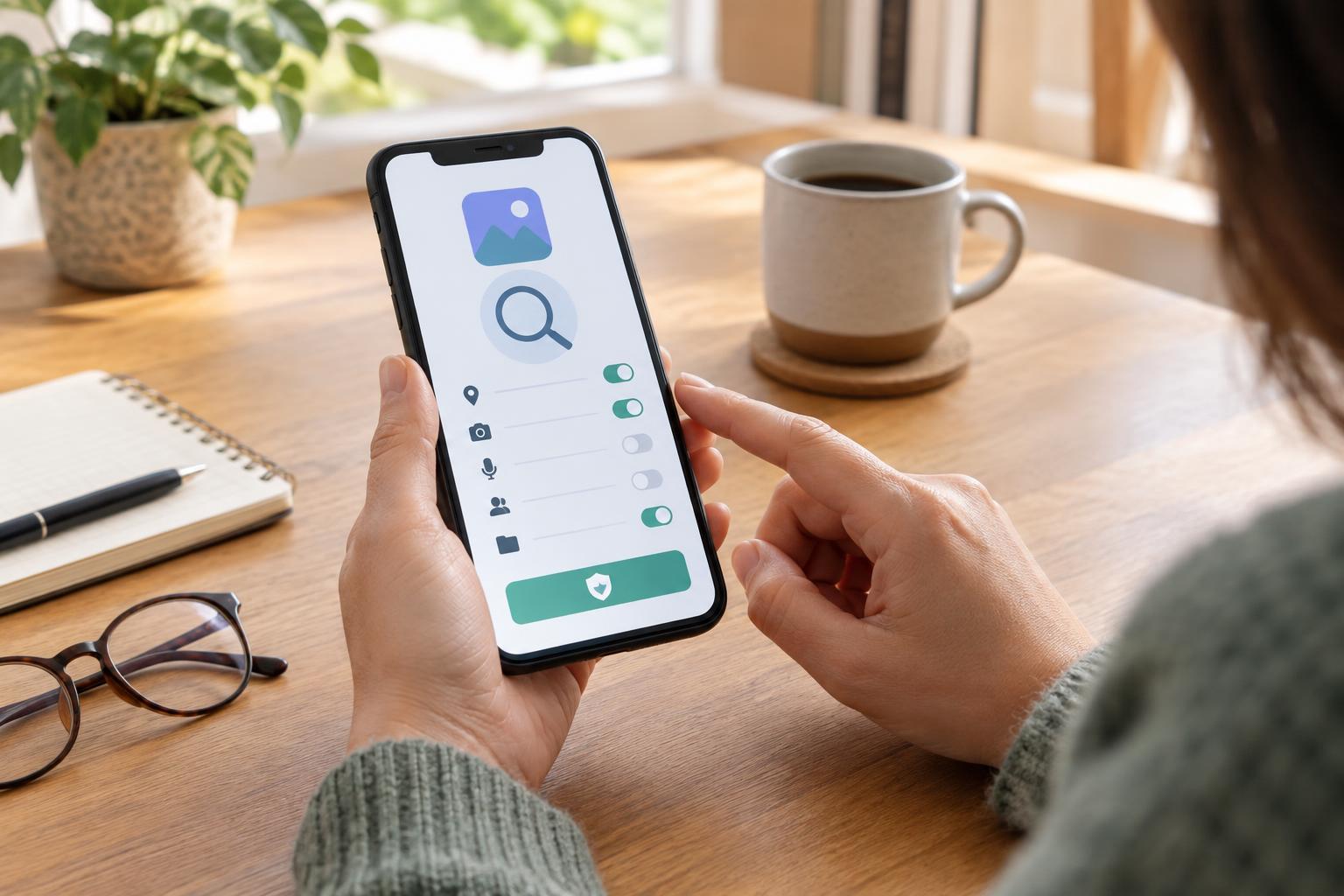
Permissions give an app access to parts of your device or personal information. Some are necessary: a video-calling app may need a microphone, for example. Others deserve a closer look. Ask whether the app’s main task requires access to your contacts, location, camera, photos or notifications. A request is not automatically suspicious, but the developer should be able to explain why that access helps the feature you want to use.
Permission prompts may appear during installation or only when you use a feature. When your device offers the choice, consider allowing access only while using the app, or choosing specific photos rather than an entire library. You can usually review permissions later in your device settings. If the app refuses to perform a basic task unless you grant access that seems unrelated, stop and decide whether an alternative would meet your needs.
Read the privacy and payment details
Look for a privacy policy that is easy to find and understandable enough to answer basic questions: what information does the app collect, why does it need it, and does it share information with others? You do not need to master every technical term. Focus on the data relevant to your use, such as your location, contacts, uploaded files or account details. Missing or confusing information is a reason to be cautious, particularly if the app asks for sensitive data.
Check how the app is paid for before signing up. A free download may offer optional purchases, display ads or include a subscription. Read the price and renewal terms presented on your device before agreeing to anything. If an app asks you to enter payment details through an unfamiliar page, verify that you are dealing with the intended service. Be wary of an app that promises a simple free feature but immediately pushes you toward an expensive commitment.
Make a decision, then keep checking
No single sign proves an app is trustworthy. Put the clues together: a source you can verify, an identifiable publisher, a clear purpose, reasonable permissions and understandable privacy and payment information. If several details do not add up, you can wait, ask the organization that recommended the app, or choose another way to complete the task. Not installing an app is a valid choice when the benefit is small and the uncertainty is high.
After installation, pay attention to what changes. Review newly requested permissions instead of approving them automatically, and keep the app and your device updated so available fixes can be applied. If the app behaves unexpectedly, check its settings and permissions. You can uninstall it if you no longer need it or do not feel comfortable using it; if you created an account, also check whether you need to close that account separately.