Find the controls before you need them
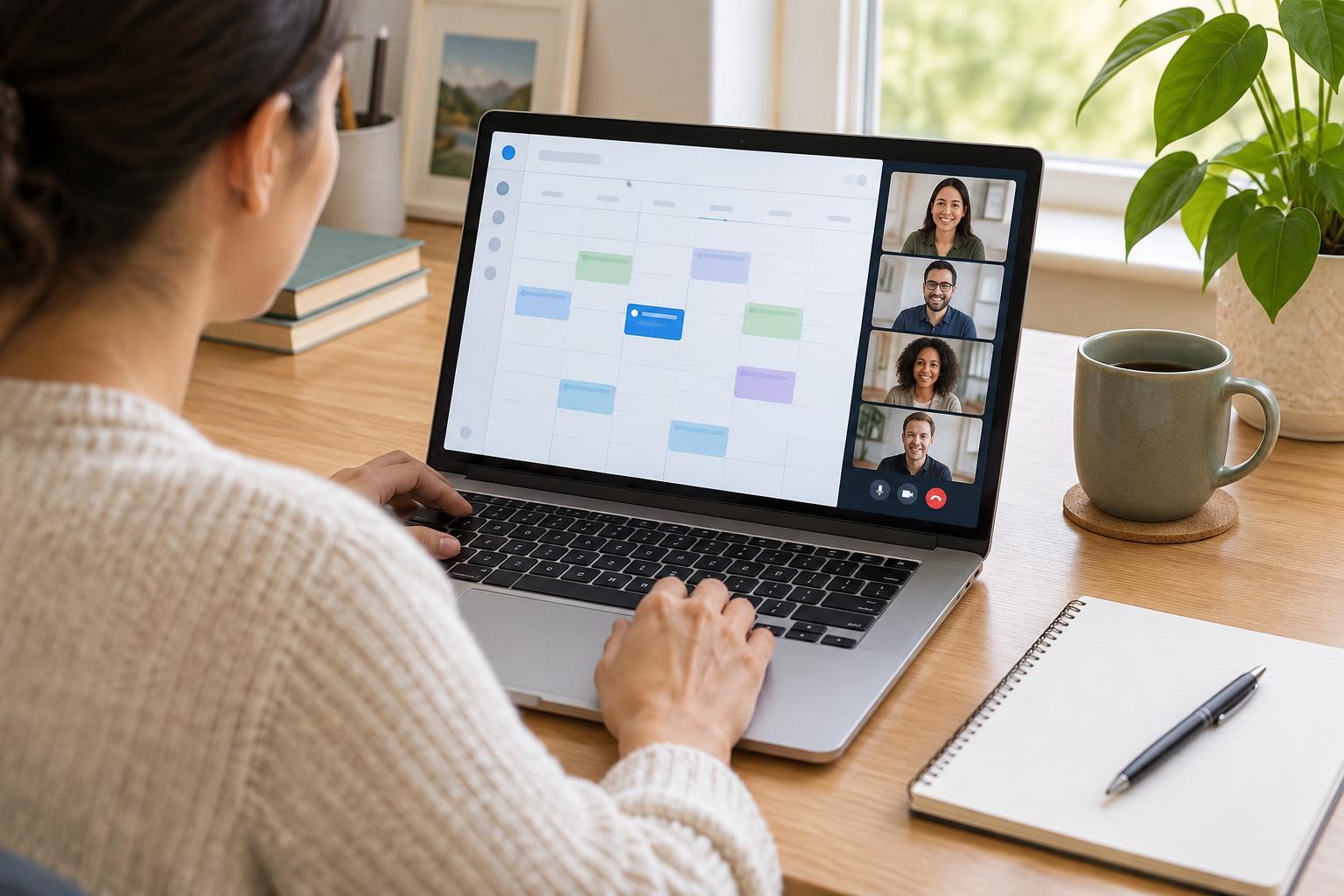
Video meeting apps often place their main controls along the bottom or side of the meeting window. The layout may change on a phone, when the window is small, or when you move your pointer away. Look for a microphone symbol for mute, a video camera symbol for your camera, a speech bubble for chat, and a hand symbol for raise hand. Labels and icons vary between services, so take a moment to explore the screen before a meeting begins.
If you can, join a few minutes early and check which microphone and camera the app has selected. You can usually change devices through a small arrow or settings menu beside the controls. This quick check is especially useful if you use a headset or have more than one camera. You do not need to switch everything on to test the controls; the aim is simply to know where they are.
Use mute to keep the conversation clear
Mute turns off your microphone for the meeting without turning off your speakers. It helps prevent background noise, such as typing or nearby conversations, from interrupting someone who is speaking. In a larger meeting, staying muted until it is your turn is often helpful. In a small discussion, follow the group’s preference so conversation still feels natural.
Before you speak, check the microphone icon and any on-screen mute label. If others cannot hear you, your microphone may still be muted, or the wrong microphone may be selected. Unmute, say a short sentence, and allow a moment for someone to confirm they can hear you. Mute is not a substitute for privacy outside the meeting: people nearby may still hear what you say when you unmute.
Choose when to turn on your camera
The camera control starts or stops the video you send to other participants. Turning it on can help when you are introducing yourself or having a small-group conversation. Turning it off can be reasonable if your connection is struggling, your surroundings are distracting, or you would rather not show your space. Some meetings have expectations about video, but it is worth asking rather than assuming everyone must use it.
If you plan to appear on camera, check what is visible behind you and whether your face is easy to see. Place the device somewhere steady if possible. Remember that switching your camera off does not necessarily turn off your microphone; the two controls work separately. Likewise, muting yourself does not hide your video.
Put chat to work without losing the discussion
Chat lets you send written messages during a meeting. It is useful for a brief question, a link everyone needs, or a note that your audio is not working. Some apps let you choose between messaging the whole group and messaging one person. Check the recipient before sending, especially if you are sharing a question or detail meant for only one participant.
Keep chat messages short and relevant so people can follow the spoken discussion. If you are presenting, you may not notice messages right away; it can help to ask someone else to watch the chat or pause occasionally to read it. Do not assume a chat message is private or temporary. Meeting settings may allow others to save or retain messages, so avoid posting sensitive information unless you know it is appropriate.
Raise your hand to take a turn
Raise hand is a digital signal that you would like to speak. It is especially useful in meetings with a host, a speaker, or many participants. Select the hand control, wait to be invited, then unmute before talking. When you have finished, lower your hand if the app has not done so automatically. This helps the host see who is still waiting.
These controls work best together rather than as separate rules. You might raise your hand to ask a question, use chat to share a short detail, and unmute when called on. If you cannot find a control, look for a menu labeled More, Reactions, or Participants, or ask the host for help in chat. A brief pause to find the right button is normal; it is better than trying to manage every control at once.