What screen sharing does
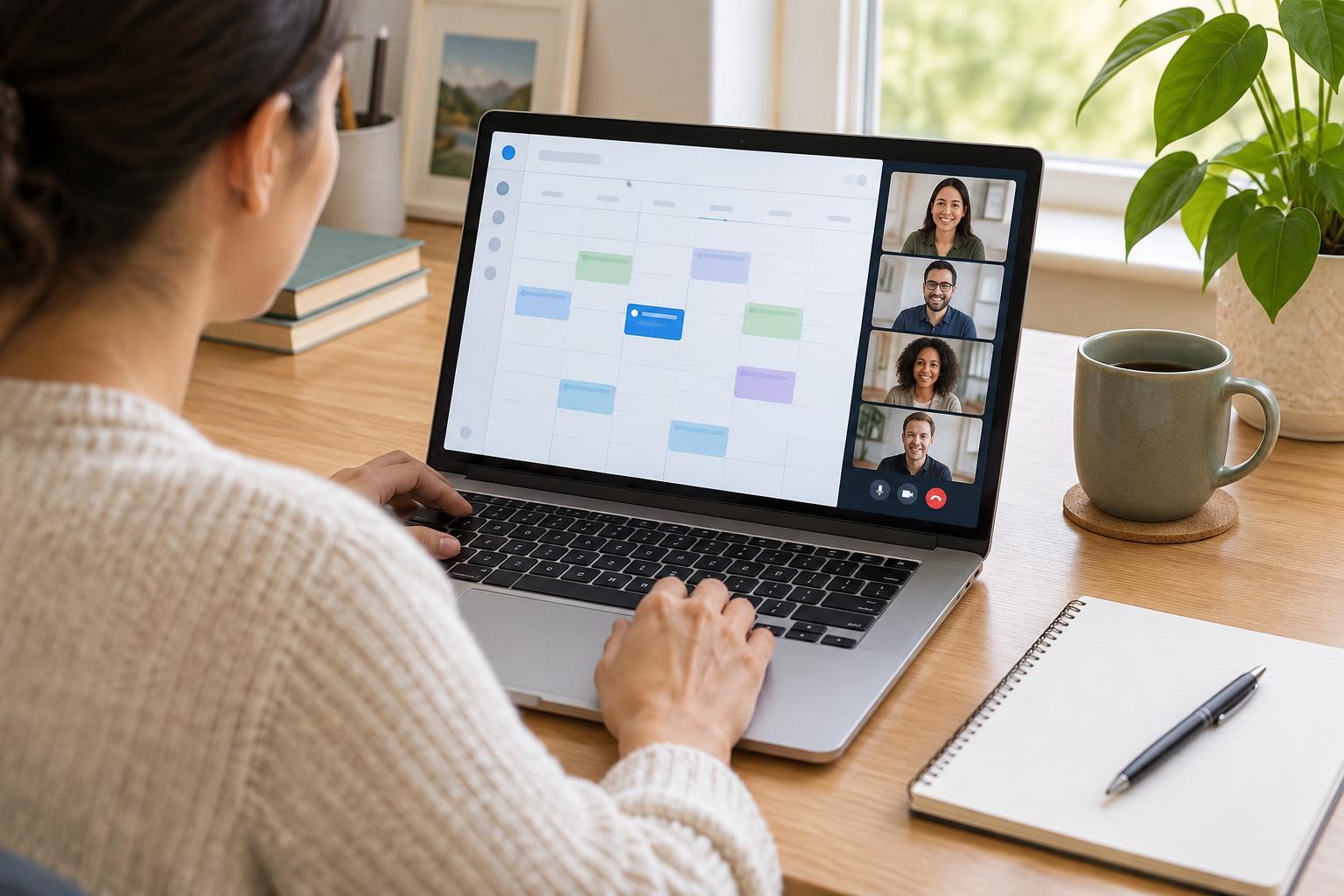
Screen sharing shows other people in a video call what is displayed on your device. It is useful when you want to walk a colleague through a document, help a family member use a website or show a community group a presentation. Most calling tools have a button labeled “Share,” “Share screen” or “Present.” The exact name and location vary, but the basic steps are similar.
Sharing your screen does not normally give other participants control of your device. They see what you choose to show while sharing is active. Some tools offer a separate remote-control feature, so read any request for control before accepting it. If you only need someone to read a document later, sending a copy may be simpler than sharing it live.
Prepare what you want people to see
Open the document, webpage or app before the call, and move to the place where you want to begin. Close unrelated tabs and windows. Check whether the material includes names, addresses, account details or other information that the audience should not see. If you will move between pages, think through that route in advance so you are less likely to reveal something by accident.
Consider silencing notifications or turning on your device’s focus mode. A message preview can appear over the material you are sharing, especially if you share your entire screen. Keep your cursor easy to find, enlarge text if needed and avoid showing several small windows at once. These choices make the demonstration easier to follow, particularly for someone watching on a phone.
If you are presenting with another person, agree on who will share first. Ask whether anyone needs the material in another format, such as a copy they can enlarge on their own device. Screen sharing can be helpful, but it may be difficult to follow for people with a small display or a slow connection.
Start sharing and choose the right view
Join the call, find the Share or Present button and select what to show. Many tools offer a choice between your entire screen, one application window and one browser tab. Choose a window or tab when everyone needs to see only one item. This usually reduces the chance of exposing unrelated content. Choose the entire screen when you must move between several apps or show how to navigate your device.
Before confirming, look at the preview or selected item name if the tool provides one. Then ask the other participants whether they can see the intended content. Pause briefly when you change pages or point to a detail; what is obvious on your screen may be harder to spot in the call. Explain what you are doing aloud rather than relying on your cursor alone.
Sound is often a separate sharing choice. If you plan to play a video or demonstrate an app with audio, look for an option to include device or tab sound. Test it with the group rather than assuming they can hear it. Your microphone may still pick up sound from your speakers, but that can be less clear.
Protect your privacy while you present
Treat anything in the shared area as visible to the group. If you share an entire screen, that may include pop-up notifications, the names of open files and anything you bring to the foreground. A single window or tab offers a narrower view, but check it for private information too. Be especially careful before opening inboxes, contact lists, account pages or files containing other people’s details.
You can stop sharing before looking up something private, then start again when you are ready. It is fine to say, “I’ll pause the share for a moment.” Also remember that people may be able to take screenshots or record a call if the tool and meeting settings allow it. Share only material you are comfortable showing to the participants.
Stop sharing and solve common problems
When you are finished, use the visible “Stop sharing” or “Stop presenting” control. Check that the sharing indicator disappears before opening anything personal. Leaving the call also ends the share, but using the stop control makes the change clear to everyone. If someone else needs to present, let them start their share after yours has ended.
If participants see a blank or wrong window, stop and share again, carefully selecting the intended item. If the Share button is unavailable, check whether the meeting host has limited who can present. Your device may also ask for permission to record or display the screen; follow its prompts and return to the call. On some devices, you may need to close and reopen the calling app after changing a permission.
If the picture is hard to read, increase the text size, simplify what is on screen or share a single window instead of a crowded desktop. If movement looks choppy, avoid rapidly scrolling and consider turning off video while you present. A short practice call with someone you trust can help you find the controls and build confidence before an important conversation.