Get ready before you open the meeting
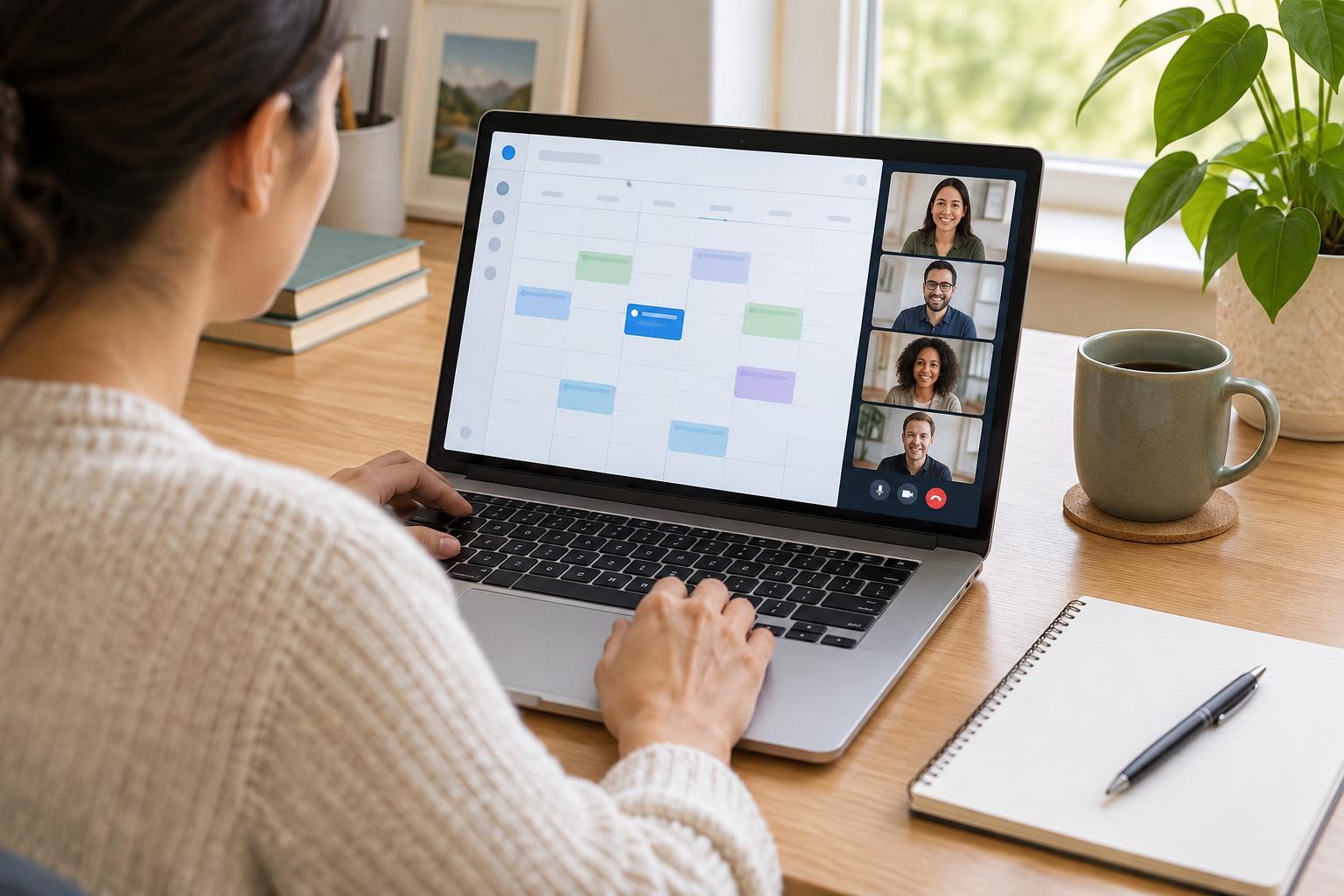
Find the invitation and check the meeting time, link, and any passcode. If you did not expect the invitation, confirm it with the organizer through a contact method you already trust before opening the link. Give yourself a few minutes to settle in, especially if you are using a meeting service for the first time.
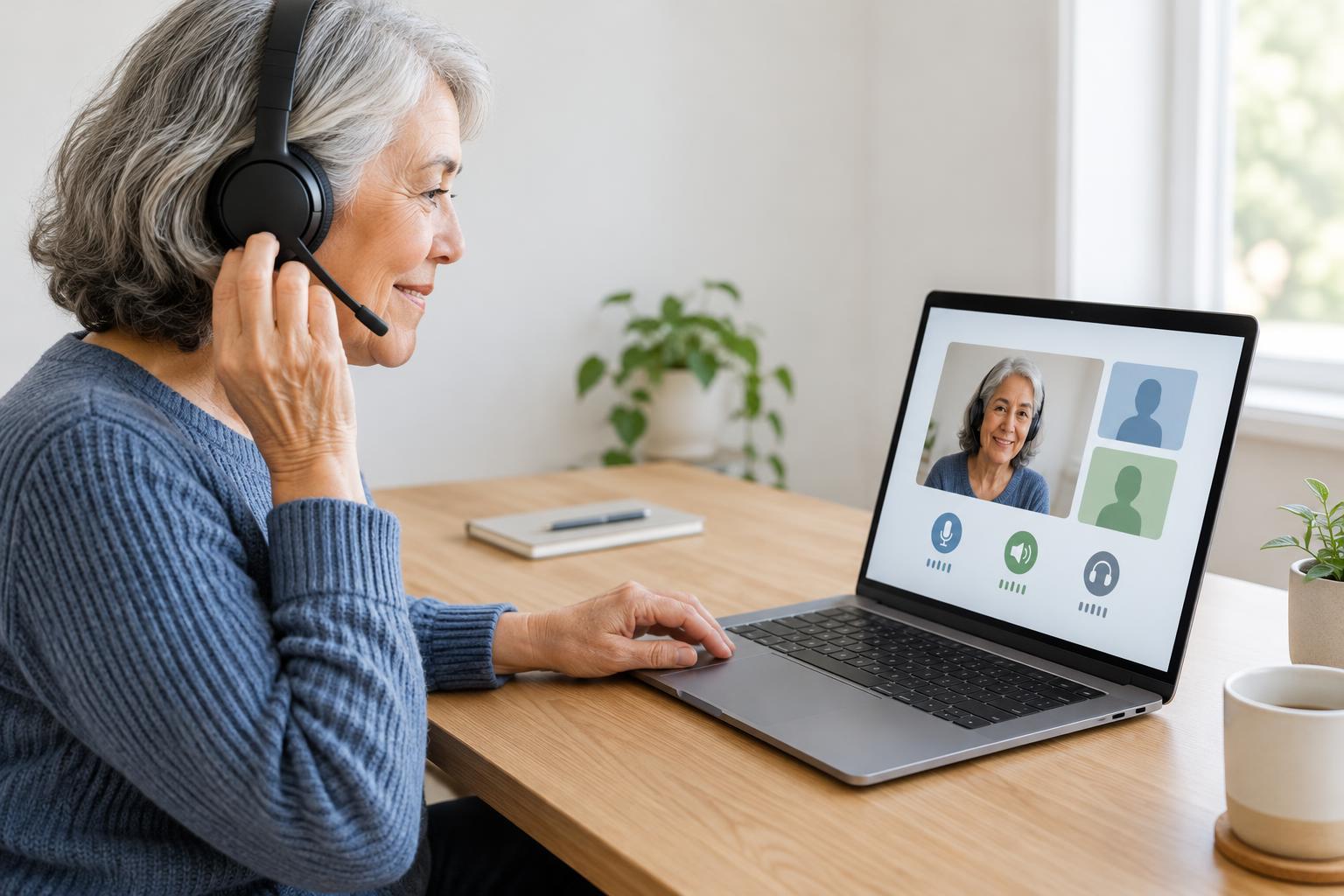
Choose a place where you can hear clearly and speak without too much background noise. Headphones can reduce echoes and make other people easier to hear, but they are not required. If you use wired headphones, plug them in before joining. If you use Bluetooth headphones, connect them to your device and check that they have enough battery.
On a computer, a meeting link may open in a browser or offer to open an installed app. On a phone or tablet, it may open an app or prompt you to install one. Follow the options you are comfortable with, and allow microphone access when prompted if you plan to speak. Camera access is separate: you can usually leave your camera off and still take part.
Join and select your audio devices
After opening the link, enter your name if asked. Many services show a preview screen before you join. Look for microphone, speaker, and camera controls there. Some services also ask how you want to hear the meeting, such as through your device or by calling a phone number. Choose device audio if you want to use your computer, tablet, or phone microphone and speakers.
If the preview screen lists devices, select the microphone you intend to speak into and the speakers or headphones you intend to hear through. A laptop with a connected headset may show both its built-in microphone and the headset microphone. The same applies to its speakers. Matching your selections to the equipment you are using helps avoid speaking into one device while listening through another.
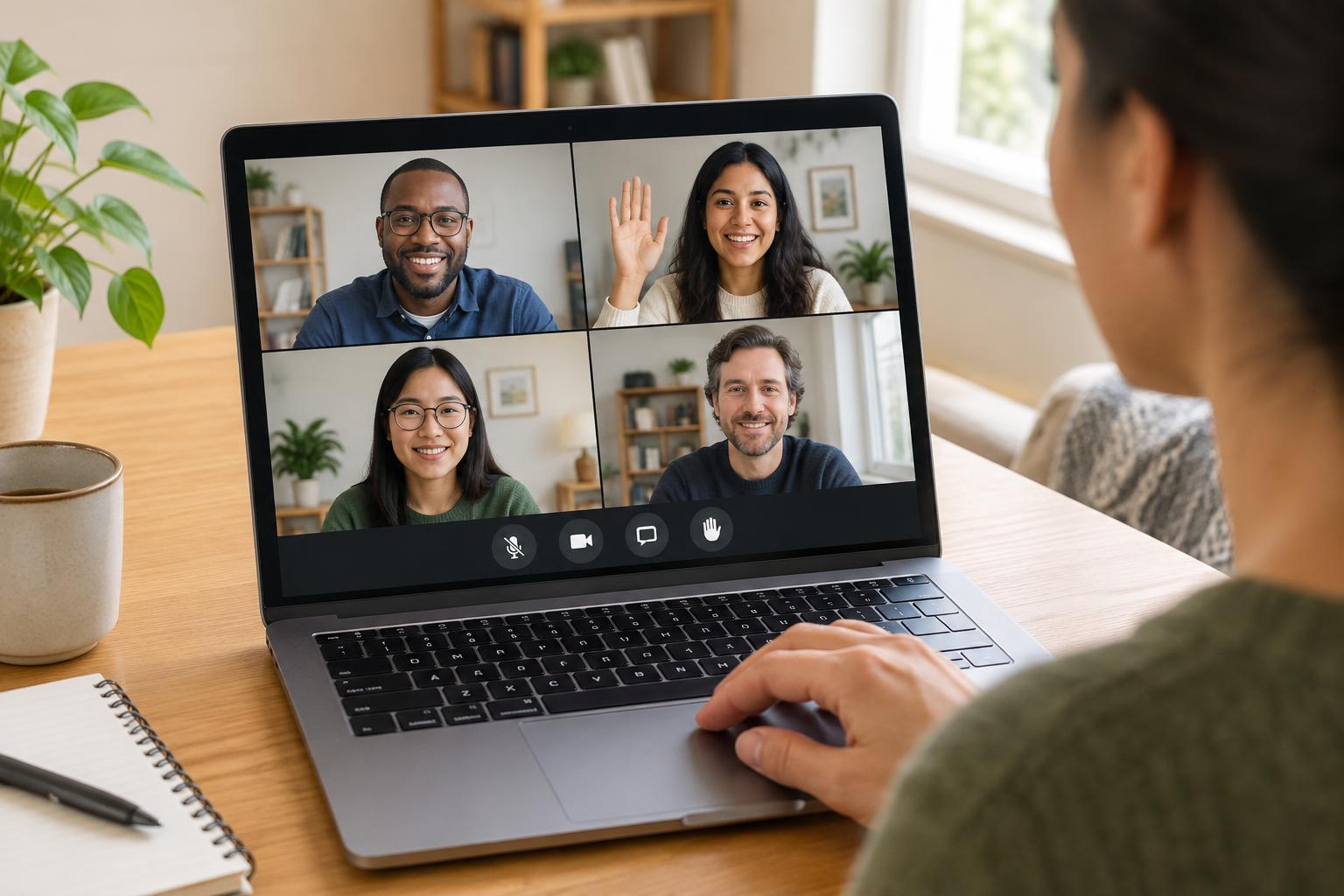
You may enter immediately or wait for the host to admit you. Once inside, find the mute button. A crossed-out microphone icon usually means other people cannot hear you. Keep yourself muted when you are not speaking, then unmute when it is your turn.
Test your speakers and microphone
If the service offers an audio test before joining, use it. A speaker test usually plays a sound for you to hear. If you hear nothing, raise the device volume, check that your headphones are connected, and try another speaker option in the meeting settings. Remember that a headset may have its own volume control.
A microphone test may ask you to speak and then play your voice back, or it may show a level indicator that moves as you talk. Speak at a normal volume and watch or listen for a response. If there is none, check whether your microphone is muted on the headset, in the meeting app, or in your device settings. Then select a different microphone if one is available.
If there is no built-in test, join with your microphone muted and listen briefly. When appropriate, unmute and ask another participant whether they can hear you. A short check is more useful than repeatedly asking while changing several settings at once.
Fix common sound problems
If you can hear others but they cannot hear you, focus on the microphone. Check the mute button first, followed by any physical switch on your headset. Make sure the meeting service has permission to use the microphone and that the selected input is the one near your mouth. On a phone, moving it away from your face or covering its microphone can make you difficult to hear.
If others can hear you but you cannot hear them, focus on the output. Check volume, speaker selection, and whether sound is going to Bluetooth headphones you are not wearing. Unplugging and reconnecting a headset may help your device recognize it. If sound breaks up, try closing other apps that are using audio, move to a more reliable connection if possible, or leave and rejoin the meeting.
Change one thing at a time and test again. That makes it easier to identify the cause. If you still cannot use audio, the meeting’s chat may let you tell the organizer what is happening while you try another device or an available phone-audio option.
Stay comfortable and considerate during the call
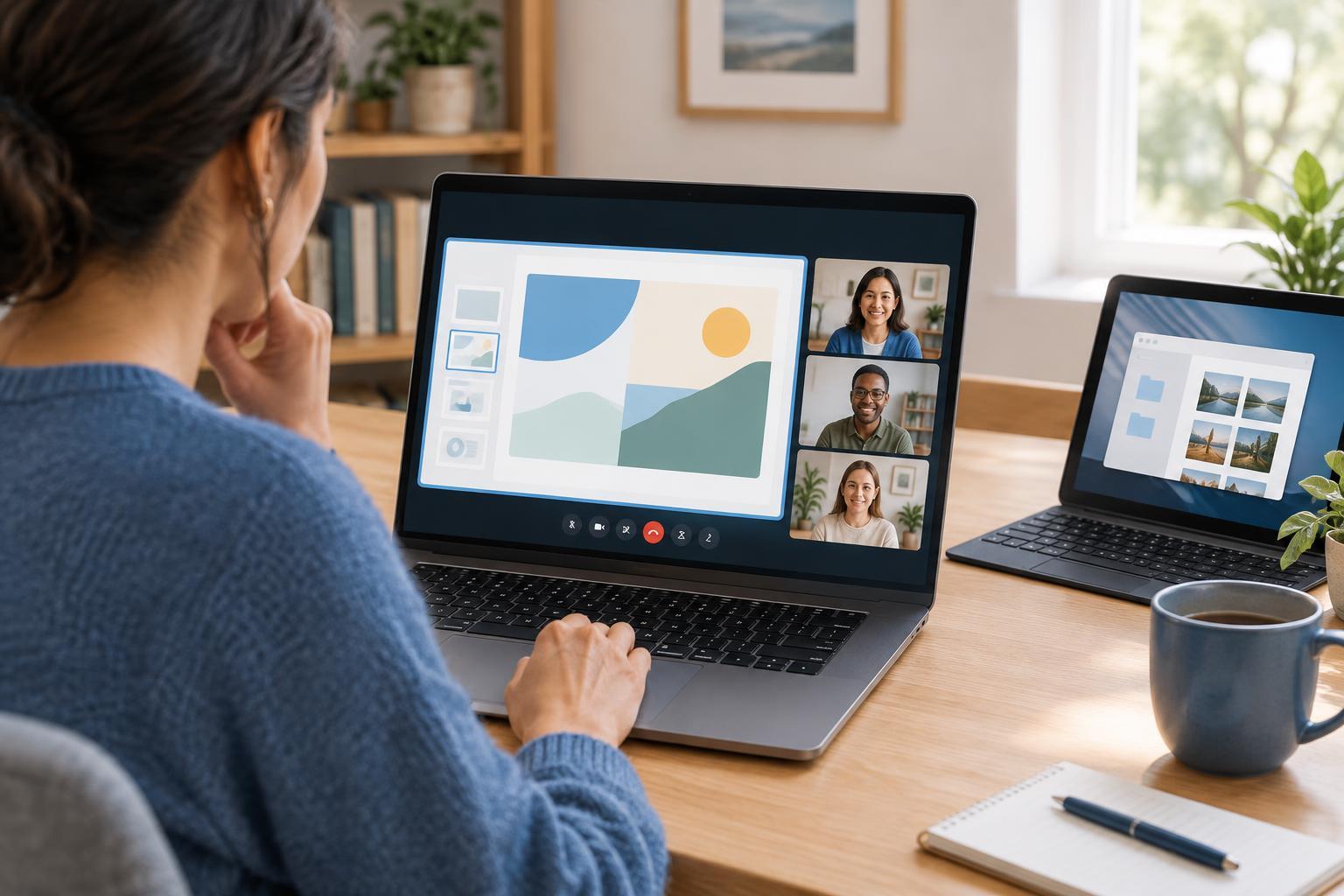
You do not need a perfect setup to participate. Speak clearly, pause to let others respond, and use headphones if echoes become a problem. If your surroundings are noisy, mute between turns. Before sharing your screen, close anything private that you do not want others to see.
At the end, use the meeting’s Leave button rather than only closing a window if that option is available. If you used a shared device, sign out of the meeting service when appropriate. The next time you join, you will already know where to find the audio controls—and a quick sound check can become part of your routine.