Get oriented before you begin
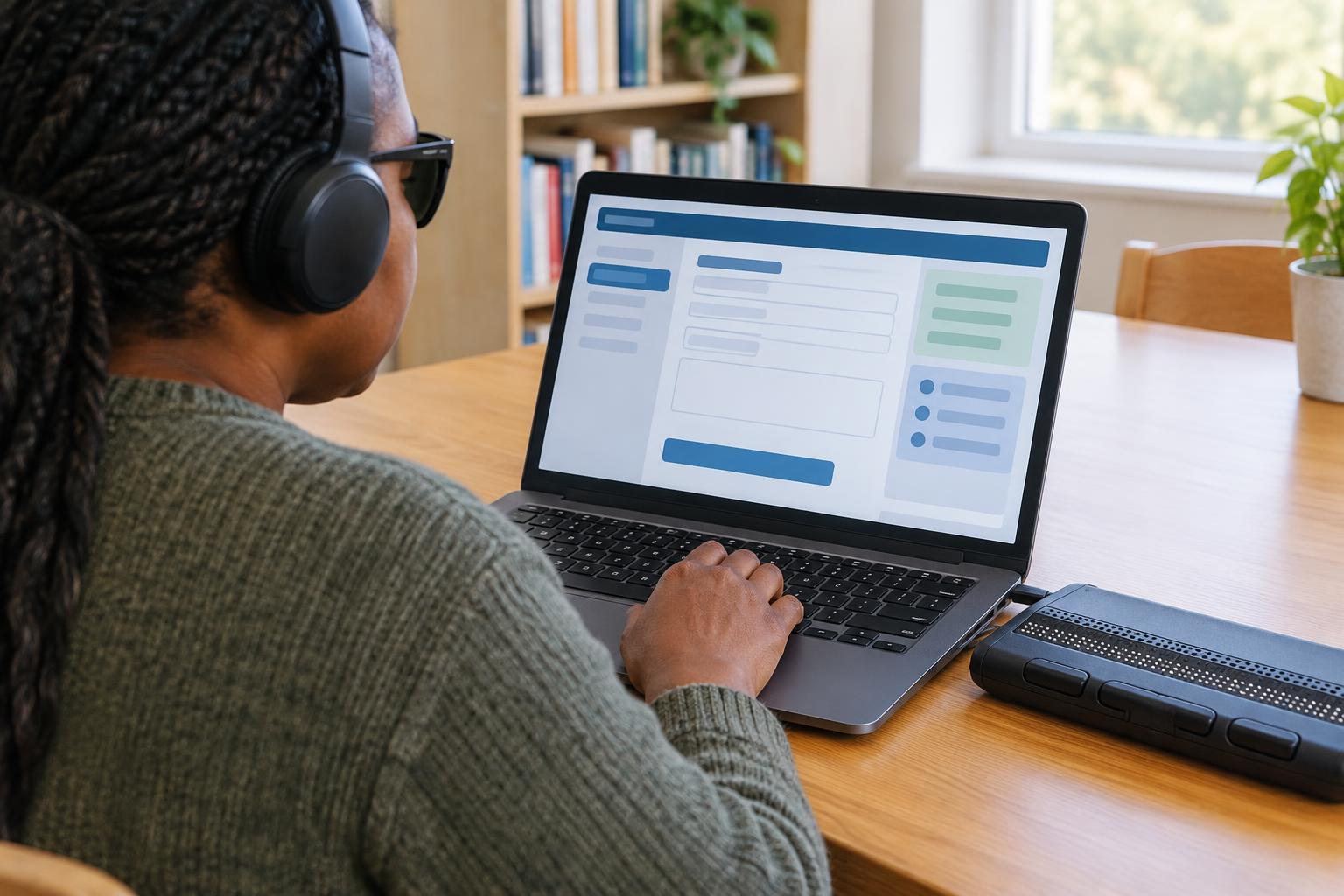
A screen reader speaks or displays information about what is on a screen. On a website, it can announce headings, links, buttons, form fields and other elements as you move through them. You can usually navigate with a keyboard, though the commands vary by screen reader, device and browser. If you are new to a particular setup, spend a few minutes learning its commands for moving to the next item, moving by heading and listing links.
Before opening a public-service form, gather any details you expect to need, such as a reference number or address. Check whether the page explains what the service is for, who can use it and what happens after submission. If you are on a shared device, consider how you will keep personal information private. A form may take longer than expected when you are learning its layout, so look for any stated time limit or option to save your progress.
Find your way around a service page
Start by exploring the page’s headings. On a well-structured page, they give you an outline of the main content, instructions and application steps. A screen reader may also let you jump to the main content area or move among landmarks such as navigation and search. These shortcuts can help you avoid hearing the same site menu on every page.
Link and button text should tell you what an action does, but it is worth checking the surrounding text before activating it. A link labelled “Continue” might belong to a particular step, while a button labelled “Submit” may send your information. If several similar links appear, move through the nearby heading and paragraph to understand which one you need. Browser back navigation can be useful, but it may not preserve entries in every form.
Work through forms one field at a time
Read the instructions at the start of a form, then move through its fields in order. A screen reader should announce each field’s label and may also announce whether it is required, its expected format or a hint. Pause if a field’s purpose is unclear. For example, “date” could mean today’s date, a birth date or the date of an event; nearby instructions may resolve the ambiguity.
Different controls need different actions. Text fields accept typed information, while checkboxes, radio buttons and menus require you to select an option. Screen readers often have a mode for interacting with form controls; consult your screen reader’s help if typing or arrow keys do not behave as expected. After making a selection, listen to confirm the new state. For longer answers, drafting text separately can make it easier to review, provided you keep sensitive information in a place you trust.
Before moving to the next page, review what you entered. Check spelling in names and email addresses, the order of numbers in dates, and whether optional boxes were selected unintentionally. If the form has a review page, use it as a final check rather than assuming that advancing through the steps means every answer was accepted.
Respond to errors and inaccessible features
When a form reports an error, listen for a summary near the top of the page and then return to the affected field. An error message is most helpful when it identifies the field and explains how to fix it. If you hear only “invalid entry,” check the field’s instructions and required format before trying again. Do not repeatedly submit personal information if you cannot tell whether the form has gone through.
Some barriers may not be fixable from your end. A control might have no spoken label, a visual challenge might lack an accessible alternative, or a document might be difficult to read with a screen reader. Look for an accessible version, a different way to complete the task or contact details for the service. When asking for help, describe the page, the control and what your screen reader announces; you do not need to share passwords or unnecessary personal details to explain the problem.
Finish carefully and keep a useful record
Before selecting the final submission button, check whether the page shows a summary and explains what will happen next. After submitting, listen for a confirmation message or reference number. If the service provides a receipt, save it somewhere you can find it again. A missing confirmation does not always mean a submission failed, so check for guidance on the page before starting over.
When you are finished on a shared device, sign out of the service and close any documents containing personal information. If a page worked well, remembering its headings and steps may make your next visit easier. If it did not, reporting the specific barrier can help the service understand what needs attention, while an alternative contact method may help you complete the task in the meantime.