Start with the difference between a file and a folder
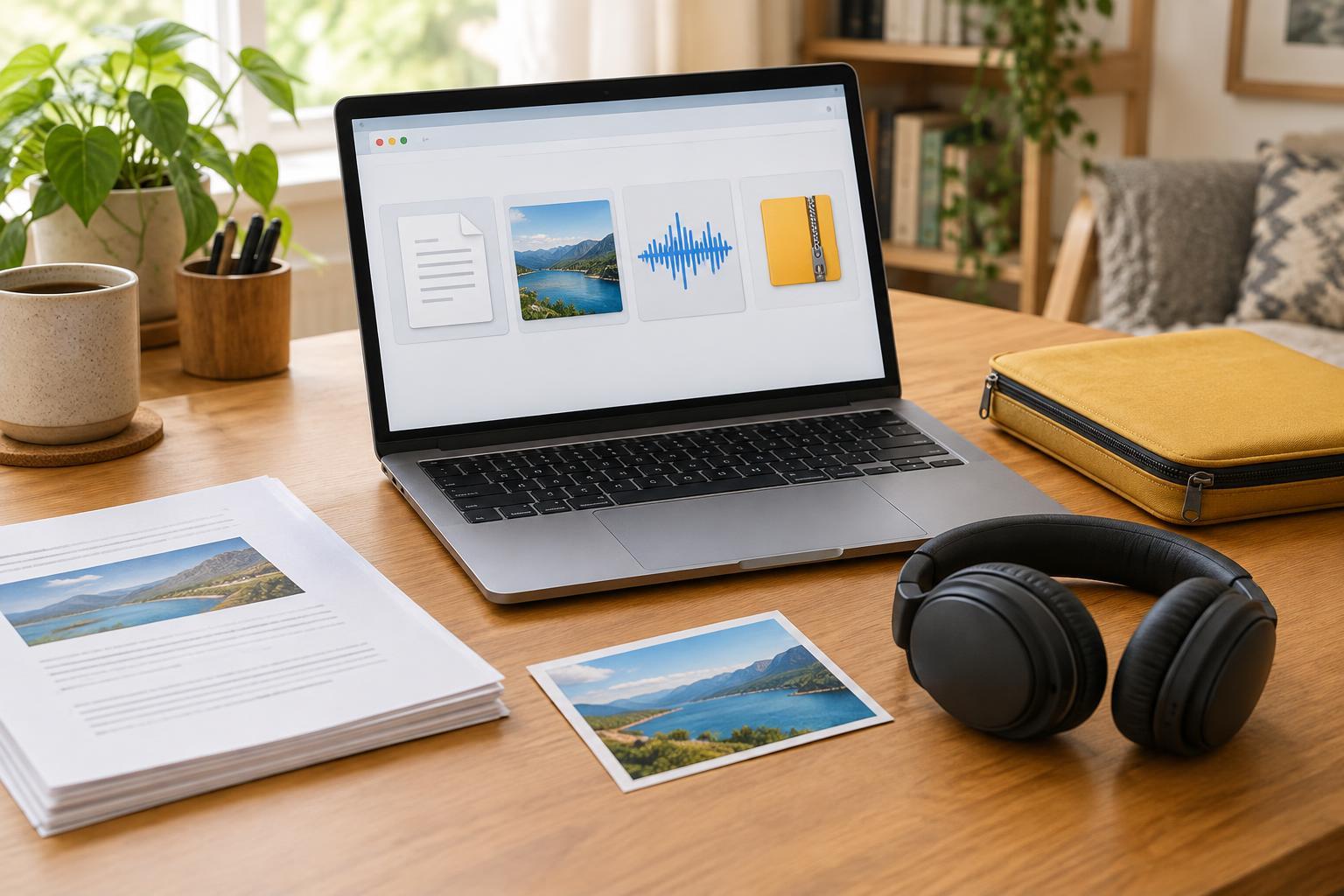
A file is an individual item you can open or use: a document, photo, spreadsheet, audio recording, or downloaded form. A folder is a container that helps you group files. Folders can also contain other folders. For example, a folder called Community Project might contain separate folders for meeting notes, photos, and completed forms.
A file’s name helps you recognize it, while its location tells you where to find it. Two files can have the same name if they are in different folders, so both details matter. File names often end with an extension such as .pdf, .jpg, or .docx. That ending helps your device identify the file type. You usually do not need to change it.
Know the common places files go
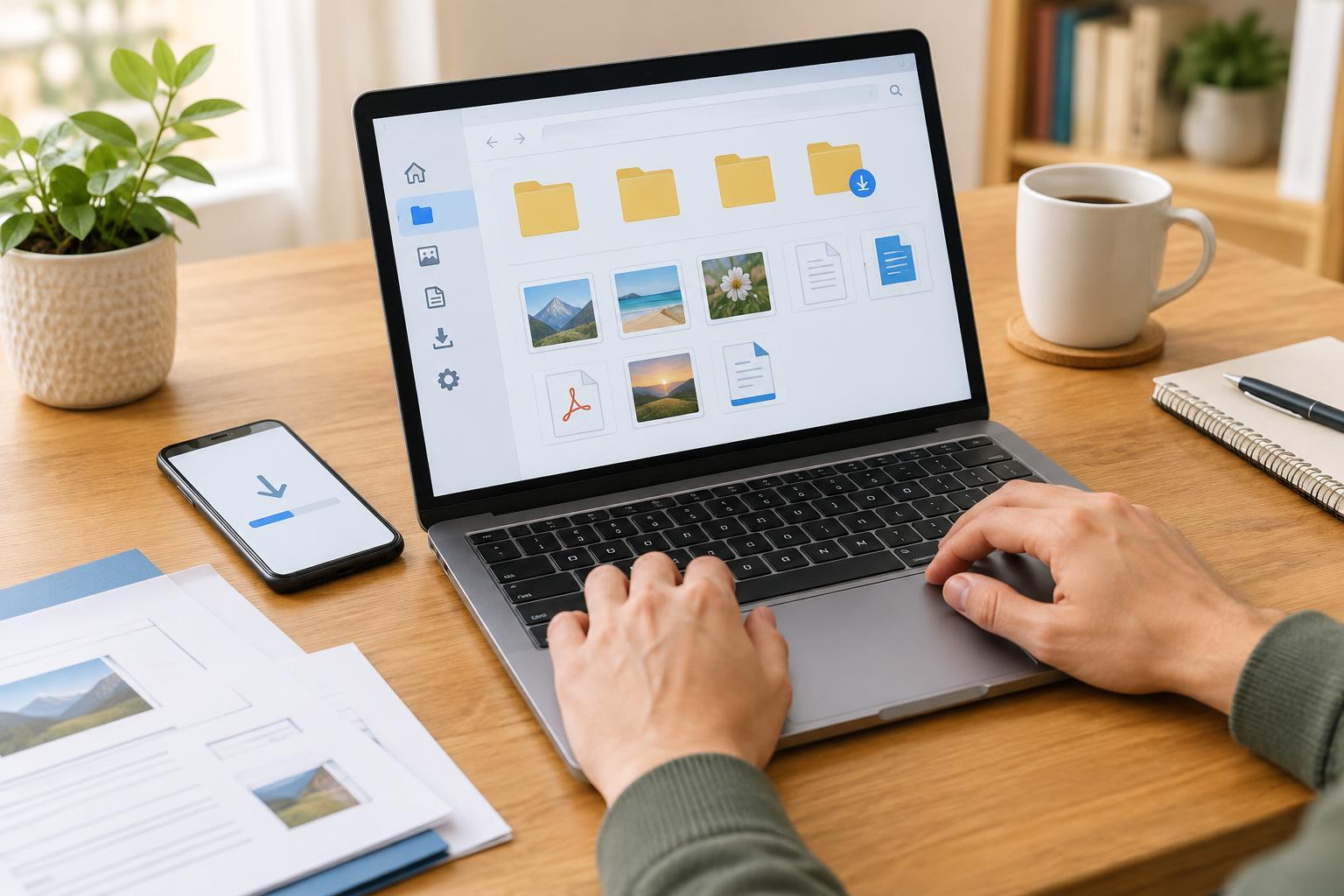
Files saved on your device are often kept in folders such as Documents, Pictures, Desktop, or Downloads. Downloads is a common landing place for items you get from a website or email. It is useful for collecting new files, but it can become difficult to search if you leave everything there. Moving a file into a clearly named folder does not change what is inside it; it changes where you look for it.
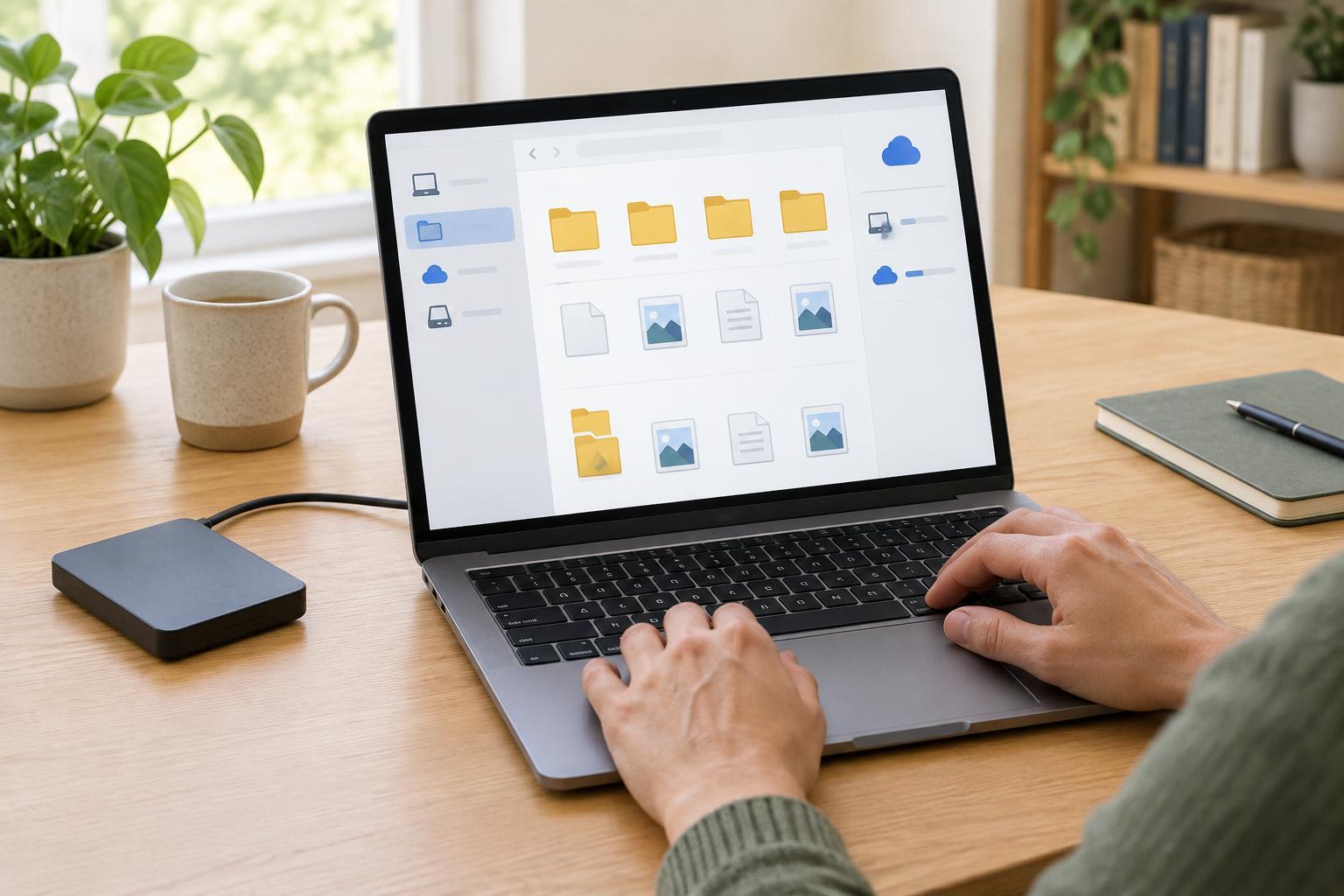
Some files are saved through an online service instead. You may open them in a browser or through an app connected to an account. Depending on the service and its settings, a file might exist online, on your device, or in both places. A folder that appears on your computer may also be connected to online storage. If you are unsure, check the app’s save location or account settings rather than assuming that seeing a file on your screen means you have a separate copy.
Check the location before you close your work
When you create a document, look for its name and save location in the app. If you choose Save As, the app usually lets you pick a folder and give the file a name. You may need to choose between a location on your device and an online storage service. Use a name you will understand later, such as Garden meeting notes, and choose a folder you can find again.
Some apps save changes automatically. That is convenient, but it is still worth checking which account or folder holds the work, especially on a shared device. If you need a copy outside the app, look for an option such as Download, Export, or Save a copy. These options can create a second file in a different place. After using one, check the destination and open the copy to confirm it contains what you expected.
A recent-files list can help you reopen work, but it is not the same as knowing its location. It may show a link to a file stored elsewhere. To build confidence, find the file in its folder at least once.
Find a file without creating confusion
If a file seems to have disappeared, start with the app you used and check its recent-files list. Then look in likely folders, especially Documents and Downloads. You can also use your device’s file search with part of the name or the file type. If the file came from an email or website, check whether you opened a preview but never saved a copy.
Before making another version, check whether you are looking in the wrong account or on a different device. A work account and a personal account may each have their own online storage. If you find several similar files, compare their locations and contents rather than relying only on their names. Renaming the version you intend to keep can make it easier to recognize next time.
Build a simple habit for future work
You do not need an elaborate folder system. A few broad folders with clear names are often easier to use than many narrow ones. Decide where new work belongs, give it a descriptive name, and check its location when you save it. Periodically move useful items out of Downloads and remove duplicates only after confirming which copy you need.
Finally, remember that organizing files and protecting them are different tasks. A tidy folder helps you find your work; an additional copy helps if a device is lost or a file is deleted. For important work, consider keeping a backup in a separate location you can access. Knowing where the original and the backup live makes both easier to use.