Start by selecting what you want to change
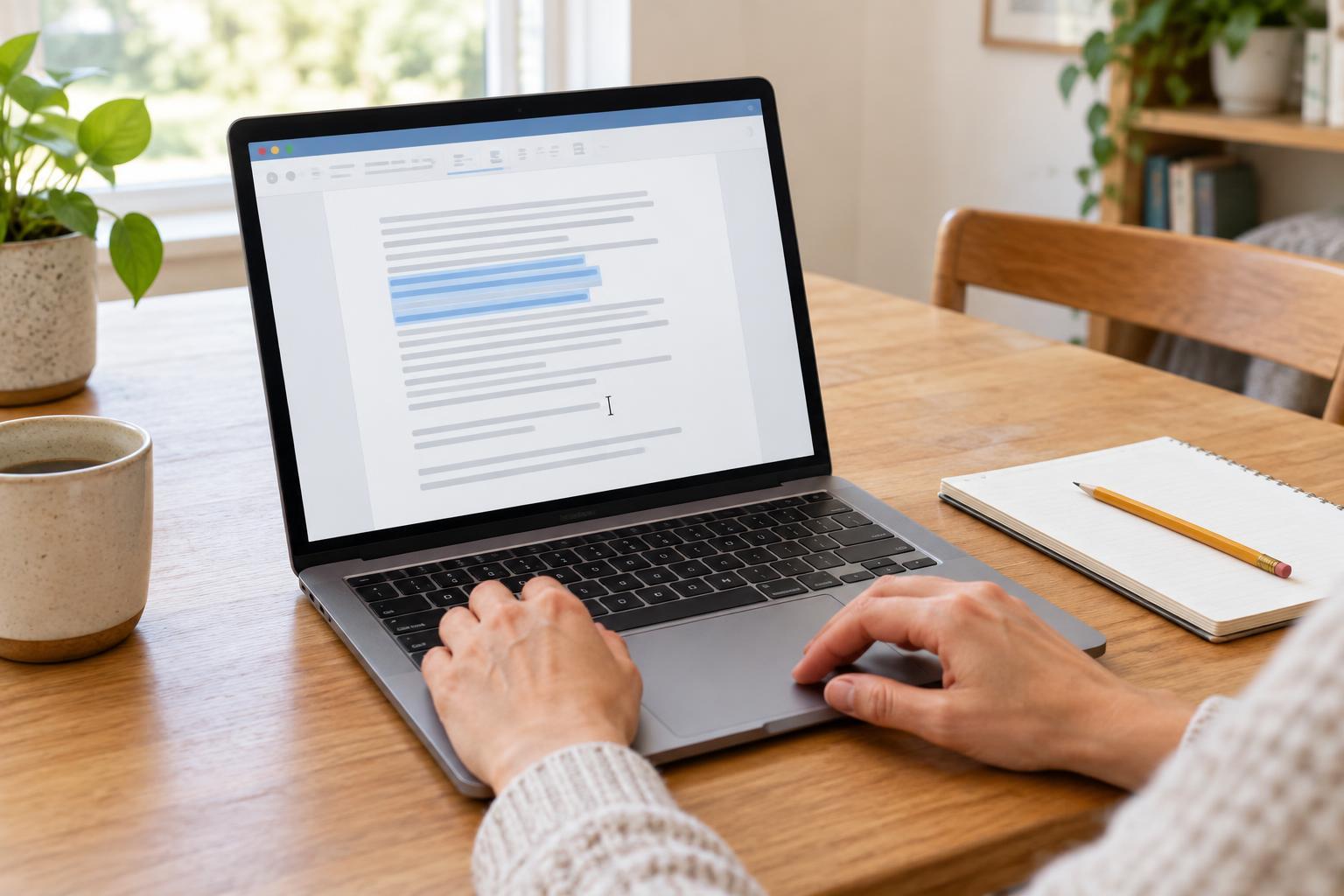
Before you copy or cut anything, select the text, file, or other item you want to work with. In a document, you can usually drag your pointer across text. On a touchscreen, press and hold a word, then adjust the selection handles that appear. For a file, a single click or tap may select it; opening it usually takes a different action.
Check the selection before continuing. If you meant to select a sentence but highlighted only one word, the next action will affect only that word. To cancel a selection without changing anything, click or tap somewhere else. Selection is the step that gives you control over what moves and what stays put.
Copy makes a second version; cut prepares to move the original
Copy leaves the selected item where it is and places a version on the clipboard, a temporary holding place used by your device. Paste puts that clipboard content somewhere you choose. For example, you might copy a meeting address from a message and paste it into a calendar entry. The address remains in the message.
Cut also puts the selection on the clipboard, but removes it from its original position. It is useful when a paragraph belongs elsewhere in a document or a file needs to move to another folder. If you cut text and do not see it anymore, do not panic: click where it should go and paste it. Be aware that moving files can behave differently across apps and devices, so check both locations afterward.
On many computers, the keyboard shortcuts are Ctrl+C to copy, Ctrl+X to cut, and Ctrl+V to paste. On a Mac, use the Command key instead of Ctrl. You can also right-click a selection to look for these commands, or find them in an app’s Edit menu. On phones and tablets, selecting text often opens a small menu with Copy, Cut, and Paste options.
Paste in the right place and check the result
Before pasting, put the cursor exactly where the new text should appear. In a document or message, a blinking cursor shows the insertion point. In a file manager, open the destination folder before pasting a file. If something lands in the wrong place, undo the action if available, then try again.
Pasted text sometimes brings its original appearance with it, including fonts, colors, or links. Many apps offer a “paste without formatting” or “paste as plain text” option when you need the words to match the surrounding document. This option may be in the Edit menu or a menu that appears after pasting. If you cannot find it, you can paste normally and adjust the formatting afterward.
The clipboard is temporary: copying or cutting something else often replaces what was there, though some devices offer clipboard history. If you have important text to move, paste it and confirm it arrived before copying another item. Take extra care with passwords, personal details, or private messages, especially on a shared device.
Undo helps with mistakes, but it has limits
Undo reverses a recent action in many editing apps. If you delete a sentence, paste into the wrong place, or change formatting by accident, try Ctrl+Z on Windows or Linux, or Command+Z on a Mac. An Undo option may also appear in the Edit menu or as a curved-arrow button. Some apps let you undo several actions one after another.
Undo is not a guarantee. It may stop working after you close an app, leave a page, or perform certain actions. It also may not reverse something that has already been sent, shared, or deleted outside the editor. If you undo too much, look for Redo in the Edit menu; common shortcuts are Ctrl+Y or Ctrl+Shift+Z, while many Mac apps use Command+Shift+Z. Shortcuts vary, so the app menu is a useful place to check.
For longer work, save regularly rather than relying on undo alone. If an app offers version history, that feature may help you recover an earlier draft, but its availability depends on the app and how the document is stored.
Practice with a low-stakes example
Open a new note and type three short lines. Copy one line and paste it below the others. Next, cut a different line and paste it at the top. Finally, undo the last move and notice what changes. This simple exercise lets you see the difference between making a duplicate, moving something, and reversing an edit.
As you work, pause after each action to check the result. These skills become more useful when paired with that habit: select carefully, choose copy or cut, place the cursor or open the destination, paste, and review. The same sequence applies to many everyday tasks, from rearranging a message to organizing files.