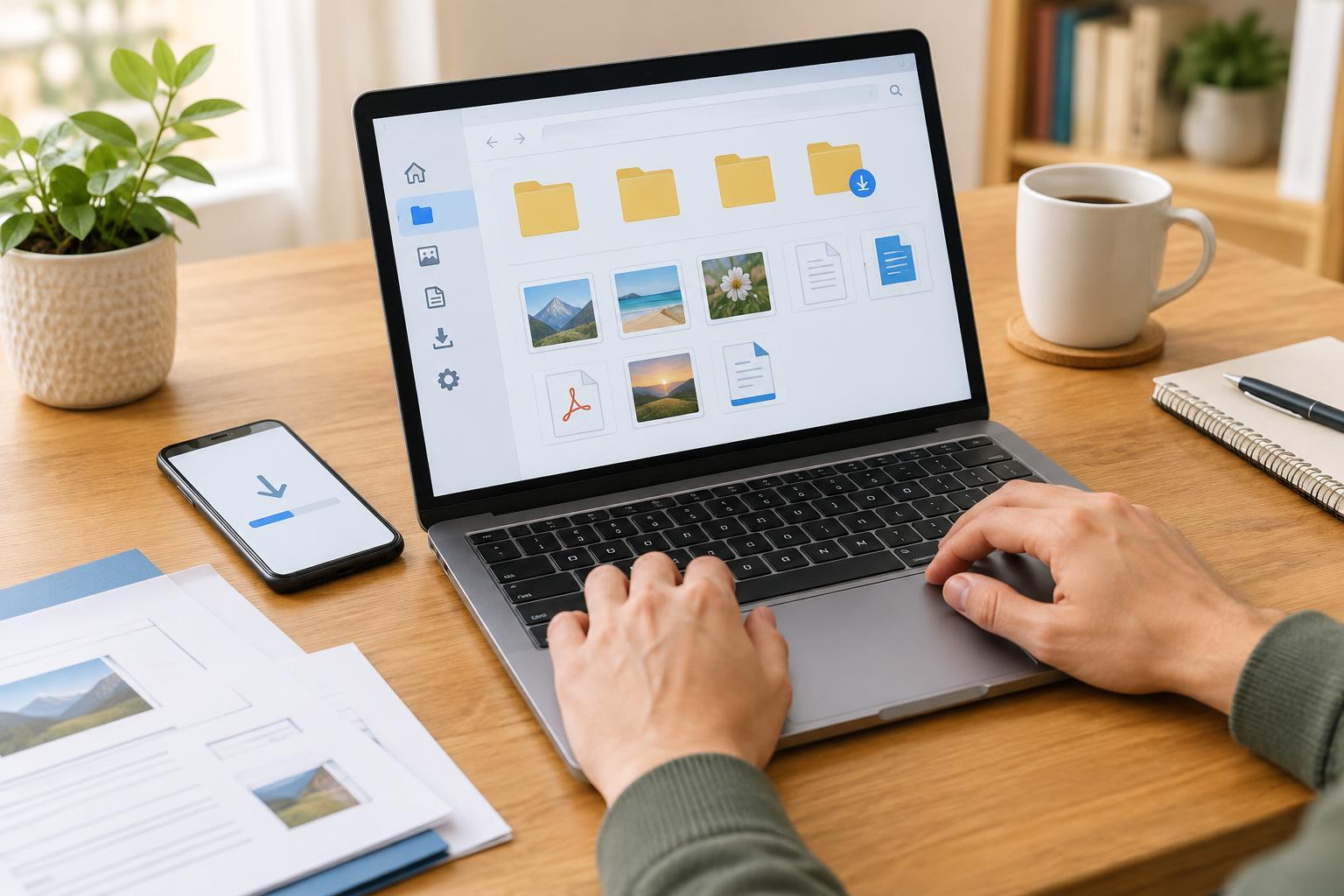
What happens when you download a file?
Downloading means saving a copy of a file from a website, email or app onto your device. A file might be a document, picture, form or spreadsheet. Opening a file for a quick look is not always the same as saving it: some websites show a preview first, and some apps keep an attachment inside the app until you choose to download or save it.
Before you begin, notice the file’s name and type if they are shown. A name such as “meeting-notes.pdf” gives you two clues: “meeting-notes” describes the contents, while “.pdf” identifies the file format. Knowing part of the name makes it much easier to find later. If you can choose where to save the file, pick a familiar folder such as Documents or Downloads rather than an unfamiliar location.
Download a file from a website or message
On a computer, select a link or a button labeled Download. Your browser may save the file immediately, ask where to save it, or open a preview. If it opens a preview, look for a download icon, often shown as a downward arrow, or a Save option. Some browsers also show a small download indicator near the top of the window. Select it to see whether the download has finished and, in many cases, to open the file or its folder.
On a phone or tablet, the steps depend on the browser and app. A download link may save the file directly, while an email attachment may need a tap followed by Download, Save to Files or a similar choice. If you only see a preview, look for a share, download or menu button. When asked for a location, make a note of the folder you select. Wait for the transfer to finish before looking for the file, especially if it is large or your connection is slow.
Download files only when you recognize the sender or website and expect the file. A familiar-looking name alone does not make an attachment safe. If a download asks you to install software unexpectedly, pause and check what you were trying to get.
Find the file on a computer
The first place to check is the Downloads folder. On Windows, open File Explorer and select Downloads in the sidebar or under your user folders. On a Mac, open Finder and select Downloads in the sidebar. If your browser displays a list of recent downloads, you can often use it to open the file’s location directly. A file you saved to the Desktop or Documents folder will be there instead.
If the file is not where you expected, search for its name using File Explorer or Finder. Try one distinctive word rather than guessing the entire name. You can also look for recently added files in the folder where you think you saved it. Check whether the file name changed slightly because you downloaded another copy: some devices add a number to duplicate names. If a file opens but you cannot tell where it lives, check the app’s File menu for an option that shows its location.
Find the file on a phone or tablet
On an Android device, open the Files app or the file manager supplied with your device, then look for Downloads or Recent. Names and layouts vary between devices. Pictures downloaded from a website may appear in Downloads, a Pictures folder or a photo app, depending on how you saved them. Use the file manager’s search option if you know part of the name.
On an iPhone or iPad, open the Files app and check Browse, then Downloads. Downloads may be stored under On My iPhone or On My iPad, or under a cloud storage location, depending on your settings and the app you used. Check Recents or search within Files if you are unsure. An image saved using an option such as Save Image may be in the Photos app instead. Files received through a messaging app may remain in that conversation until you explicitly save them elsewhere.
Make the next download easier to find
If a file seems missing, return to the website or message and check whether the download actually completed. Also check your device’s available storage and whether the browser or app displayed an error. Avoid repeatedly downloading the same file before checking its download list; multiple copies can make the search more confusing.
For files you will need again, move them from Downloads into a clearly named folder, such as “Community forms” or “Work documents.” Give a file a descriptive name when your device allows it, while keeping the ending that identifies its format. If you save files to a cloud service, remember that you may need an internet connection to access some of them later. A simple habit—notice the name, choose a location and check that the file appears there—turns downloading into a task you can repeat with confidence.