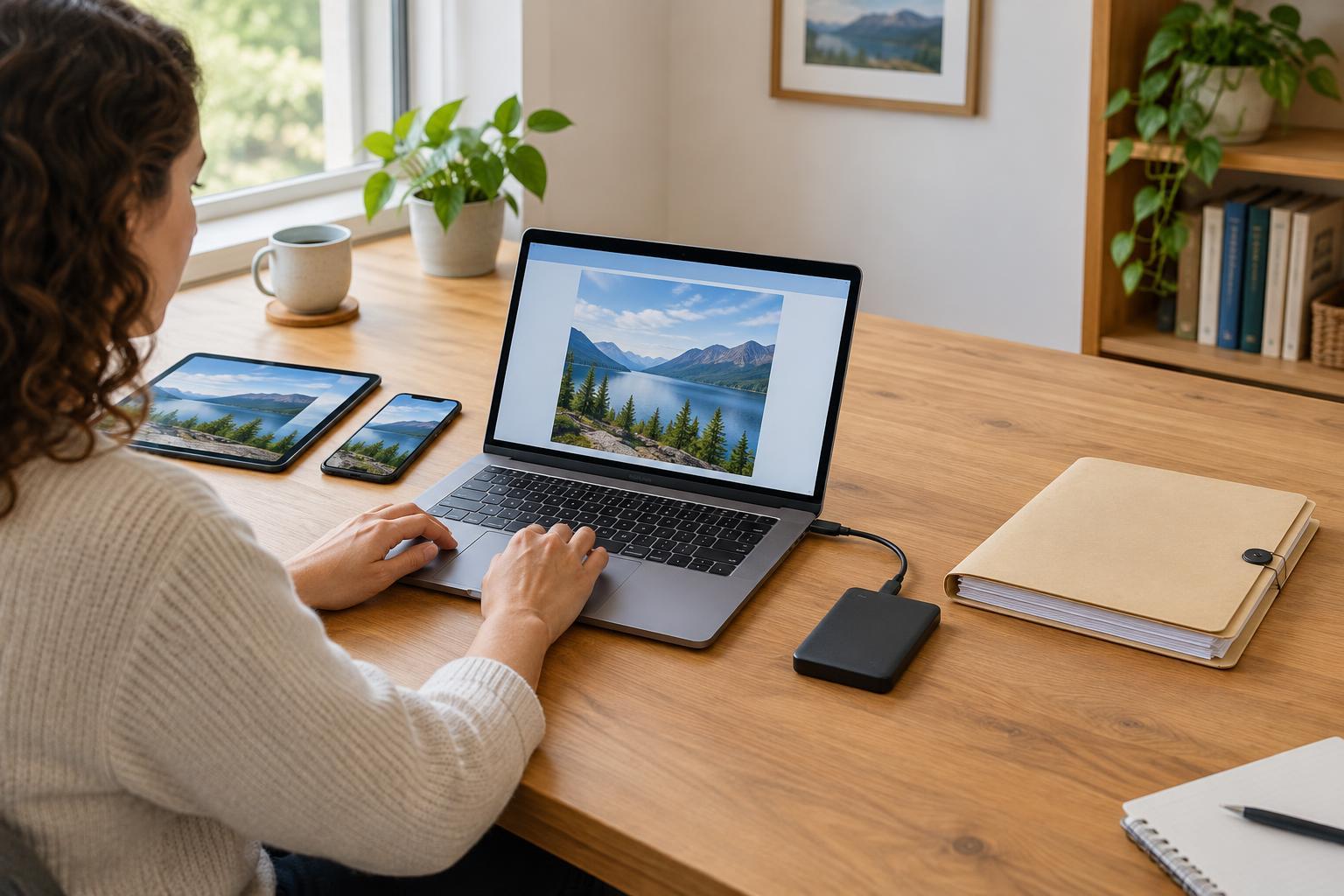
Two useful tools with different jobs
You write a document on your laptop and want to open it later on your phone. Syncing helps with that. A sync service watches a chosen folder or set of files and updates the connected devices when something changes. Its main job is to keep your working files consistent and easy to reach.
A backup has a different purpose: it keeps a separate copy that you can use if the original is lost, damaged or changed by mistake. Backups may run automatically, but they are designed around recovery rather than keeping every device up to date. You can use both tools for the same files; one does not replace the other.
What happens when you change or delete a file?
Imagine you edit a shared document on your laptop. With sync, the updated version is usually sent to your other connected devices. That is convenient when the edit is correct. If you accidentally remove a page and save the document, however, the unwanted change may travel to those devices too.
Deletion works much the same way. If you delete a file from a synced folder, the service may remove it from the other devices and its online copy. Some services offer a trash folder or earlier versions, but how long they remain available depends on the service and its settings. Sync alone is not a reliable promise that you can recover an older file whenever you need it.
A backup gives you another place to look. Depending on how it is configured, you may be able to restore a file from before the mistaken edit or deletion. Backups also have limits: a backup that has not run recently may lack your latest work, and a backup that keeps only the newest copy may not help you recover an earlier version.
Where are the copies?
A file appearing on two devices is not necessarily stored in full on both. Some sync tools show files in a folder but download their contents only when you open them. That saves space, yet it can leave you unable to open a file while offline. Check which folders are available offline before relying on them during travel or an unreliable connection.
Backups can be stored on an external drive, in an online backup service or in another location you control. Keeping a backup separate from your everyday synced folder matters. If the only copy you call a backup is inside that folder, an accidental deletion or unwanted change could affect it as well. An external drive can be useful, but disconnecting it when a backup finishes can help protect its contents from problems on the computer.
Build a simple recovery routine
Start by identifying the files that would be difficult to replace: personal photos, completed forms, project documents or community group records, for example. Find out where each set is actually stored, not just where its icon appears. Then decide which files need syncing for daily access and which need a separate backup for recovery.
Choose a backup method you can keep using. Automatic backups reduce the chance of forgetting, while a calendar reminder can make a manual routine easier to maintain. Look for settings that retain older versions, and check how much storage is available. If you use a shared computer or account, pay attention to who can access the files and the backups.
Finally, test the process with an unimportant file. Make a copy, change or delete the test file, and see whether you can recover the earlier version without disturbing your real work. Check the date of the most recent successful backup as well. Knowing how to restore a file before an emergency is more useful than discovering, afterward, that a folder was never included.
A question to ask before you rely on a service
When you choose a tool, ask: “If I change or delete this file today, where could I get yesterday’s version?” If the answer is only “on my other device,” you may have sync but not a dependable backup. Use syncing to move smoothly between devices, and keep a separate, checked backup so you have a way back when something goes wrong.