What you need before connecting
To join a Wi-Fi network, you usually need its name and password. The network name may be called an SSID. At home, these details may be printed on the router or provided by the person who set it up. In a workplace, library or community space, ask staff which network visitors should use. Choose the exact name they give you: nearby networks can have similar names.
Open your device’s Wi-Fi settings and make sure Wi-Fi is turned on. Select the network, enter its password and choose Connect or Join. Passwords are often case-sensitive, so check capital letters and easily confused characters if the first attempt fails. Once connected, your device may remember the network and join it automatically next time. If it is a shared device, consider whether you want it to remember the password.
Check what has stopped working
If a page or app stops loading, first check whether Wi-Fi is still enabled and your device shows the expected network name. Airplane mode can turn off wireless connections, although some devices let you switch Wi-Fi back on separately. Move closer to the router or access point if you can. Walls and distance can weaken a signal, and a strong-looking signal does not always mean the internet connection itself is working.
Try another website or app. If only one service fails, the problem may be with that service rather than your Wi-Fi. If you have another device available, see whether it works on the same network. When several devices cannot get online, the router or the internet connection may need attention. When only one device has trouble, start with that device’s settings.
Try simple fixes on your device
Turn Wi-Fi off, wait a few seconds and turn it back on. If that does not help, restart your device. These steps can clear a temporary connection problem without changing saved settings. Check that you have not accidentally connected to a guest network that requires an extra sign-in step. On some public networks, you must open a browser and accept the network’s terms before other apps will work.
If your device keeps joining the wrong network or rejects a password you know is correct, use its Wi-Fi settings to forget the network, then join it again. Have the password ready before doing this: forgetting a network removes its saved connection details. If your device offers a software update, you can check for one after you have a working connection, but avoid changing several settings at once. Testing one step at a time makes it easier to tell what helped.
When to check the router
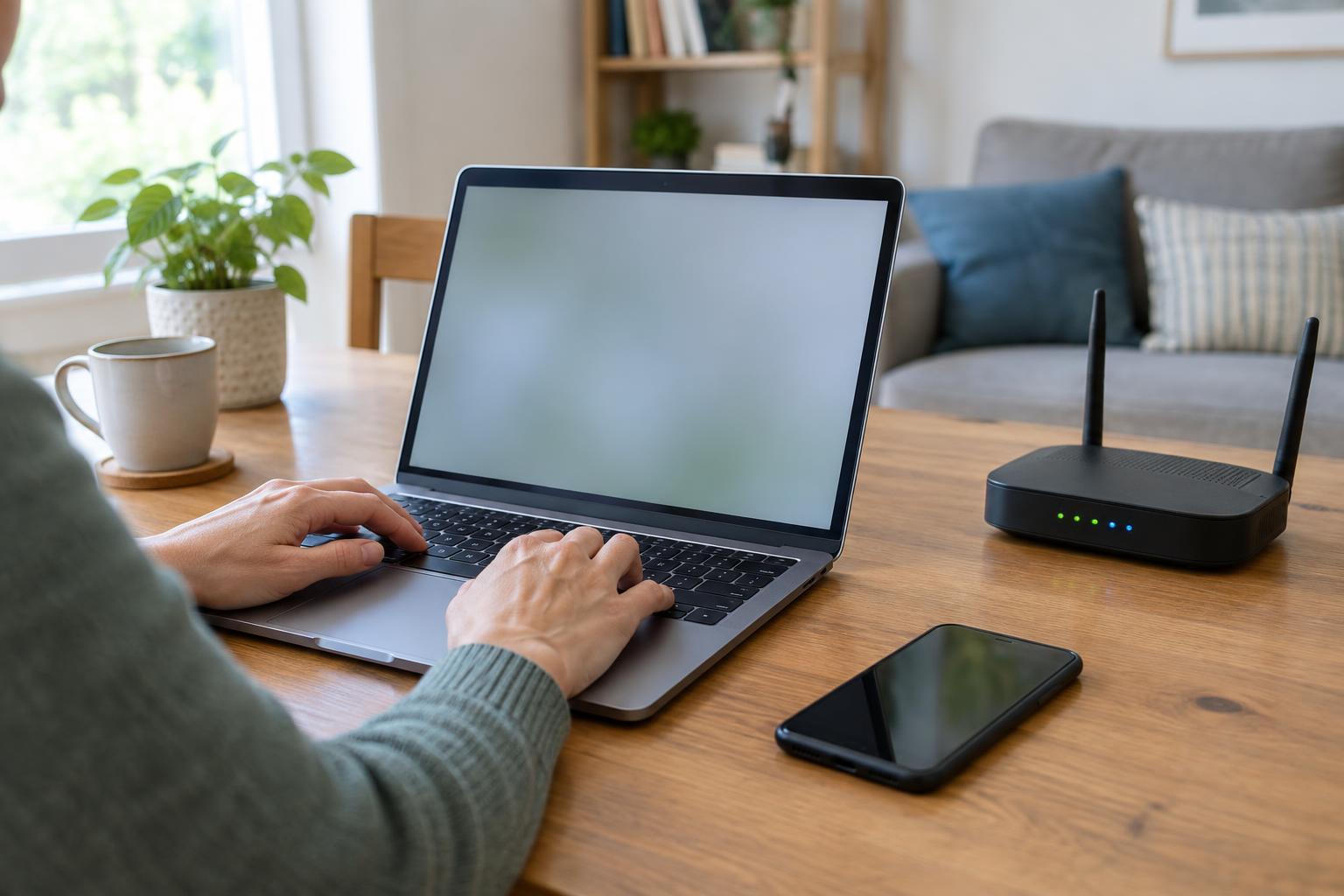
At home, look at the router to see whether it has power and whether any warning lights are showing. Light meanings differ by model, so use its label or instructions rather than guessing. Make sure its cables are firmly connected, without pulling or rearranging anything you are unsure about. If several devices have lost access, a restart may help: turn the router off using its power control, wait briefly, then turn it on and allow it time to reconnect.
Only restart equipment you own or are allowed to manage. In a shared building or workplace, report the problem instead. Avoid pressing a small Reset button unless the person responsible for the network intends to set it up again; a factory reset can erase its configuration. If the router appears to be working but no devices can reach the internet, the connection provider or network administrator may need to investigate.
Use shared Wi-Fi with care
On a public or shared network, confirm the network name with staff rather than choosing one that merely looks familiar. A Wi-Fi password controls who joins a network, but it does not make every activity on that network private. Use websites and apps that show a secure connection, keep your device updated when practical, and avoid sharing passwords with strangers or entering them into unexpected pop-ups.
If you still cannot connect, note what your device says: for example, whether it reports an incorrect password, connects without internet access, or cannot find the network at all. Tell the person who manages the network which device is affected and what you have already tried. Those details are more useful than simply saying that Wi-Fi is broken, and they can help you get back online without changing settings unnecessarily.