Start with what you need to do
A connection that is fine for checking a bus timetable may not be the one you want for signing in to a work account. When choosing between public Wi-Fi and a mobile hotspot, consider the task, the devices you are using, your mobile data allowance, and how much control you have over the network.
Public Wi-Fi is a shared network offered by a café, library, hotel, or other venue. A mobile hotspot shares a phone’s cellular connection with another device, such as a laptop. Neither option makes every online activity safe by itself. Both still depend on your device being up to date, the websites and apps you use, and the care you take with sign-in details.
What changes when you use a hotspot
A personal hotspot gives you control over who can join the local network. You can set its password, check which devices are connected, and switch it off when you are finished. It also means your laptop does not need to join an unfamiliar Wi-Fi network. For tasks involving personal accounts or work documents, those are useful advantages.
A hotspot is not a private tunnel to every website. Your phone connects through a mobile provider, and the websites or services you use still handle your information. The hotspot can also use your mobile data allowance and drain your phone’s battery. Signal quality varies by location; a weak cellular signal may make the connection impractical.
If you use a hotspot, choose a strong password rather than keeping an easy-to-guess default. Share it only with people and devices you intend to connect. Check the connected-device list if your phone provides one, and turn the hotspot off afterward. On a shared or borrowed phone, ask before enabling tethering, since it may affect someone else’s data plan.
What to watch for on public Wi-Fi
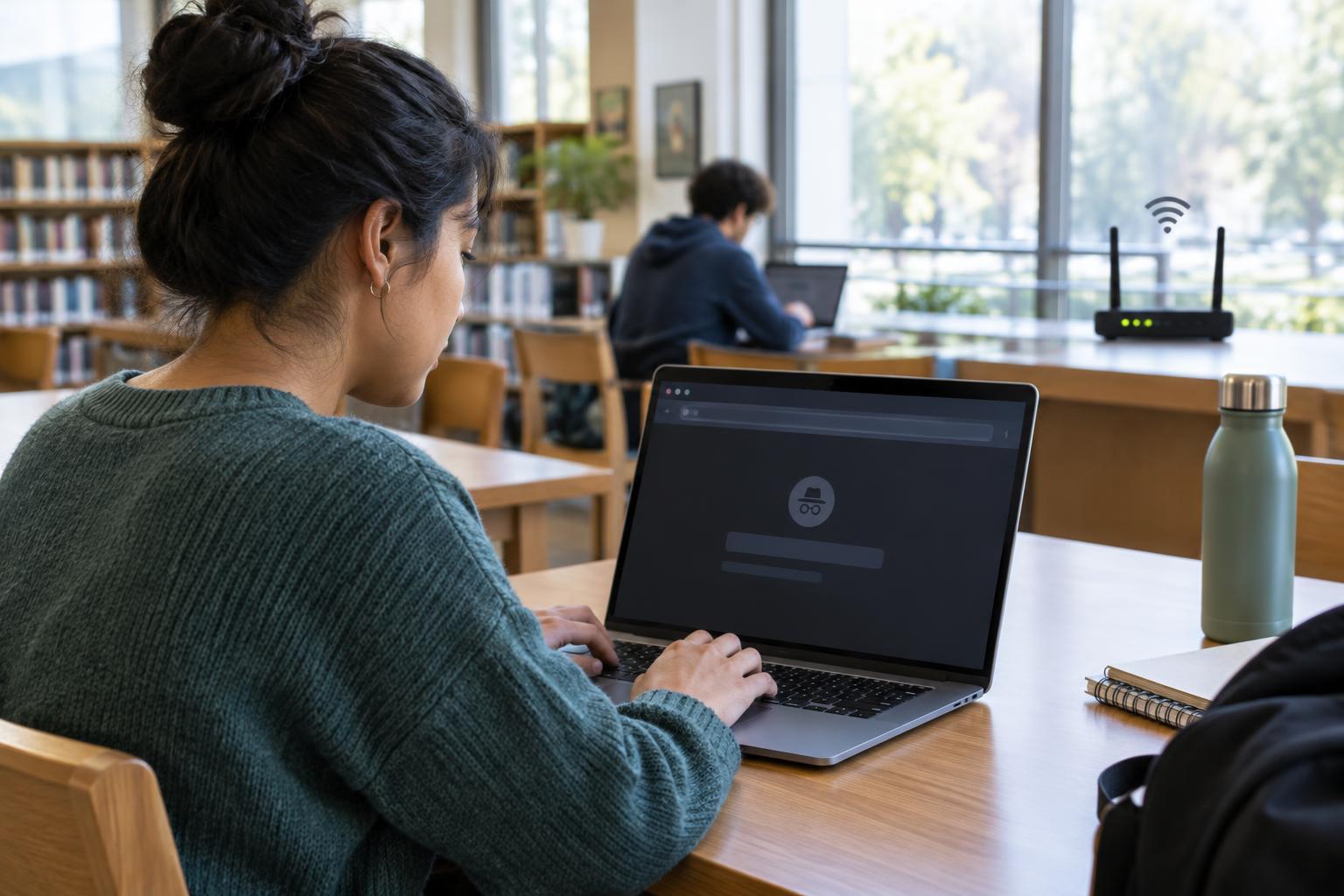
Public Wi-Fi is useful when cellular coverage is poor or mobile data is limited. Its main drawback is that you do not manage the network. Other people may be using it, and a network name can be copied by someone operating an unrelated hotspot nearby. Before joining, confirm the correct network name with the venue rather than selecting the first plausible-looking option.
Some networks open a sign-in page, often called a captive portal. Treat requests on that page with care: a request to accept usage terms is different from a request for an email password or payment details. If the page or network name seems unexpected, pause and ask staff. Avoid approving browser warnings about invalid security certificates just to get connected.
The padlock or “https” in a website address indicates that your connection to that site is encrypted, which helps protect what you send and receive from people observing the local network. It does not prove the site itself is trustworthy. Check the address before signing in, particularly if you reached the page through a message or a search result.
A practical way to decide
For a quick, low-stakes task, a confirmed public Wi-Fi network may be a reasonable choice. For a sensitive task—such as accessing work files or changing an account password—a personal hotspot is often preferable when you have a reliable cellular signal and enough data. If neither connection feels dependable, consider waiting until you can use a network you know.
Whichever you choose, keep your device and apps updated, use strong, distinct passwords, and enable multi-factor authentication where available. Set your device to ask before joining new Wi-Fi networks so it does not connect unexpectedly. When you finish using a public network, disconnect and, if appropriate, remove it from your saved networks.
A VPN can add a layer of protection on networks you do not control, particularly if your workplace provides one, but it is not a substitute for checking where you sign in or keeping your device secure. The most useful habit is to match the connection to the task: verify unfamiliar Wi-Fi, use a hotspot when its extra control matters, and remember that safe browsing practices matter on both.