Start with the people, not the link
Before opening the Share menu, decide who needs the file and what they need to do with it. Does one colleague need to read a draft, or does a small group need to edit it together? That decision will help you choose a setting instead of accepting whichever option the service suggests first.
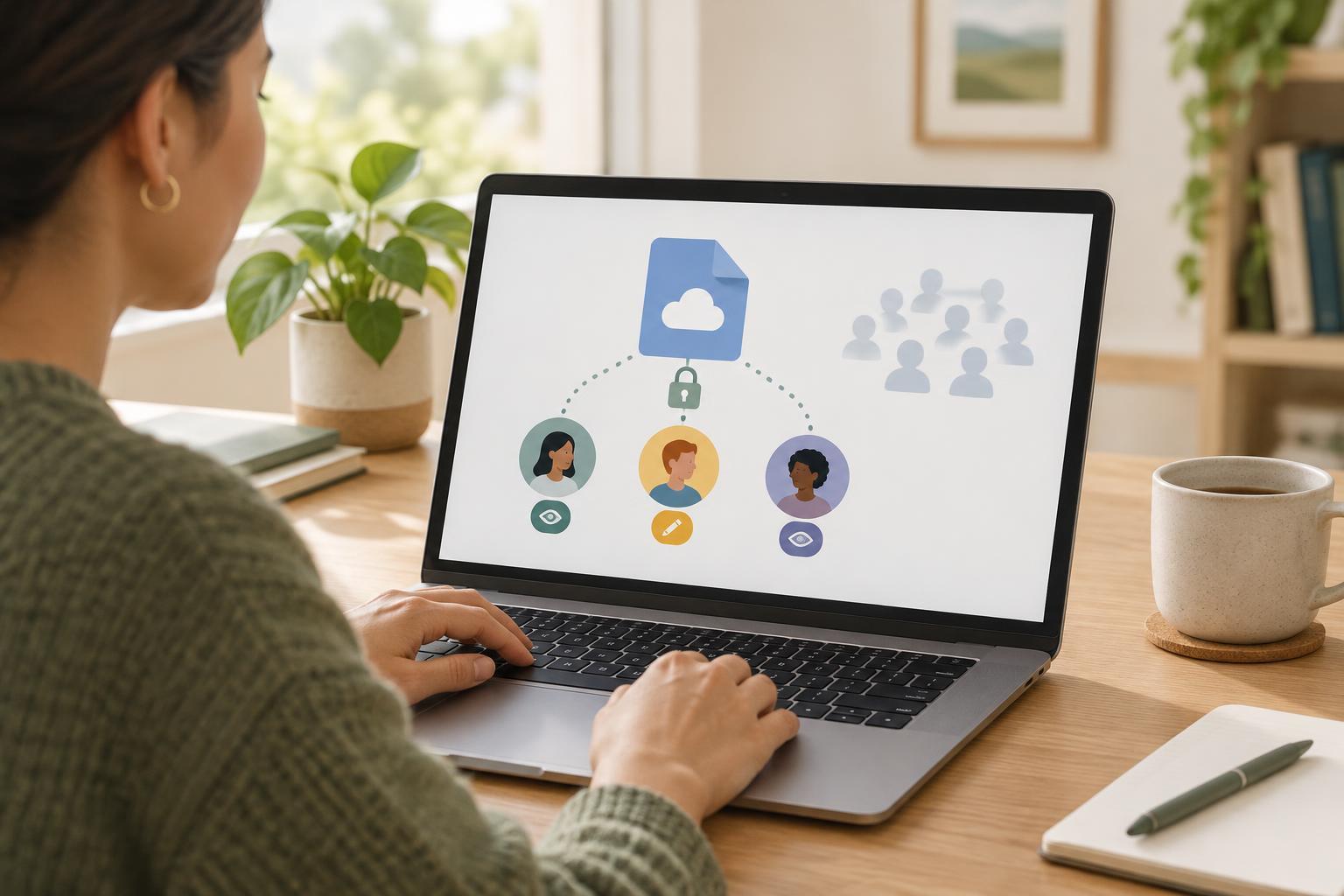
For most private sharing, invite people by their email address and choose a setting such as “specific people” or “restricted.” Depending on the service, recipients may need to sign in before they can open the file. This adds a check that a broadly accessible link does not provide. Confirm each address before sending: an invitation to the wrong person is still an invitation.
Understand what a sharing link allows
Cloud services often offer several link types. A restricted link works only for people you have approved. An “anyone with the link” setting may let a person open the file without being named in its sharing list. Even if the link is not publicly posted, a recipient could forward it or paste it into another conversation. Some services also offer organization-wide links, which may be useful at work but can reach more people than a small project team.
Read the access description before you copy a link. If you see wording such as “anyone,” “public,” or “people in your organization,” pause and check whether that matches your plan. If you must use a broad link—for example, because recipients cannot use the same cloud service—consider whether a separate copy containing only the information they need would be safer to share.
Give each person only the permissions they need
Access and editing are separate choices. A viewer can usually read a file, while an editor may be able to change or delete content. Some tools also offer a commenter role. If you want feedback but not changes to the original, commenting may be a better fit than editing. Check whether the permission applies to one file or to a whole folder; folder access can expose other files stored inside it.
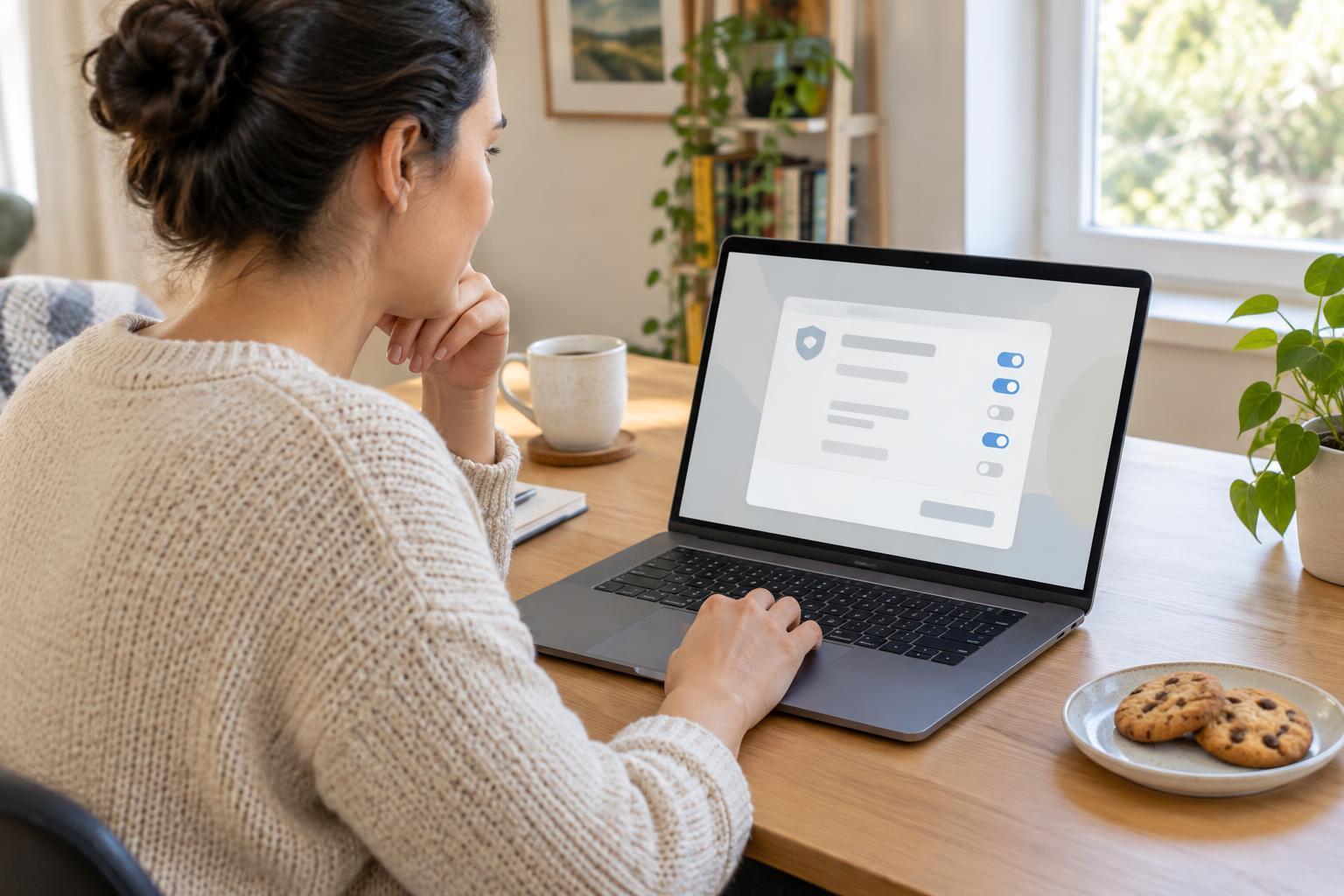
Look for additional controls if the service provides them. You may be able to set an expiration date, require a password, or limit downloading and copying. These options vary by provider and account type. They can reduce casual sharing, but they cannot guarantee that someone will not retain information they have already seen. For sensitive material, share the smallest useful amount and consider whether cloud sharing is appropriate at all.
Check the result before announcing it
After saving the settings, reopen the file’s sharing panel. Review the list of people, their roles, and any link-access setting. If the file is inside a shared folder, check the folder too: people may have access through that folder even when they are not listed as direct invitees on the file. Interface labels differ, so look for descriptions of who can open the item rather than relying on a button’s position.
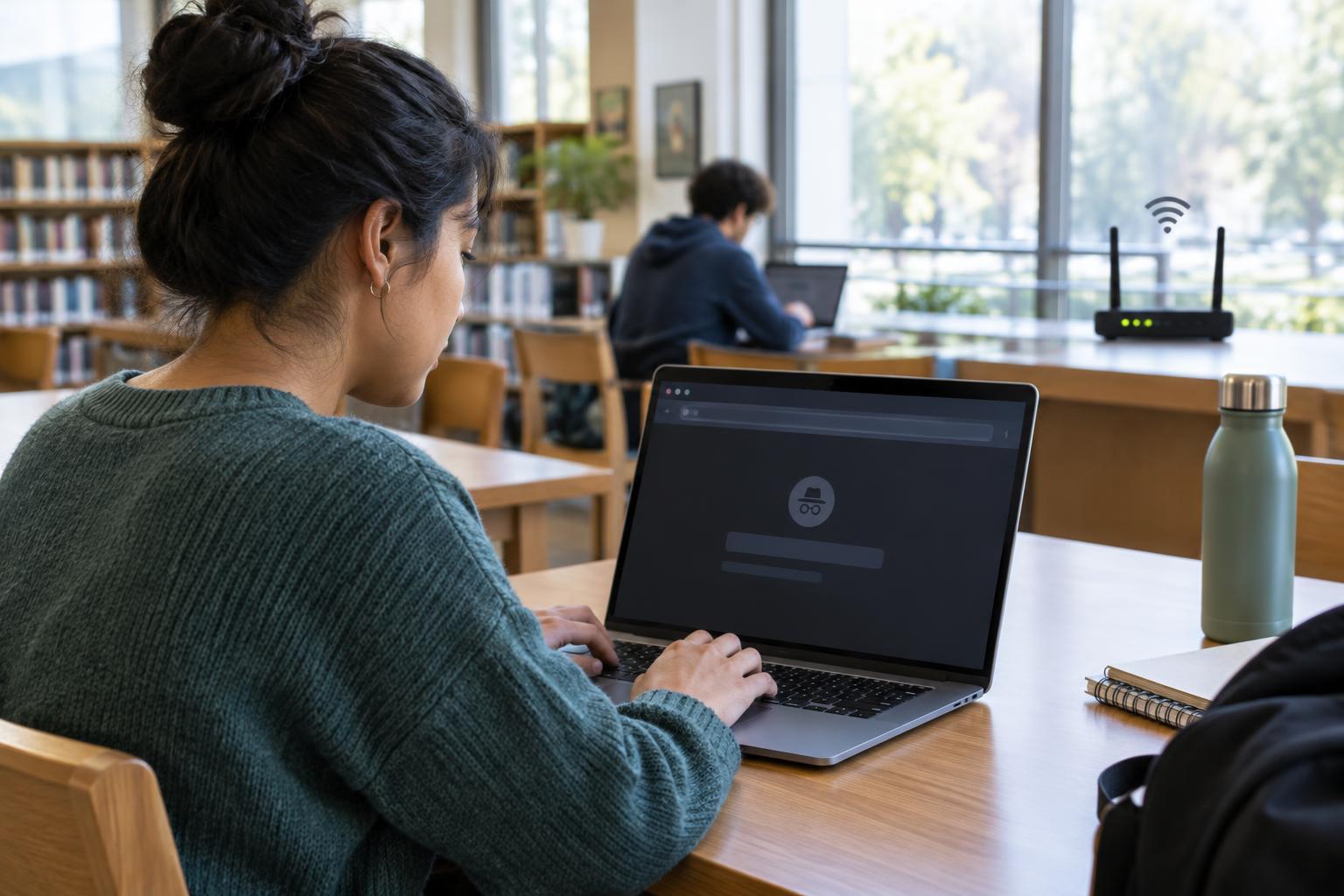
If possible, ask one intended recipient to confirm that they can open the file with the expected permission. A private or incognito browser window can sometimes help you spot a link that opens without your account, but it is not a complete test of every access rule. Avoid repeatedly changing settings just to make a link work; first find out whether the recipient is signed in with the address you invited.
Review access when the work is done
Sharing is not a one-time decision. When a project ends or someone no longer needs the file, return to its sharing settings and remove that person or disable the link. If you used a folder for a short project, review its contents and members as well. This simple cleanup helps prevent old invitations from becoming an unnoticed route to information you later add.
Removing access usually stops future opening through that permission, but it may not erase copies a recipient downloaded or information they pasted elsewhere. If a file was shared too widely, restrict it promptly, then consider whether you need to replace the shared copy or tell the people involved. The most reliable routine is straightforward: name the recipients, choose the least access they need, verify the settings, and revisit them later.