What version history can and cannot do
Version history lets you look at earlier states of a file. It can be useful when you delete a paragraph, overwrite a useful idea, or discover that a shared document has changed in an unexpected way. Depending on the app, you may see a list of saved versions, timestamps, and the names of people who made changes. Some apps let you preview or name versions, while others offer only a limited list of earlier copies.
Before relying on it, check where the document is stored and how it is saved. A document app may keep detailed history for files saved to its connected online storage but offer less history for a file stored only on your device. Automatic saving, version history, and backups are different features. Version history is helpful for correcting changes within a file; it is not a substitute for keeping a separate copy of important work.
Find the right earlier version
Open the document and look in its File menu or near its title for an option such as Version history, Browse versions, or Restore previous version. The wording and location vary. If you cannot find it, check whether you opened the original file or a downloaded copy. A copy may have its own history, separate from the document you meant to inspect.
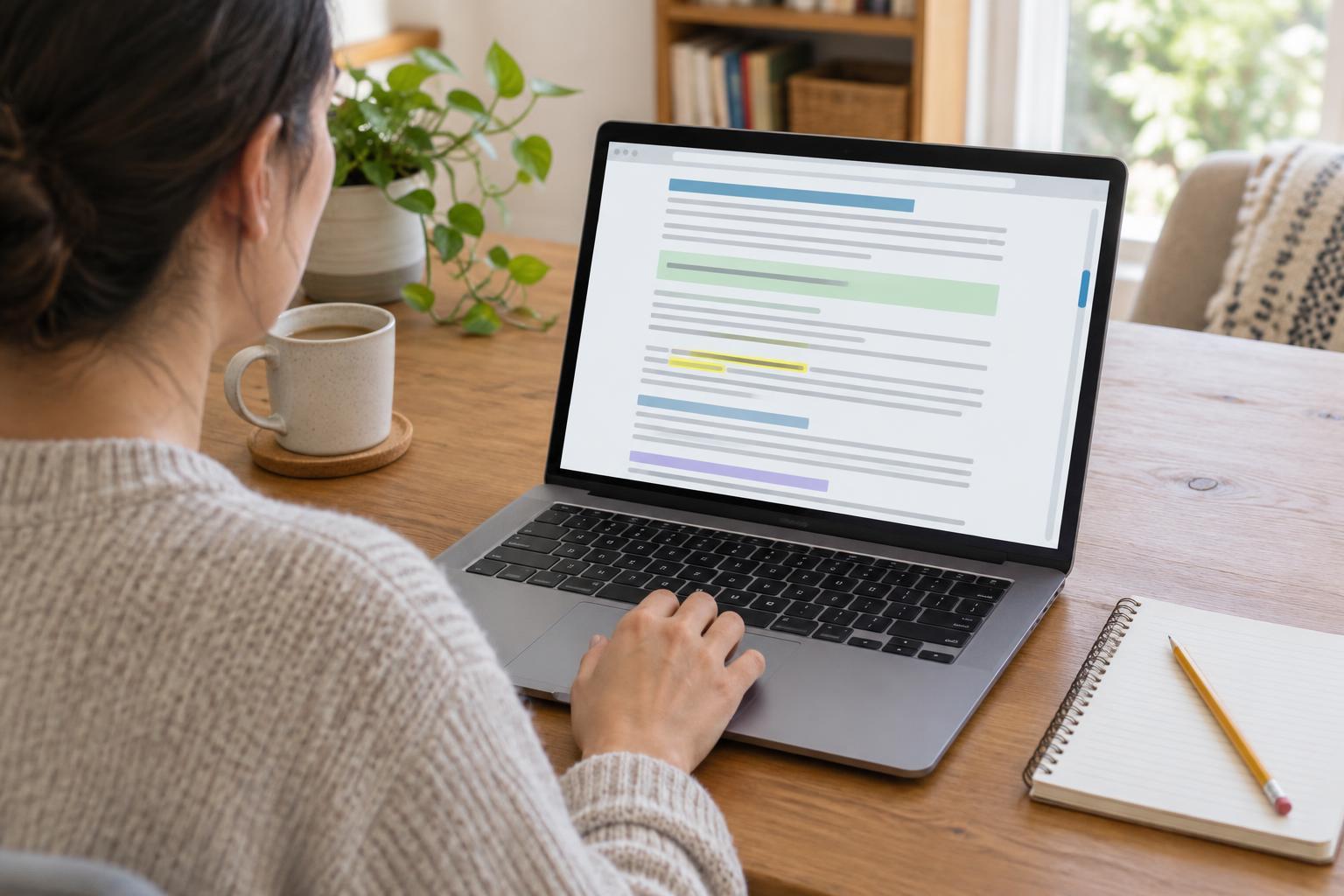
Start with the approximate time the change happened, then preview likely versions rather than choosing the oldest one immediately. Look for a distinctive sentence, heading, or table entry that tells you whether you have found the right draft. In a shared file, note that a version may contain several people’s edits. A timestamp identifies a saved state, but it does not necessarily identify a single change.
Recover a passage before restoring a whole file
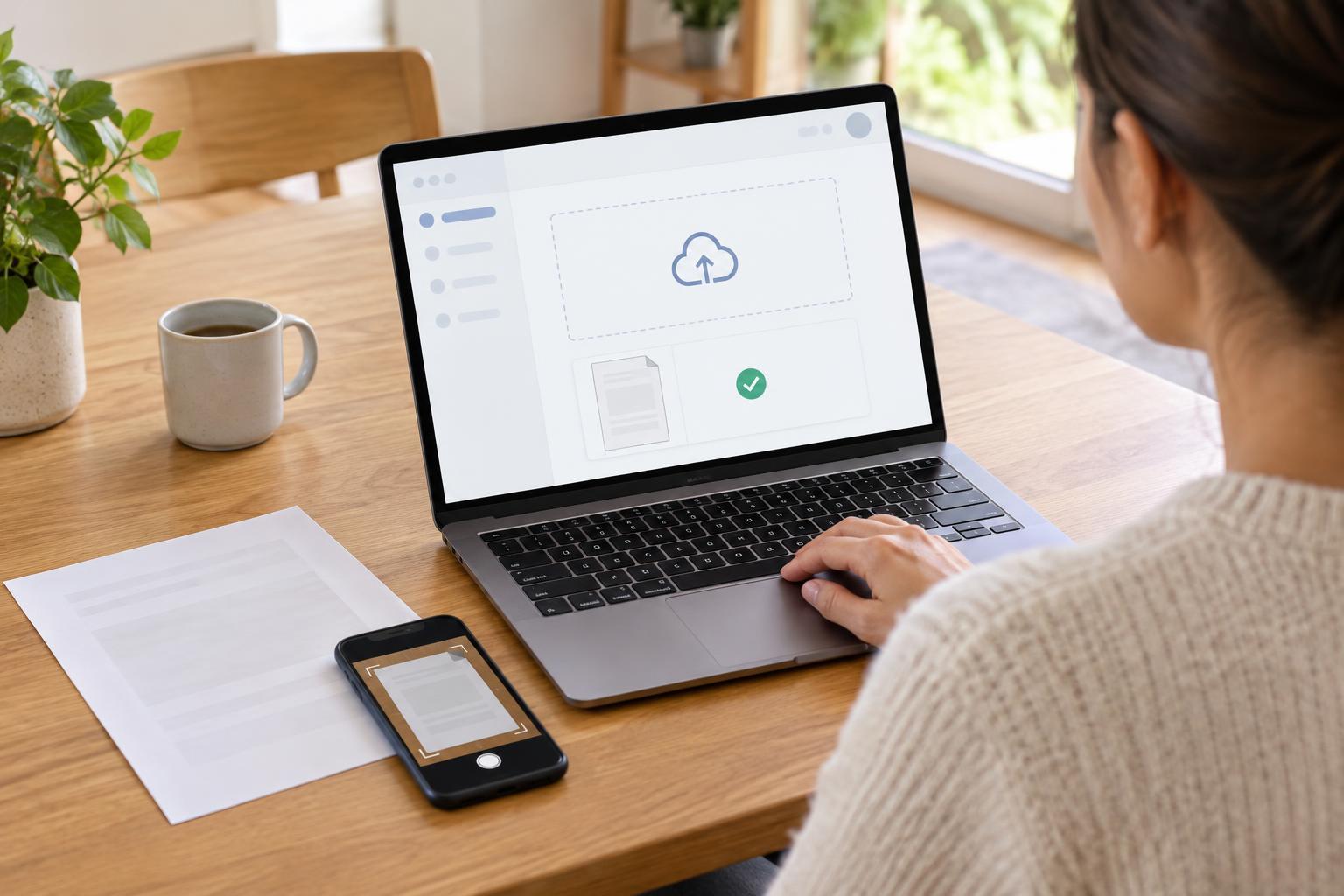
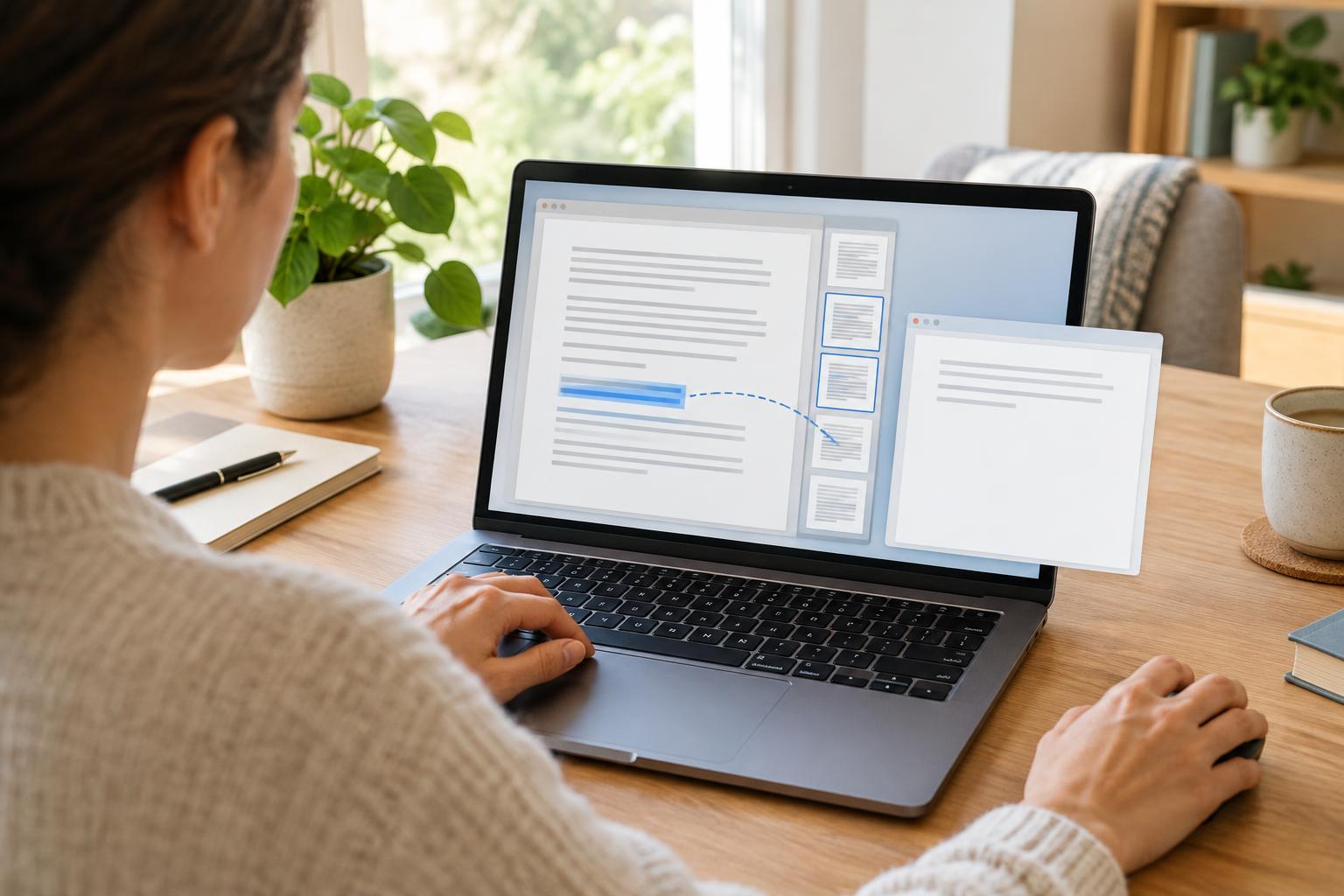
If you only need one missing sentence or section, the safest approach is often to open an older version, copy the needed text, and paste it into the current document. This preserves useful work added after the earlier version was saved. If the app will not let you copy from its preview, see whether it offers a way to duplicate or download that version. Give the copy a clear name so you can tell it apart from the current file.
Restoring an entire version may replace later edits in the active document. Before doing so, make a copy of the current version and confirm that you can find it again. In a shared document, tell collaborators before restoring a whole file; otherwise, their recent work may appear to disappear. After any recovery, read the surrounding text and check formatting, links, and tables. A recovered passage may no longer fit the rest of the document.
Make future recovery easier
Give important drafts descriptive names, especially before major revisions. Where your app allows it, name significant versions too: a label such as “before shortening the introduction” is easier to recognize than a timestamp alone. For larger changes, consider duplicating the document first. Keep the original and the new draft in the same clearly named folder, but avoid creating so many nearly identical copies that you cannot tell which one is current.
For valuable files, keep a separate backup in addition to using version history. Check occasionally that the backup includes the documents you expect and that you know how to open them. If you work with others, agree on which file is the active one and where finished copies belong. These habits make version history more useful: when something goes wrong, you can identify what changed, recover only what you need, and keep the latest work intact.