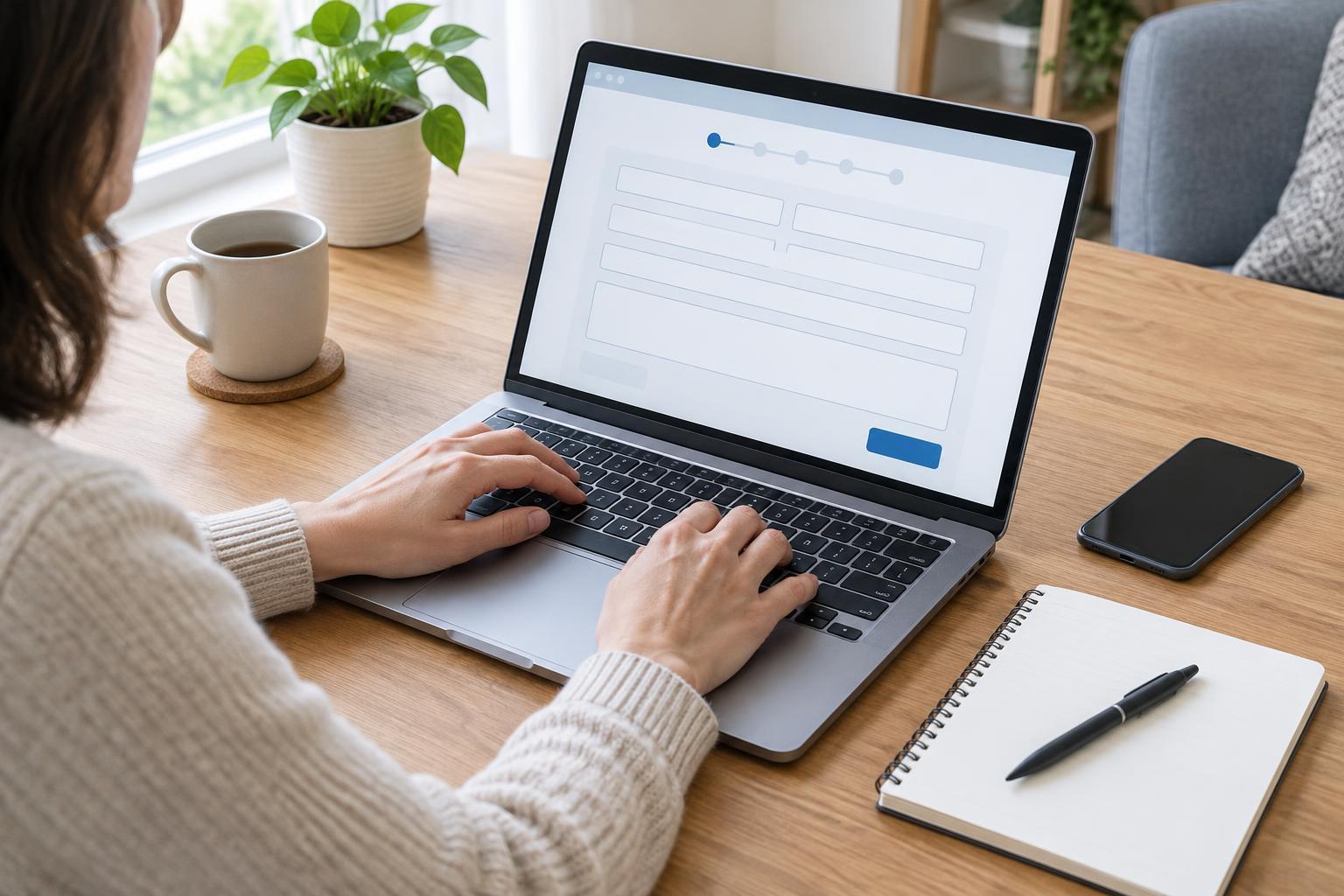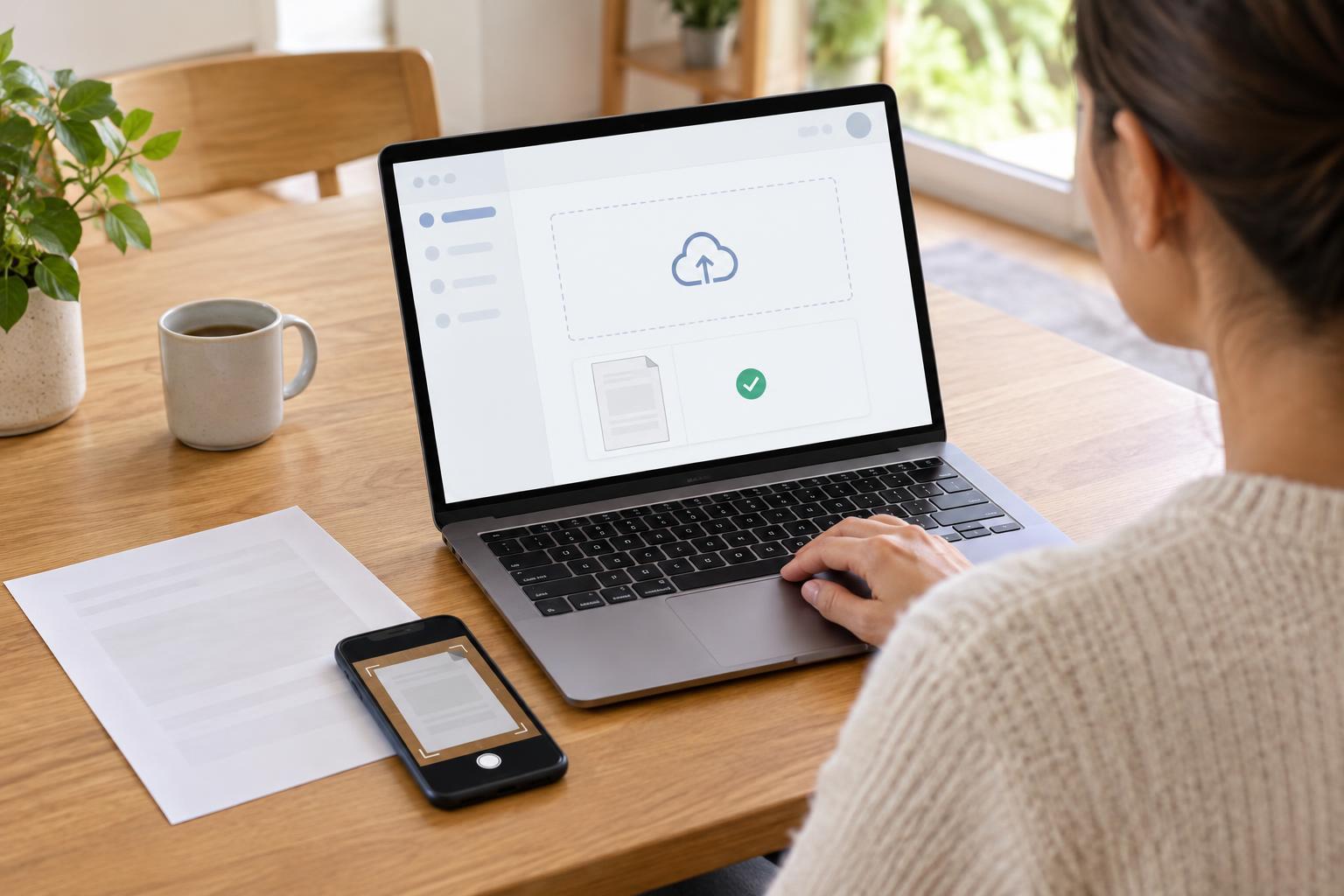
Check what the service asks for
Before selecting a file, read the instructions beside the upload field. Check which document is required, whether the service wants every page, and whether it accepts a photo, a scan or a particular file type. Some services also set a maximum file size. If these details are not clear, look for a help option or contact the service rather than guessing what it will accept.
Check whether you need to cover information that is not relevant to the request. Do not remove details the service specifically asks to see. If you are unsure what to include, ask the service before editing the document. Keep the original unchanged so that you can make another copy if needed.
Make a clear, manageable copy
If the document is already on your device, open it before uploading. Check that it is the right version and that every required page is present. For a paper document, a phone camera or scanning app may be enough if the service accepts the resulting file. Place the paper on a flat surface in good light, capture the whole page, and check that text and important marks are readable. Avoid sending an image with fingers, shadows or a cropped edge covering information.
Give the copy a simple, recognizable filename, such as proof-of-address or application-document-1. This makes it easier to find in a file picker, especially when several files look alike. If a file is too large, use an option on your device to save a smaller copy, or ask the service what alternatives it accepts. Check the smaller copy again: reducing a file is not helpful if its text becomes unreadable.
Find and use the upload control
An upload area may be labeled Choose file, Browse, Attach or Add document. Select it, find your prepared file in the device’s file picker, and confirm the selection. A filename appearing beside the control may mean only that the file has been selected; the service might still require a separate Upload, Save or Continue action. Read any status message before moving on.
If you use a keyboard, move through the page with Tab and activate the upload control with Enter or Space, depending on the control. If you use a screen reader, listen for the field’s label and any message after choosing a file. Poorly labeled controls can make it difficult to tell which document belongs in which field. When that happens, check nearby instructions and seek assistance through the service’s support channel rather than submitting files to uncertain destinations.
Check the result before you submit
After an upload, look for the filename, a preview or a message confirming that the file was attached. If a preview is available, open it and verify that it shows the intended document and all required pages. If you chose the wrong file, use the service’s replace or remove option before submitting the application. Review other fields too: attaching a document does not necessarily complete the request.
When you finish, note any confirmation number or save a confirmation message in a place you can find again. Keep your own copy of the submitted files until you no longer need them. Use a private device or account where possible, and avoid leaving sensitive documents in a shared device’s downloads folder. If you used a public computer, sign out and follow its guidance for removing your files.
Know what to do if uploading does not work
If the service rejects a file, read the error message closely. Common things to check include the file type, size, missing pages and whether the file opens normally on your device. Try correcting one issue at a time so you know what changed. If an upload seems to stall, avoid repeatedly submitting the whole application without checking whether it has already gone through.
An inaccessible upload control or an error with no explanation may leave you unable to finish. Contact the service and describe the step where you got stuck, the message you saw and the device or assistive technology you were using, if relevant. Ask whether you can provide the document another way or get help completing the upload. Do not send sensitive files to an address or contact you have not verified through the service’s official channels.