Start with the shape of the page
A long web page does not have to be read from top to bottom. First, look at its title and scan the headings. They can tell you whether the page contains the answer you need and where to begin. A table of contents, if present, may let you jump directly to a section. On a phone, scroll a little at a time so you can notice where one section ends and another begins.
Before reading closely, decide what you are looking for. Are you trying to find a particular instruction, a name, or a definition? A specific question gives you a reason to skip sections that do not apply. If the page has a menu or a large introduction, you can move past it and return later if needed. The aim is not to read faster at all costs; it is to spend your attention on the useful part.
Find a word on the page
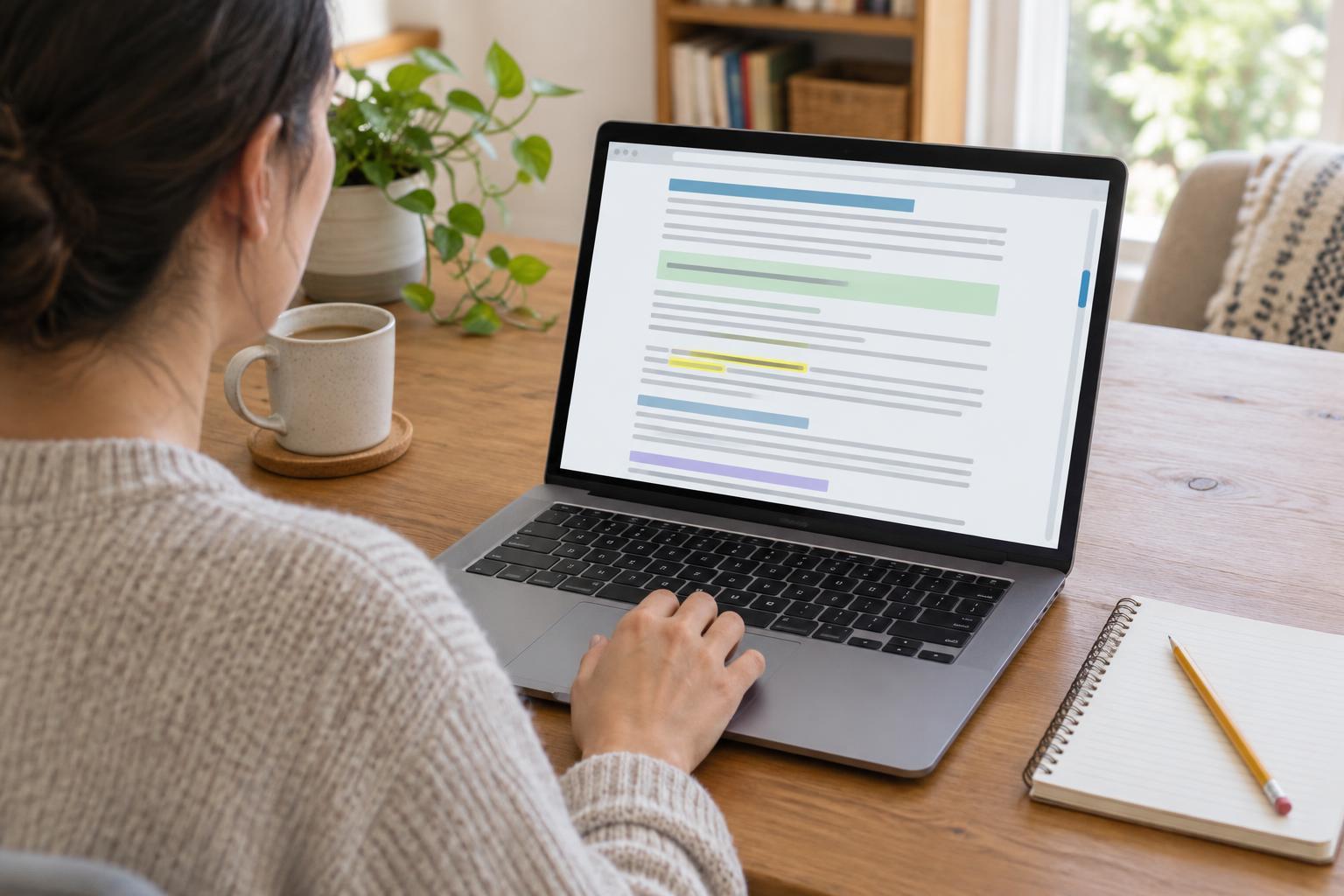
Most browsers offer a feature often called Find in page. On a computer, Ctrl+F usually opens it; on a Mac, Command+F usually does. On a phone, look in the browser’s menu for an option with a similar name. Type a distinctive word from your question, such as “eligibility” or “opening hours.” The browser highlights matches and lets you move between them.
This searches the page you already have open, not the whole web. If a search returns many matches, try a longer phrase. If it returns none, check the spelling or try a related word. The text may also be inside an image or in a section that has not loaded, so a missing match does not always mean the information is absent. Once you find a promising match, read the surrounding sentences rather than relying on the highlighted words alone.
Follow links without losing your place
A link may take you to another section of the same page, another page on the site, or a different website. Before selecting it, read its label and the sentence around it to judge whether it is likely to help. If you leave the page and want to return, your browser’s Back button is usually the simplest route. After returning, check the heading near your position; some pages may reopen at a different spot.
On a computer, opening a useful link in a new tab can keep the original page available. Browser menus and shortcuts vary, but right-clicking a link often shows an “open in new tab” choice. On a phone, pressing and holding a link may show a similar option. Keep the number of open tabs manageable, and close a tab when you have finished with it. A bookmark can help if you need the original page again on another day.
Practice with a question you can answer
Practice works best when the subject is interesting but the task is low-pressure. You might ask yourself, “Can I find a page about travel?” Then browse Music and Travel · Blues Across Borders and use headings or Find in page to locate a detail that interests you. Try returning to your starting point afterward. The goal is to get comfortable moving around, not to memorize the page.
For another exercise, visit Blues Across Borders, choose a link that looks interesting, and notice whether it opens a new page or moves you within the current one. You can also browse Musical Instruments · Blues Across Borders and try finding a particular instrument name on a page. These small exercises let you practice scanning, searching, and going back without needing to complete an important form or deadline-driven task.
Make the page easier to read
If the text feels cramped, try your browser’s zoom controls or text-size settings. A larger view may require more scrolling, but it can make headings and links easier to distinguish. Some browsers also offer a reading view that reduces visual clutter on compatible pages. Because that view may hide menus or interactive parts, return to the normal page if something you need appears to be missing.
A reliable routine is simple: identify your question, scan the headings, search the page for a useful term, and read the relevant section in context. When you follow a link, remember how you plan to return. If you still cannot find an answer, the page may not contain it. At that point, changing your search words or choosing a different page is more useful than scrolling through the same material repeatedly.