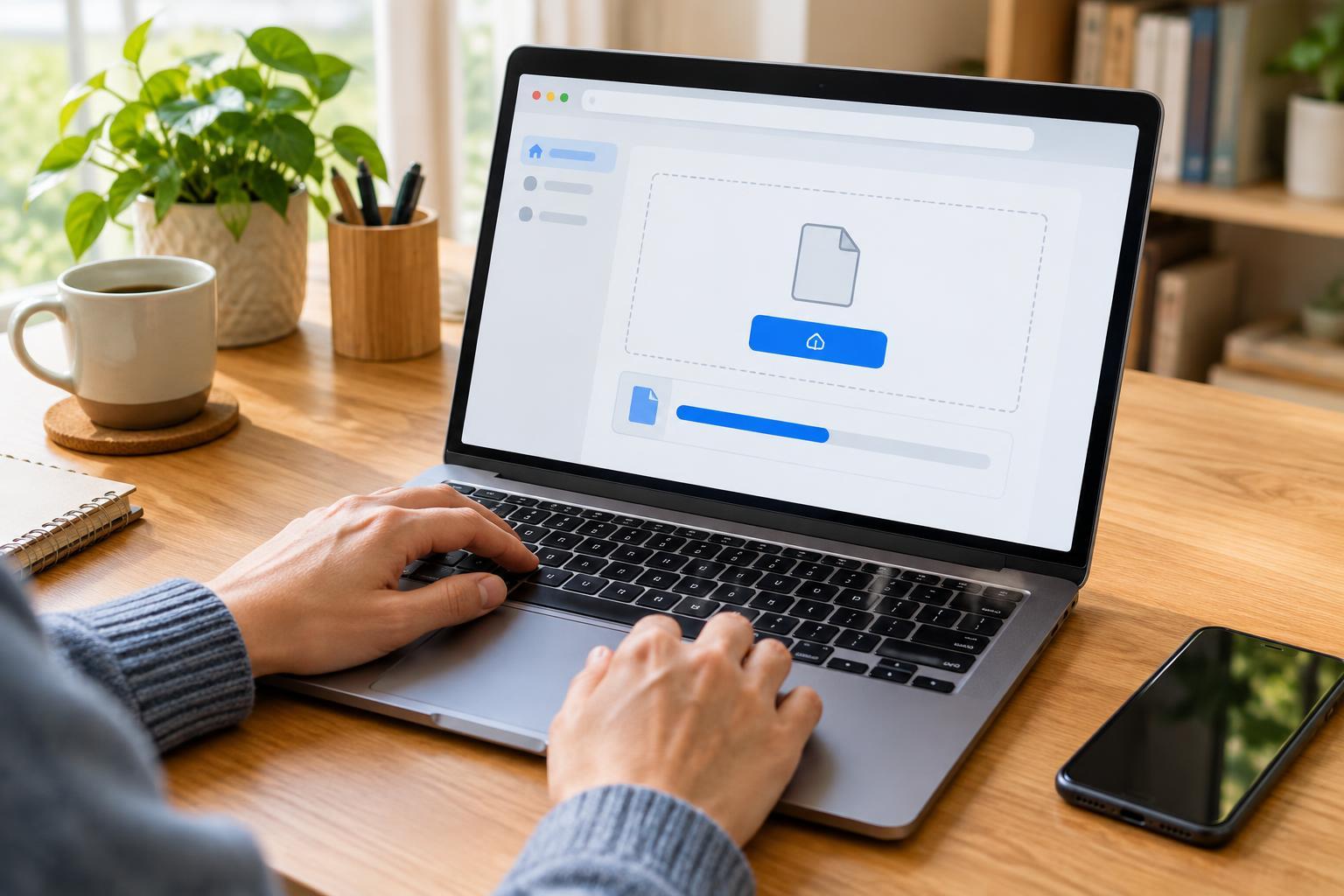
What happens when you upload a file?
Uploading sends a copy of a file from your device to a website. You might do this to attach a document to an application, add a photo to a community page, or submit a form. Your original file usually stays on your device. The website may store the uploaded copy, so check who can see it before sending anything personal.
Before you begin, find out what the website asks for. It may accept only certain file types, such as PDF documents or common image formats, and it may set a maximum file size. If you need to upload a particular document, open it on your device first to make sure it is the right one and that its contents are readable. A clear file name, such as “Community_Form.pdf,” can also help you recognize it later.
Find the upload button and choose your file
On the website, look for a button or area labeled “Upload,” “Choose file,” “Browse,” or “Add attachment.” Select it to open your device’s file picker. On a computer, this is usually a window where you can browse folders such as Downloads, Documents, or Pictures. Choose the file, then select “Open” or the equivalent button. The file name may appear on the webpage, but that does not always mean the upload is complete.
On a phone or tablet, the choices may include Files, Photos, or the camera. Choose Files for a saved document or Photos for an image in your photo library. If the file came from an email or messaging app, you may first need to save it to your device so you can find it in the picker. Menus vary between devices, but the goal is the same: select the saved file you want the website to receive.
Finish the upload and check the result
After choosing the file, look for a separate button such as “Upload,” “Attach,” “Save,” or “Submit.” Some websites start transferring the file immediately; others wait until you press this final button. Keep the page open while a progress bar or loading symbol is visible. A slow connection or a large file can make this step take longer.
When the transfer finishes, check for a confirmation message, an attachment name, or a preview. If the website offers a way to view the uploaded file, use it to confirm that you sent the correct version and that every page or image is readable. On a form, you may still need to submit the form after the attachment appears. If the task matters, make sure you reach the form’s final confirmation screen rather than stopping when you see the file name.
What to do if the upload does not work
Start with the message on the screen. “File type not supported” means you need a format the website accepts. A size-limit message means the file is too large; the site may offer guidance, or you may be able to create a smaller copy using a tool you trust. Do not simply change the letters at the end of a file name: that does not convert the file itself.
If nothing happens, check that you selected a file and pressed any required final button. Wait for other uploads to finish before trying again. If the connection dropped, reopen the page and check whether the file is already attached so you do not submit it twice. You can also try a different browser or device if the website’s file picker is not responding. If you must start over, keep a copy of any text you entered into the form.
Protect your information before you send it
Take a moment to inspect the file, especially if it contains names, addresses, account details, or images of other people. Send only what the website requests. If you photographed a document, check that the full page is visible and that unrelated information is not in the background. Confirm that you are using the intended website and understand whether the upload will be private, shared with a group, or publicly visible.
After uploading, follow any on-screen instructions for completing the task. If you are using a shared device, sign out of the website when you are done. Knowing the difference between selecting a file and completing a submission makes uploads less confusing—and checking the result gives you a chance to catch mistakes while you can still fix them.