Start with a purpose and a blank page
A document can be a letter, meeting agenda, set of instructions, or short report. Before opening an app, decide who will read it and what they need to do or understand. That decision helps you choose what to include. For example, an agenda needs a meeting time and a list of topics; a letter needs a clear message and, usually, a way for the reader to respond.
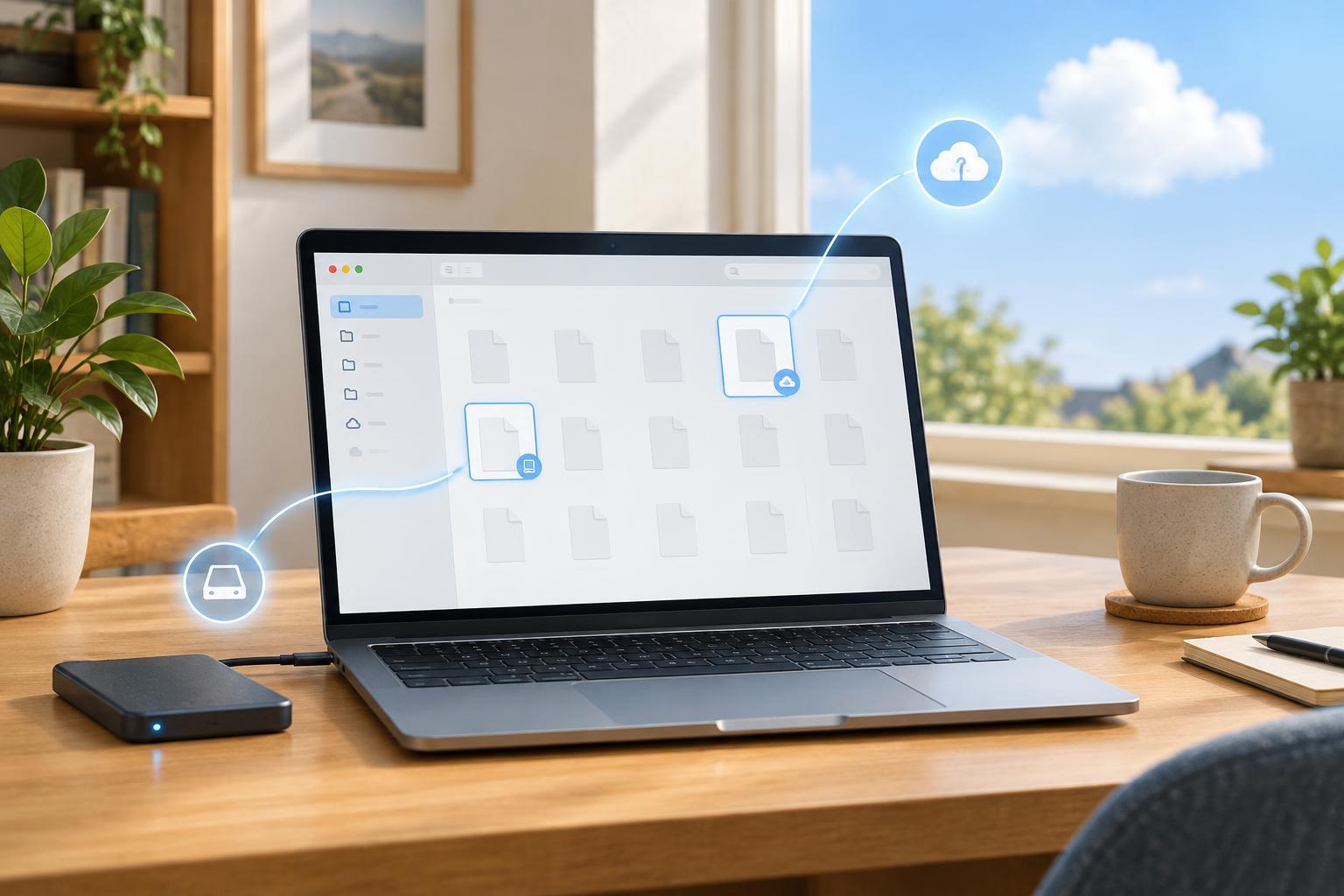
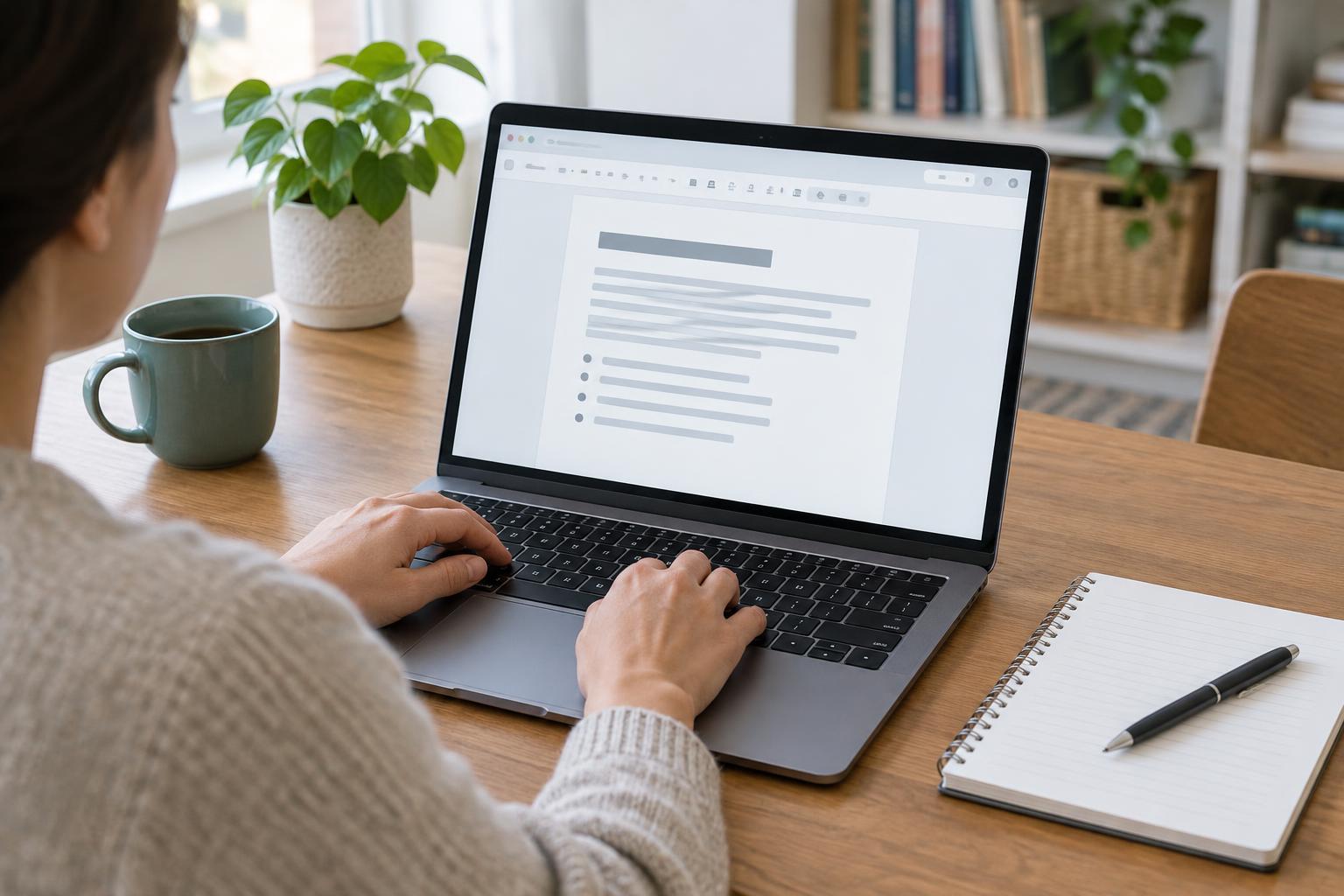
Open a word processor and choose a blank document. The buttons may look different in Microsoft Word, Google Docs, LibreOffice Writer, or another app, but the basic tasks are similar. Give the document a descriptive name early, such as “Community meeting agenda,” rather than leaving it as “Untitled.” If the app asks where to save it, choose a folder you can find again. A document is easier to manage when its name and location make sense.
Write the content before polishing the layout
Start with a short, specific title. Then write the main information in the order a reader will need it. Put the most important point near the beginning, especially if you are asking someone to take action. Use one paragraph for each main idea, and leave out details that do not help the reader. You can revise awkward sentences later; getting the information onto the page first is often simpler than trying to write and design at the same time.
Use a list when readers need to scan several items, such as supplies to bring or steps to follow. Number a list if the order matters, and use bullets if it does not. To create a new paragraph, press Enter once. Avoid pressing Enter repeatedly to push text down the page or using a row of spaces to line things up. Those shortcuts can make the layout shift when someone opens the document on another device.
Make the structure easy to see
Formatting should help readers find information, not compete with it. Select the title and apply the app’s Title style if one is available. For longer documents, apply Heading styles to section names instead of only making them bold and larger. Styles keep similar headings consistent and can help people navigate the document with assistive technology. If your document is short enough to need only a title and a few paragraphs, there is no need to add headings just for decoration.
Choose a readable font and a size that feels comfortable at normal viewing distance. Keep the body text consistent, use left alignment for most ordinary documents, and leave enough space between paragraphs to distinguish them. Bold can draw attention to a key phrase, but too much bold makes it less useful. Avoid relying on color alone to communicate meaning: a label such as “Deadline” remains clear even when printed in black and white. If you add an image, include a brief description when the app offers an alt-text option.
Save, review, and share the right version
Save your work as you go. Some online editors save changes automatically, while desktop programs may require you to save manually. Check that the file appears in the folder or online account you intended to use. If you make substantial changes to a document you may need to refer back to, consider saving a copy with a clear version name rather than overwriting the earlier file.
Before sharing, read the document as someone seeing it for the first time. Check names, dates, contact details, and any instructions. Look at the page from top to bottom for stray blank lines, uneven lists, or a heading left alone at the bottom of a page. If possible, use the app’s spelling and grammar checks, but review their suggestions rather than accepting every change. They may not recognize a local name or understand what you mean.
Finally, choose a format that suits the reader. A word-processing file is useful when someone needs to edit the document. A PDF can be convenient when you want to share a version whose layout is less likely to change. If you share through an online link, check its access settings so the intended people can open it without giving editing permission to everyone. A final glance at the file or link you plan to send can prevent a simple mix-up.