Start with the spreadsheet grid
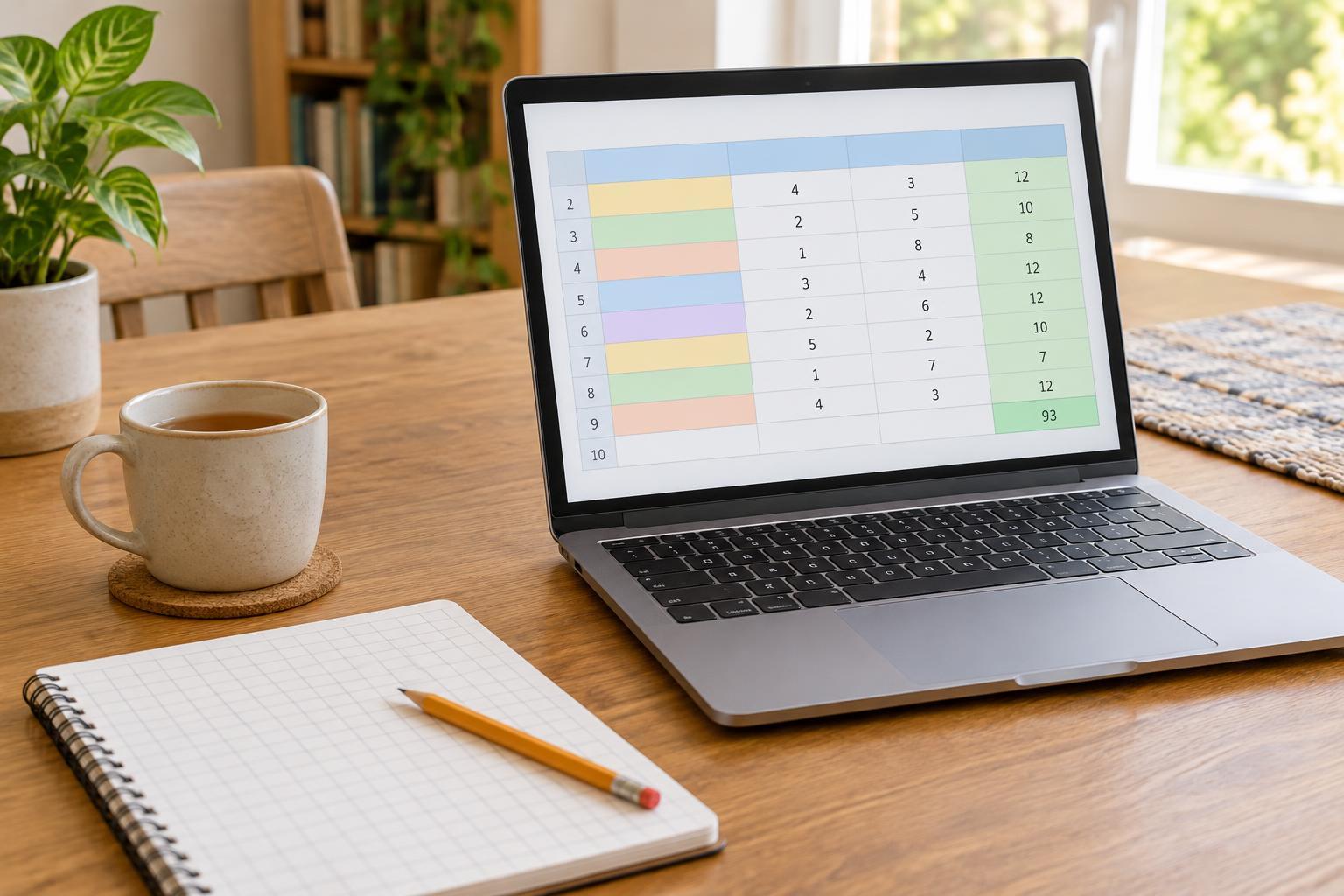
A spreadsheet is a grid for storing information and doing calculations. The small boxes are called cells. Columns run from top to bottom and are usually labeled with letters. Rows run from left to right and are usually labeled with numbers. Each cell has an address made from its column and row: B3 is the cell in column B, row 3.
Think of a sheet for tracking supplies at a community event. You might put “Item” in A1, “Quantity” in B1, and “Cost per item” in C1. The next row could hold the details for one item, with another item on each row below it. This arrangement makes the sheet easier to read, sort, and update. It also gives formulas predictable places to find the numbers they need.
Enter information consistently
Click or select a cell, type its contents, and confirm the entry. A cell can hold text, a number, or a formula. Use the first row for short, clear column headings, and try to keep one kind of information in each column. For example, put quantities in the Quantity column rather than adding words such as “boxes” to some of the numbers. If the unit matters, include it in the heading or give it a separate column.
Formatting changes how information looks, not necessarily what it contains. You can widen a column to reveal a long heading or format a column as currency so costs are easier to scan. A value that looks like money may still be an ordinary number used in calculations. If a total does not work as expected, check whether an entry was stored as text—for instance, because extra words were typed in the same cell. Keeping entries consistent now can save time when the sheet grows.
Write your first formulas
A formula tells the spreadsheet to calculate a result. It starts with an equals sign. If B2 contains a quantity and C2 contains a cost per item, enter =B2*C2 in D2 to calculate the cost for that row. The asterisk means multiplication. You can use + for addition, - for subtraction, and / for division. Referring to cells rather than typing their values into the formula means the result can update when you change an entry.
To add several results, a function can save typing. For example, =SUM(D2:D6) adds the values from D2 through D6. The colon marks a range that includes both endpoints and the cells between them. You can also use =AVERAGE(B2:B6) to find the average of a group of numbers. Function names and argument separators can vary across spreadsheet tools and language settings, so use your tool’s suggestions if an example is not accepted.
Copy formulas without losing track
Once D2 contains =B2*C2, you usually do not need to type the same pattern in every row. Most spreadsheet tools let you copy the cell and paste it into the cells below, or drag a small handle at the corner of the selected cell. When copied to D3, the formula normally changes to =B3*C3. These are relative references: they adjust according to the formula’s new position.
Check the first few copied results rather than assuming every row is correct. A blank quantity, a number in the wrong column, or an extra heading row can produce an unexpected result. If you later add more items, also check that a total such as =SUM(D2:D6) includes the new rows. For a beginner’s sheet, a quick review of the referenced cells is often the simplest way to catch mistakes.
Make the sheet useful and easy to share
Give the file a name that describes its purpose, such as “Event supplies,” and save it somewhere you can find again. Keep headings visible and avoid using color as the only way to explain what a column means. Clear labels help people who view the sheet at a different size or use accessibility tools. Before sharing, scan for private information that other people do not need, such as personal contact details or notes about individuals.
A small practice sheet is enough to build confidence. Enter three items with quantities and costs, calculate each row’s total, and add a final sum. Then change one quantity and watch which results update. That simple test shows the main strength of a spreadsheet: its grid keeps information organized while formulas turn changes in your entries into updated answers.