What a second factor does
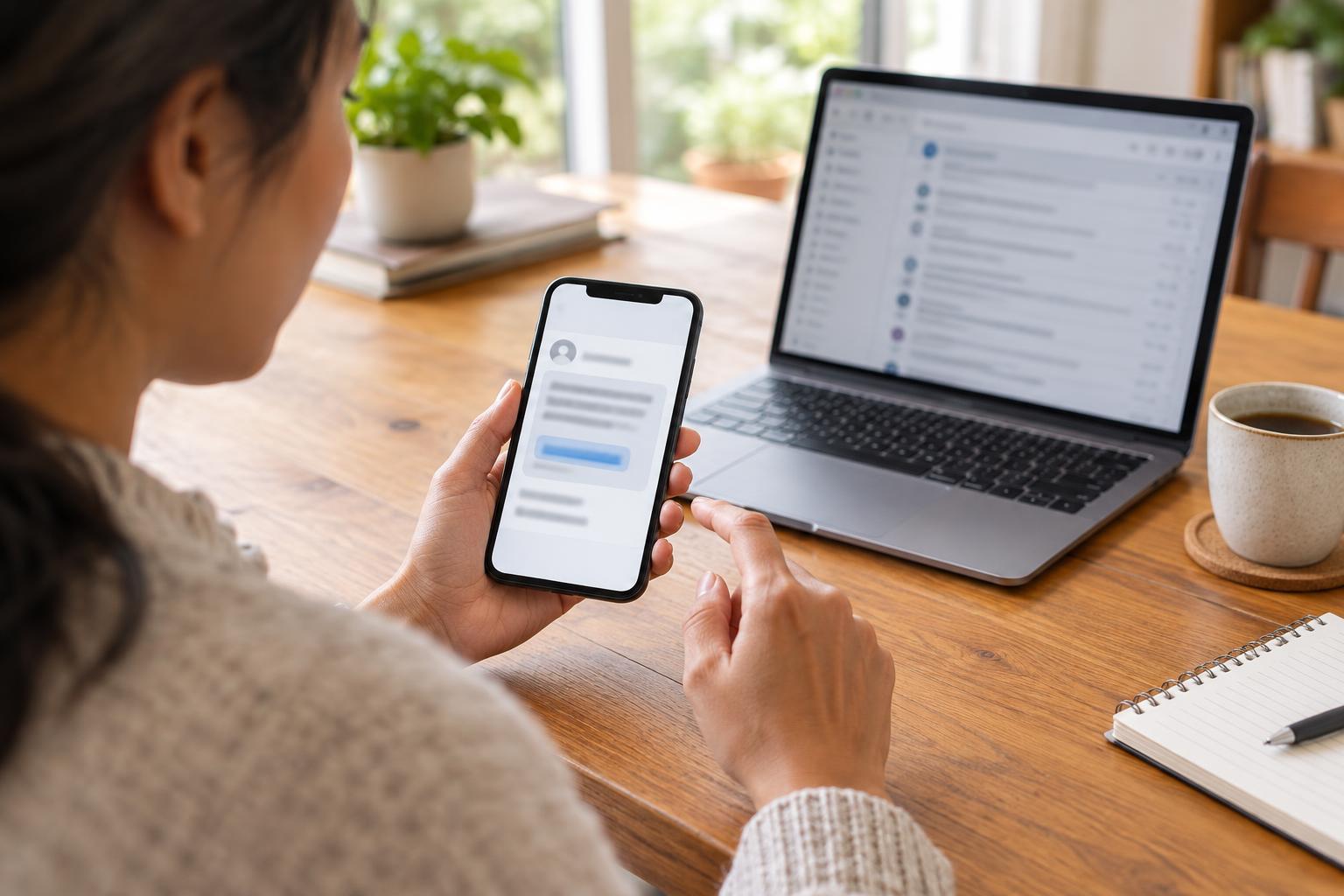
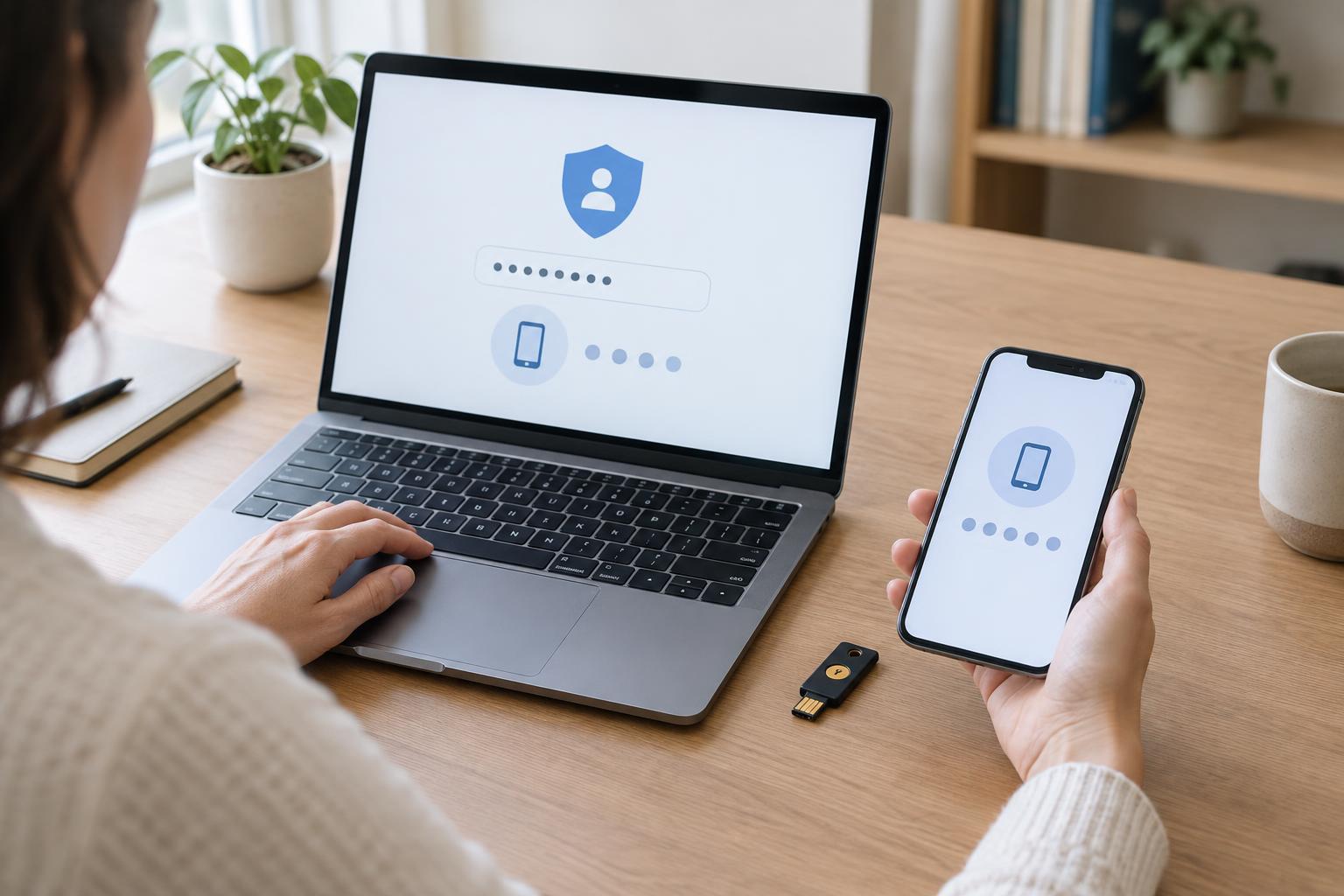
A password can be guessed, reused or exposed without your knowledge. Two-factor authentication, often called 2FA, asks for another form of proof when you sign in. That might be a code from an app, a prompt on a device, or a physical security key. If someone learns your password, the extra check can make it harder for them to enter your account.
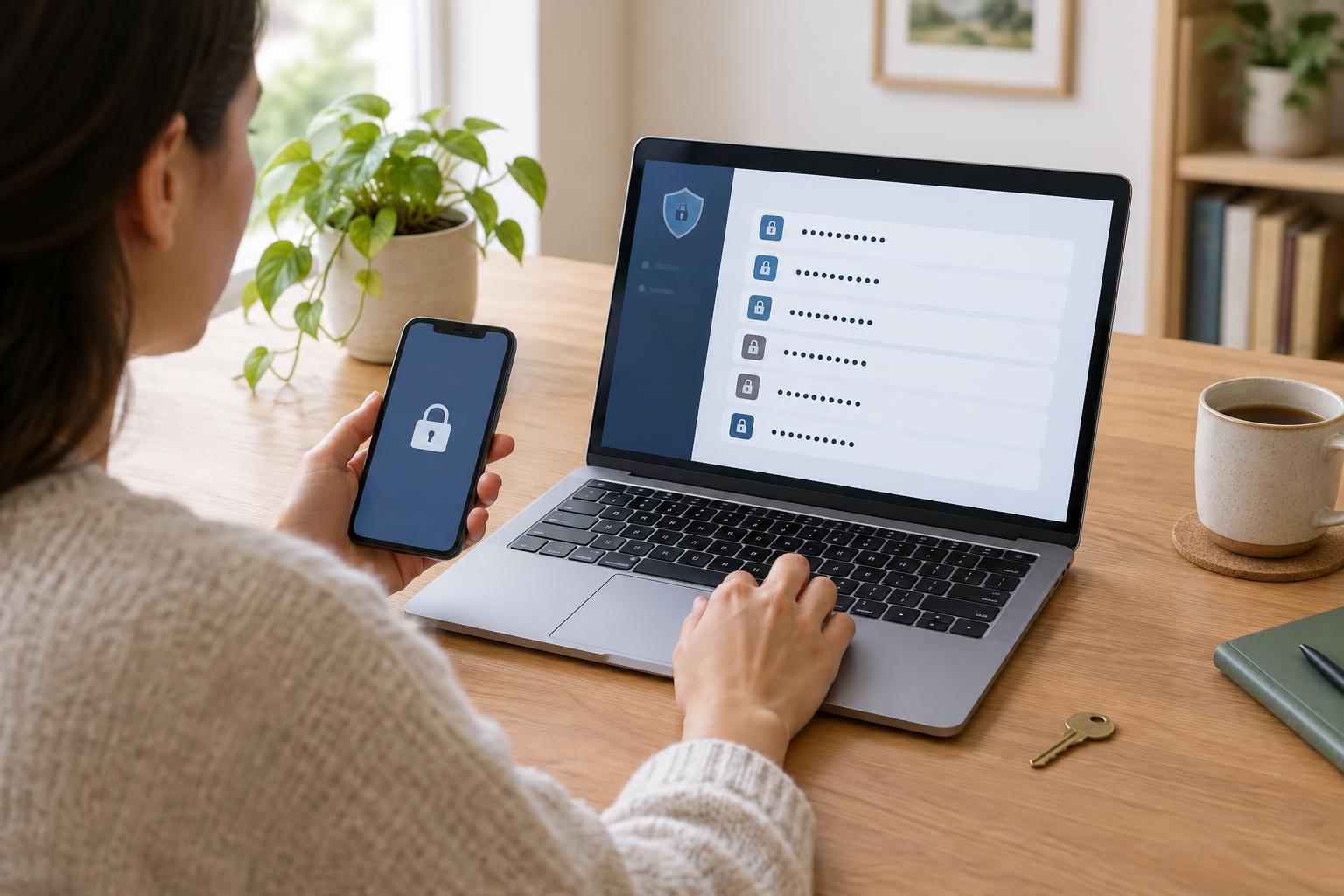
You may also see the terms two-step verification or multifactor authentication. Services use these labels differently, but the setup process is usually similar. Start with accounts that would be especially disruptive to lose, such as your main email account, password manager and accounts that store personal information. Keep a strong, unique password for each account: 2FA adds protection, but it does not replace the password.
Choose an option you can use and recover
An authenticator app generates short-lived codes on your phone or another device. It can usually work without a mobile signal after setup. When you enable this option, the service may display a QR code for the app to scan. Check how your chosen app backs up or transfers accounts before changing phones; those arrangements differ between apps.
A physical security key is a small device you connect or tap when prompted. Some services also offer passkeys that use a device’s screen lock or biometric check. These options can provide strong protection against sign-in pages designed to steal codes, but availability and recovery methods vary by service. If you choose a security key, consider registering a spare where the service allows it.
Text-message codes are often familiar and require no extra app, but they depend on access to your phone number and mobile service. Phone numbers can also be taken over or reassigned. If stronger options are available and practical for you, consider using one of those instead. The best choice is one you can use reliably and for which you have a workable recovery plan.
Turn on 2FA in your account settings
Sign in by typing the service’s usual address yourself or opening its trusted app, rather than following an unexpected message. Look in settings for Security, Sign-in, Two-step verification or Multifactor authentication. The exact names and screens differ. You may need to enter your password again before adding a method.
Select your preferred option and follow the on-screen instructions. For an authenticator app, you will typically scan a QR code and enter a code to confirm that the app is connected. For a security key or passkey, the service will guide you through registering a device. For text messages, confirm the phone number and enter the code sent to it. Finish every confirmation step; choosing a method does not always mean it has been enabled.
Before signing out, check that the service shows 2FA as active. If it offers a way to review registered devices or methods, make sure you recognize them. You can then test a fresh sign-in on a device or browser you control, while keeping your current session open until you know the new method works.
Prepare for a lost phone or key
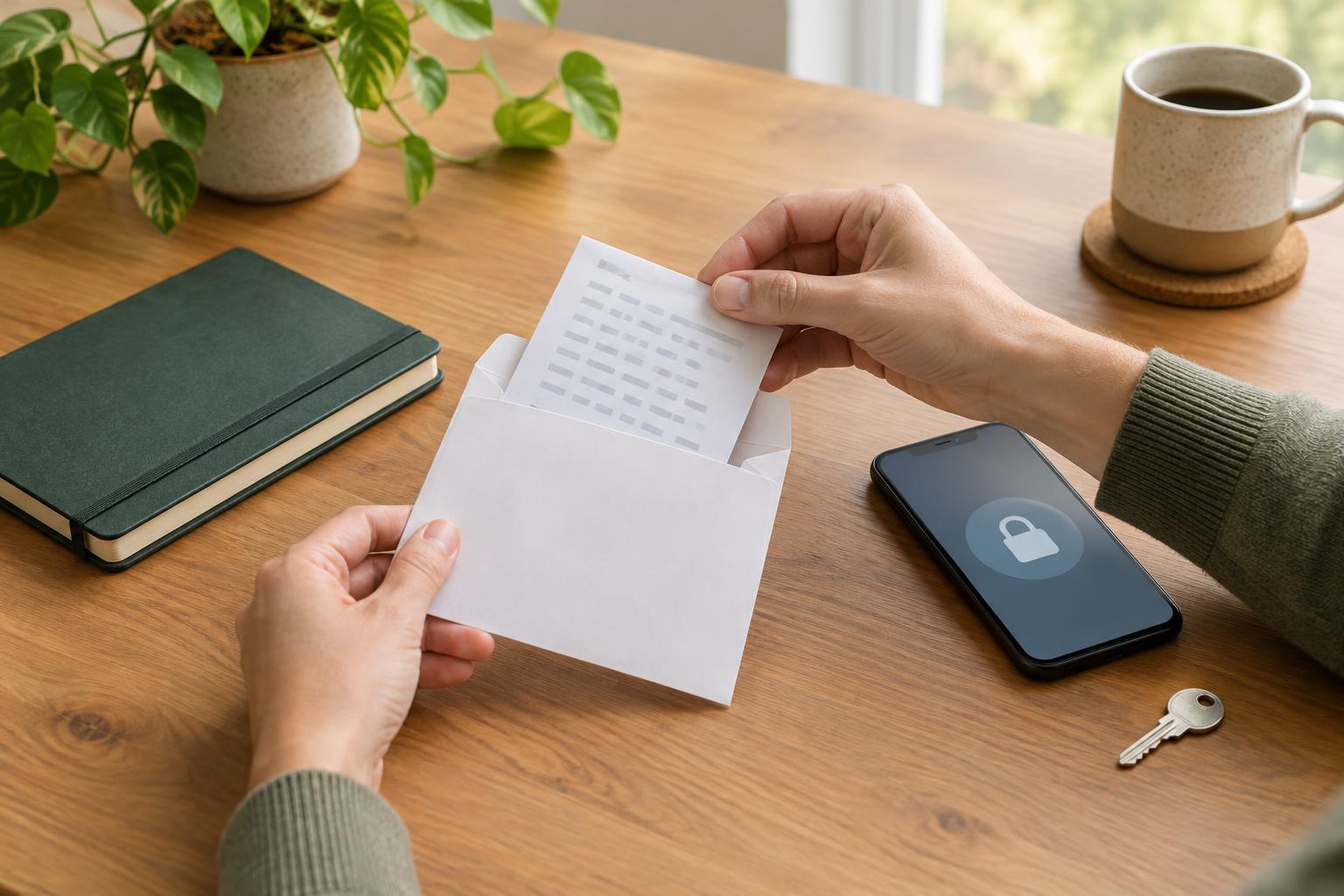
Many services provide recovery or backup codes during setup. Save them somewhere private and separate from the device you use for 2FA, such as a secure password manager entry or a carefully stored paper copy. Treat these codes like keys to your account: anyone who has them may be able to get past the extra sign-in check.
Review any other recovery options the service offers, such as a backup method or recovery email address, and keep them up to date. Do not remove access from an old phone until you have confirmed that your replacement method works. If a device is lost, use the service’s account settings or official recovery process to remove it when you can.
Recognize a request you did not start
Never give a sign-in code, backup code or approval prompt to someone who contacts you, even if they claim to be helping with your account. Only enter a code when you have started the sign-in yourself and checked that you are using the intended service. Decline unexpected approval prompts.
If codes or prompts arrive when you are not signing in, someone may be trying to access your account or may have entered your details by mistake. Do not approve the request. Open the service through your usual route, check recent account activity if available, and change your password if you suspect it has been exposed. A few minutes spent setting up 2FA and recovery options now can make the extra protection easier to live with later.