Decide what you need from an email account
Email is useful for messages that do not require an immediate reply, such as arranging appointments, contacting a community group or receiving information from a service. Before creating an account, think about where you will read your mail. Most providers let you use a web browser, while many also offer a phone app. If you share a device, consider how you will keep other people from opening your messages.
Choose a provider whose sign-up pages and inbox you find easy to navigate. Look for clear account-recovery options, readable text and settings that work with any accessibility features you use, such as screen magnification or a screen reader. If you expect to attach photos or documents, check the provider’s attachment limits and available storage. Free accounts may be enough for ordinary correspondence, though features and limits vary.
Create an address and complete sign-up
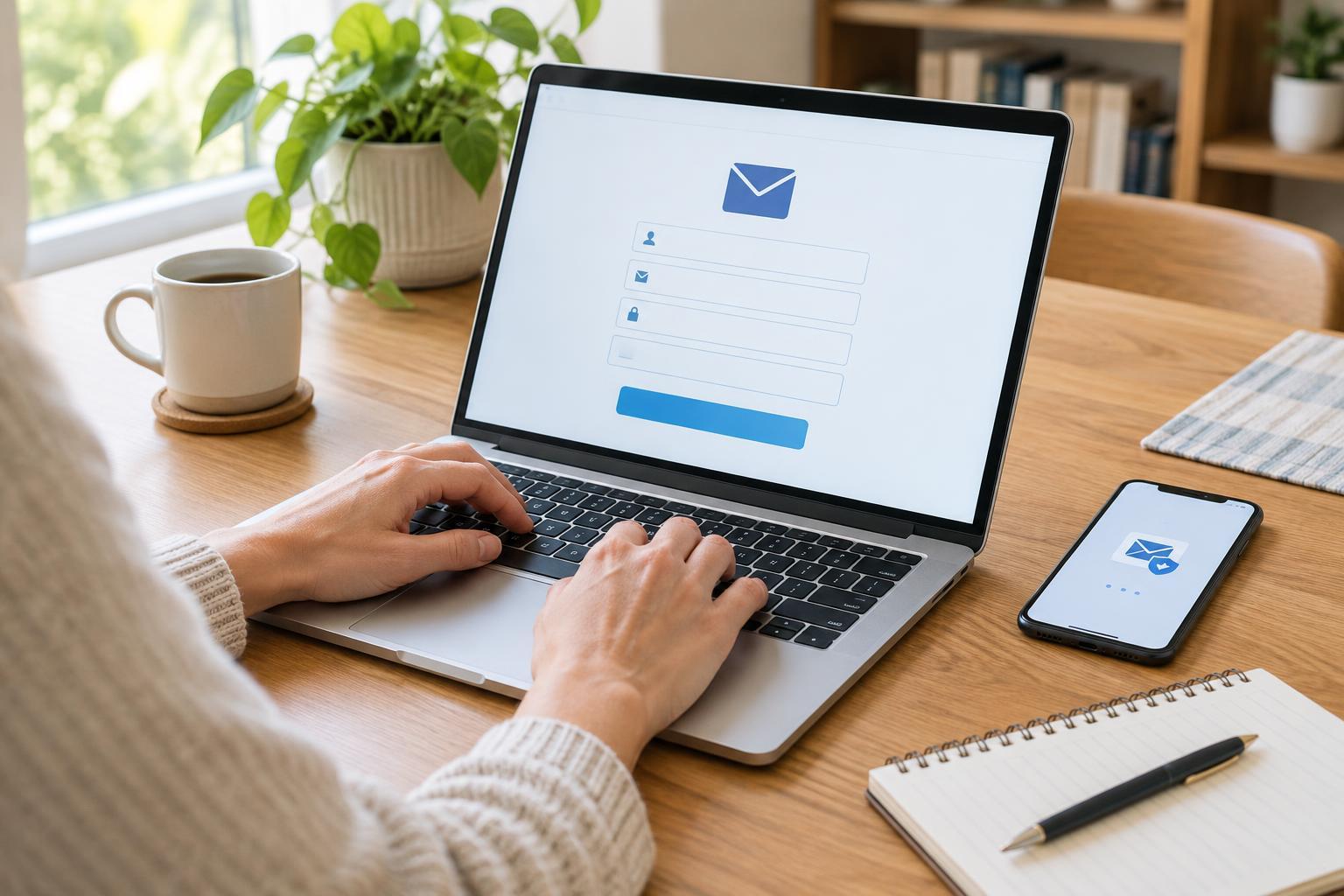
Visit the provider’s official website or open its official app, then find the option to create an account. The form will usually ask you to choose an address and password. A simple address based on your name is often easier to share than one with a long string of numbers. If your preferred address is taken, try a clear variation that you can remember.
Enter only the information the sign-up form requires, and read optional choices before accepting them. A provider may ask for a phone number or another email address to help recover the account. Use contact details you can access yourself; an old number will not help if you later forget your password. You may also need to complete a verification step to show that the contact method belongs to you. Follow the instructions on the provider’s screen rather than a link sent by someone you do not know.
Once the account opens, write down your exact email address in a safe place. Notice whether it includes a dot, a number or an unfamiliar spelling. A single incorrect character can prevent someone’s message from reaching you.
Protect access from the start
Make a unique password for this account rather than reusing one from another service. A longer password or passphrase that is hard for others to guess is generally easier to manage than a short, complicated one. If you use a password manager, save the account there. Otherwise, store your sign-in details somewhere private, not on a note attached to a shared computer.
If the provider offers two-step verification, consider turning it on. This adds another check when someone signs in, often through an authenticator app or a code. Before enabling it, make sure you understand how to access backup or recovery methods if your phone is lost. Review the recovery details occasionally and update them when your number or backup address changes. On a shared device, sign out when you finish and avoid saving your password in the browser.
Send, read and organize your first messages
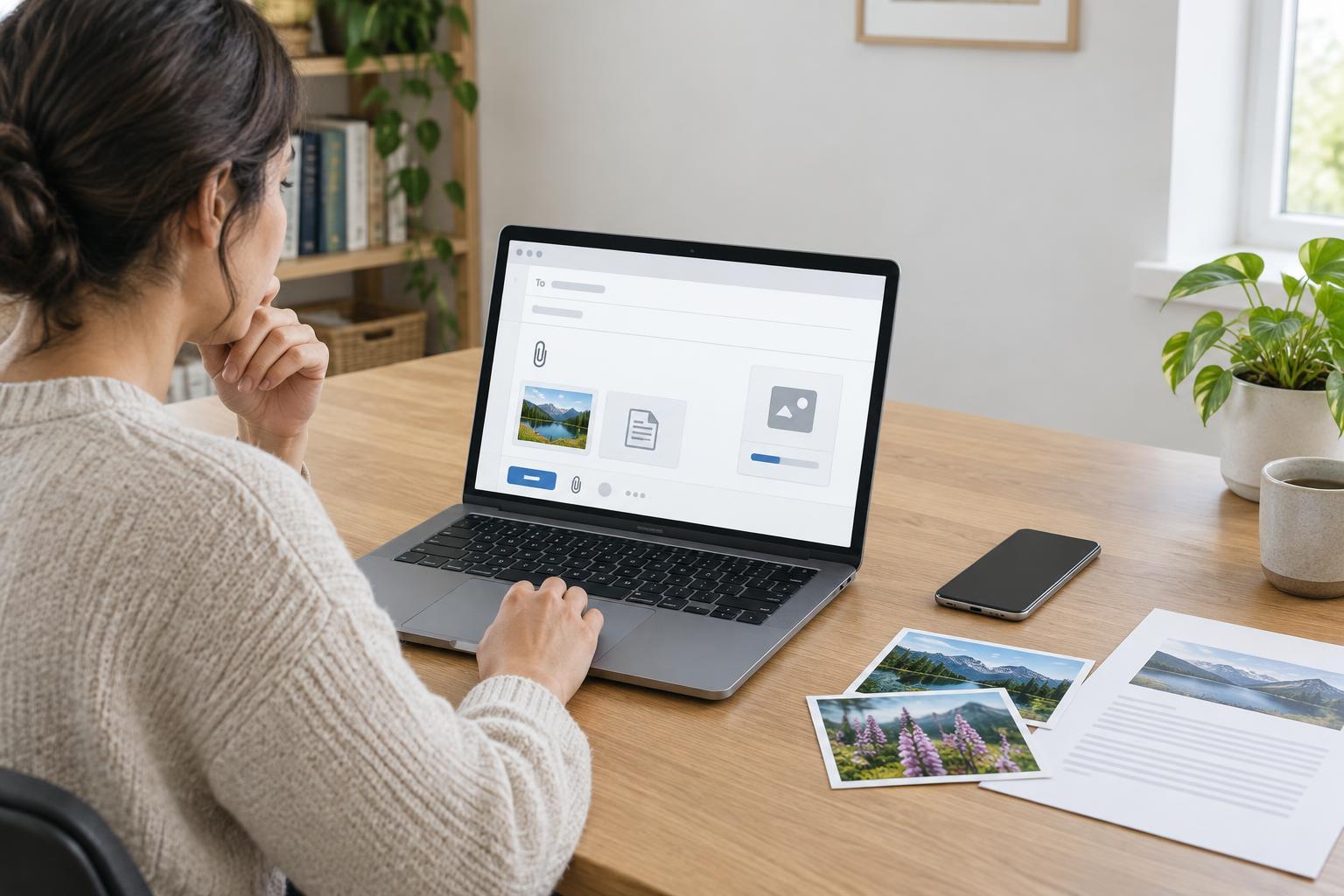
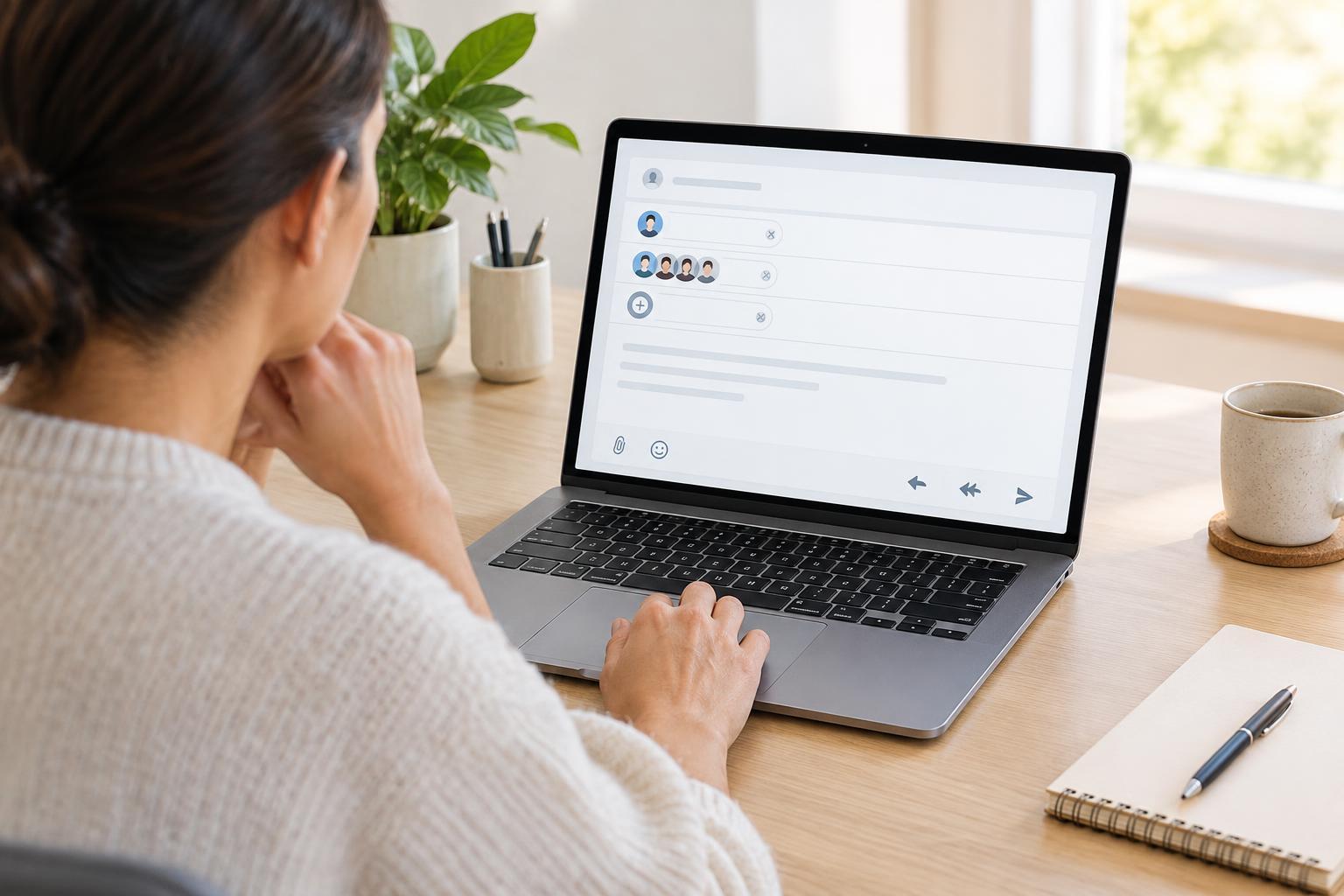
To practice, send a message to someone you know who agrees to receive it, or to another address you own. Select Compose or New message, enter the recipient’s address and add a short subject that describes the purpose. Write your message in the main text area, then check the recipient address before selecting Send. If you include a document or photo, attach it before sending and wait for the upload to finish.
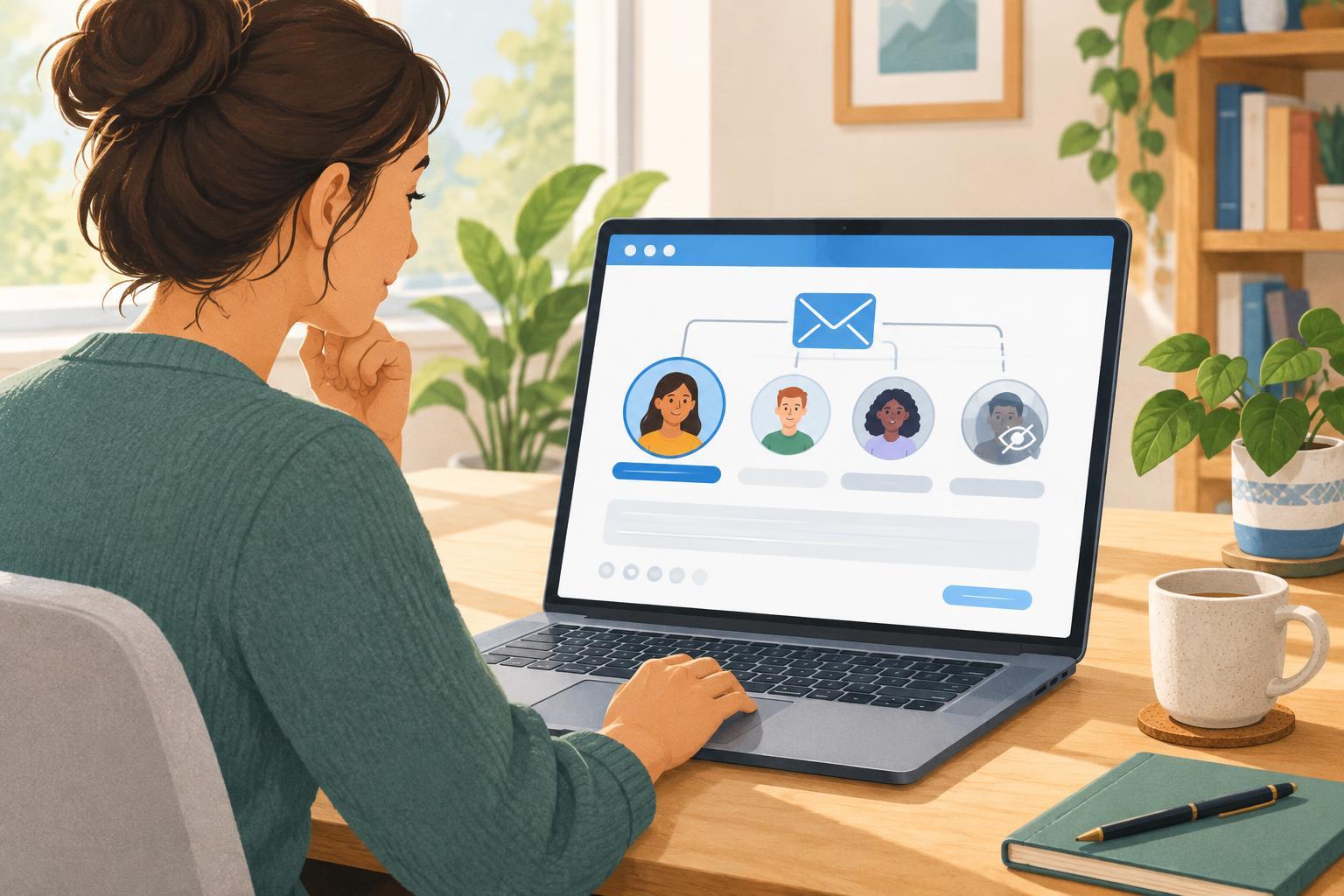
Incoming messages usually appear in the Inbox. Open a message to read it, select Reply to answer its sender, or Forward to pass it to someone else. Be careful with Reply all: it sends your response to everyone included in the conversation. You can use folders or labels to keep useful messages, such as appointment details, easy to find. Search can help when you remember a sender or a word from the subject but cannot see the message in your inbox.
If an expected message has not arrived, check the address you gave the sender and look in your spam or junk folder. Some messages take a little time to appear. Before marking a message as safe, make sure you recognize who sent it; an unexpected request for passwords or payment details deserves caution, even if it looks familiar.
Make the account comfortable to use
Explore the inbox settings at your own pace. You may be able to enlarge text, adjust display density, change notification preferences or add a signature with your name. Keep notifications useful rather than constant: turning off alerts for less important mail can make meaningful messages easier to notice. On a phone, a screen lock helps protect your inbox if the device is misplaced.
Finally, decide how you will share your new address. Give it directly to people and services you want to hear from, and pause before posting it publicly, where unwanted messages may find it. With a secure sign-in method and a little practice, the same account can serve as a reliable place for everyday conversations and records.