Choose the right file before you attach it
An attachment is a file sent along with an email message. It might be a document, photo, spreadsheet or PDF. Before opening your email app, find the file on your device and check that it is the version you mean to send. A clear filename, such as “meeting-agenda.pdf,” helps the recipient recognize it. If a document contains private information, pause to confirm both the recipient’s address and whether email is an appropriate way to share it.
It also helps to consider what the recipient needs to do with the file. A PDF is often convenient when someone only needs to read or print a document; an editable document may be better if you want them to make changes. If you are sending several files, give them distinct names so they are easy to identify after download.
Attach the file and check your message
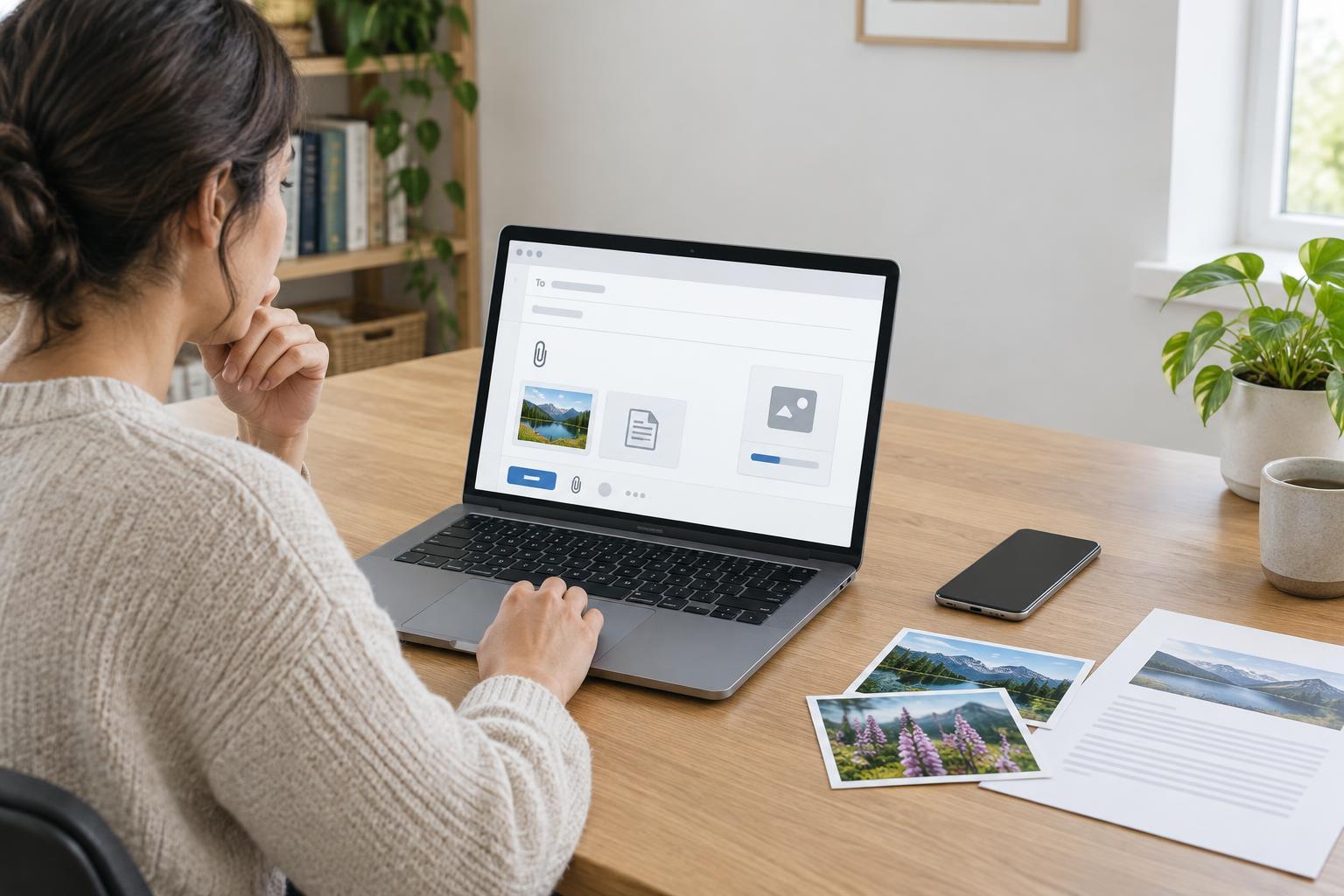
Start a new email, enter the recipient’s address and write a short subject and message explaining what you are sending. Look for a paperclip icon or an option labeled “Attach” or “Add file.” Select the file from your device. In many email apps, you can also drag a file from a folder into a draft message on a computer. Wait until the filename appears in the draft and any upload indicator finishes before pressing Send.
Take a moment to review the draft. Check that you chose the right file, that it appears only once, and that the recipient’s address is correct. If you mention an attachment in the message, this final check can save an awkward follow-up. Some apps show image attachments within the message rather than beside it; that does not necessarily mean the image is missing. If you are unsure, reopen the draft and look for the filename or image preview.
Why a file can be too large
Email services limit the size of messages or attachments. The exact limit varies by service, account and sometimes the recipient’s email system. A file that fits within your own service’s limit may still be rejected elsewhere. Photos, videos and detailed presentations can become large quickly, and sending several smaller files together can have the same effect as sending one large file.
If you see a size warning, check the file’s size in your device’s file information or properties. Some email apps suggest sharing a large file through cloud storage instead of attaching it. If a message is rejected after you send it, read the delivery notice carefully: it may identify a size limit, but it could also point to a different problem, such as an incorrect address. Repeatedly sending the same oversized attachment is unlikely to help.
Reduce the size when it makes sense
For a photo, an option to send a smaller image may be enough if the recipient only needs to view it on a screen. For a document, removing unnecessary high-resolution images or exporting a simpler PDF may reduce its size. Keep the original file in case the recipient later needs the full-quality version. If several files are involved, you can send them in separate messages, provided the recipient knows how many to expect.
Creating a ZIP archive can make a group of files easier to attach as one item, but it will not reliably make already-compressed photos or videos much smaller. It also asks the recipient to open the archive before using its contents. Choose a method that suits their device and comfort level rather than assuming the smallest possible file is always the easiest to receive.
Share a link when an attachment will not work
A cloud storage link lets you upload a file and email the recipient a way to access it, rather than putting the file inside the email. After uploading, use the service’s Share option and check who can open the link. For a file meant for one person, access restricted to their account may be preferable to a link that anyone can open. Decide whether they should be able to view the file or edit it, and test the link or review its settings before sending.
In your email, explain what the link leads to and whether the recipient needs to sign in. Remember that a shared file can remain available after the conversation ends; review or remove access when it is no longer needed. Whether you attach a file or share a link, a clear message and a quick check of the recipient, file and permissions make the exchange easier and safer for everyone.