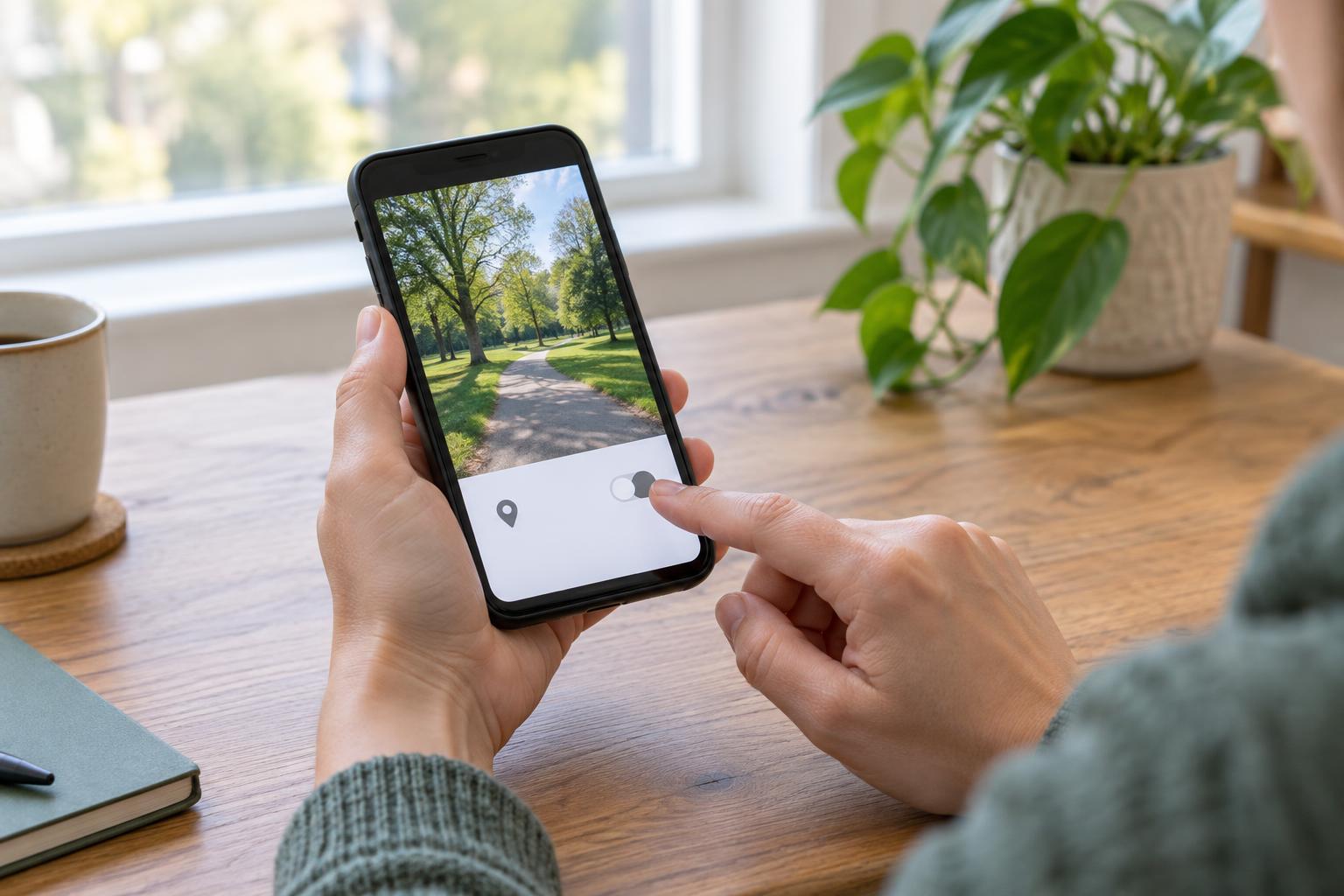
Why a photo might reveal your location
Many phones can save the place where a photo was taken inside the image file. This information is often called location metadata or GPS data. It may not appear on the picture, but someone who receives the file could be able to view it in a photo app or file-information screen. If you took a picture at home, at a private meeting, or while visiting someone else, you may prefer not to share that detail.
Location data is only part of the picture. A street sign, house number, distinctive building, name badge, or map in the background can reveal a place even after hidden data has been removed. Before sharing, consider both the file’s information and what a person can see in the image.
Check the photo and make a copy
Open the photo on your phone or computer and look for an information, details, or properties option. Depending on the app, it may appear as an “i” symbol, a menu item, or a panel you can open by swiping up. Look for a map, coordinates, a place name, or a location field. If you do not see one, that does not necessarily prove the file has no location data: some apps display less information than others.
Before making changes, create a copy of the photo if you want to keep the original. You can then remove information from the copy and share only that version. This is especially helpful when a device lets you turn off location sharing for one send but does not change the photo saved in your library.
Remove location information on your device
On a phone, first check the photo app’s sharing screen for an option to exclude location. Some apps place this under Options or a similar menu before you send the image. If your app offers a way to edit or remove the photo’s saved location, you can use that for the copy instead. The names and availability of these controls vary by phone, app, and software version, so check what the sharing screen actually says before sending.
On a computer, open the file’s information or properties and look for GPS or location fields. Some systems offer a command to remove personal information from a copied file; some photo editors provide an export option that excludes location metadata. When exporting, choose an option to omit location or metadata if one is available, then save the result as a new file. Do not assume that simply renaming or moving a photo removes its hidden information.
You can also stop your camera from adding location to future photos by reviewing location permissions or a “save location” setting in the camera app. This will not remove location data already stored in older pictures. It may also mean you lose a feature you find useful, such as organizing your own photos by place.
Verify the version you will share
Open the new file and inspect its information again. Check that no map, coordinates, or location field appears, using a file-information view that can show those details. If you are sharing through an app or a cloud link, remember that the recipient’s experience may differ from a preview you see. Services can handle metadata differently, and a link to an original file may expose more information than a picture displayed in a message.
Finally, look closely at the image itself. Crop or cover identifying details if doing so will not misrepresent what you are sharing. Check reflections, windows, and anything written on paper or screens in the background. If the location needs to remain private and you cannot confidently remove a clue, the safest choice may be to share a different photo—or not share one at all.