Start with a backup and a device inventory
Before erasing anything, decide what you want to keep. Photos, documents, contacts, messages and app data may be stored on the device, in a cloud account or in both places. Make a backup using a method you trust, then open a few files from that backup to check that it worked. If you are moving to a new device, confirm that important apps and account access work there before clearing the old one.
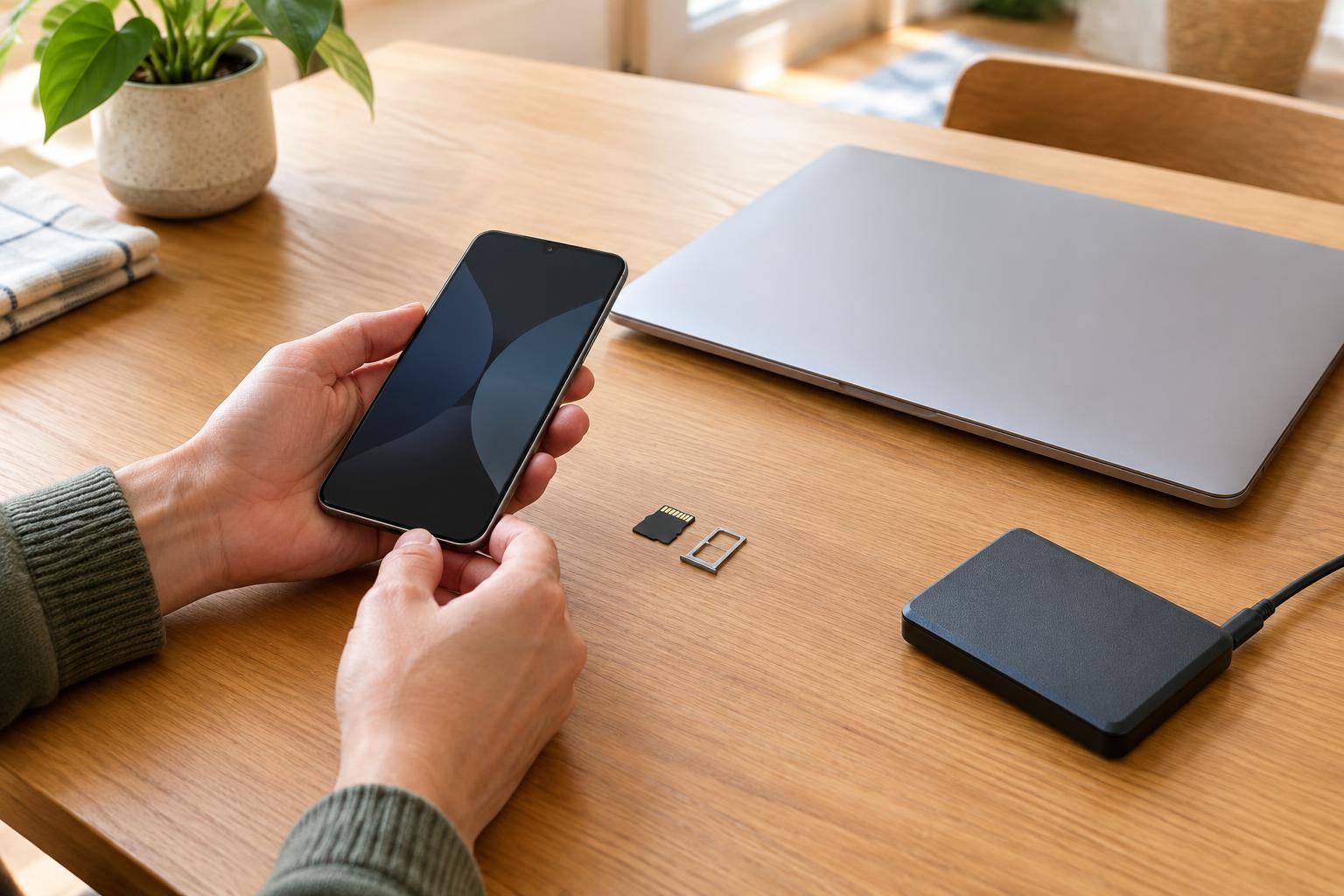
Make a quick inventory of what the device contains. Check for a SIM card, memory card, external drive or disc, as well as saved downloads and files in less obvious places such as a printer’s scan history. Remove storage you plan to keep. If you are passing a removable card along with the device, erase that card separately using an appropriate option for the card and device.
A work or school device may be managed by an organization. Ask its administrator what to do rather than resetting it yourself; the organization may need to preserve information or remove management settings.
Disconnect accounts and access
Sign out of accounts on the device and follow the maker’s instructions for removing it from any account-linked device list. This matters especially for phones, tablets and computers with activation locks or “find my device” features: a reset alone may leave the next owner unable to set up the device. Turn off those features when prompted, and keep your account passwords private during the handover.
Check apps that hold sensitive information, including email, banking, password managers and messaging services. Some services offer a setting to sign out a particular device or revoke its sessions. If you use an authenticator app for sign-in codes, transfer or restore its accounts and test access before erasing the old device. Also check whether any passkeys or recovery codes you rely on are available elsewhere.
Removing an account from a device does not normally delete the account or its cloud-stored files. Conversely, deleting a cloud file while devices are syncing may remove it from your other devices too. If your aim is only to prepare one device for a new owner, use its sign-out and reset options rather than deleting content from your online accounts.
Use the right erase method for the device
For a phone or tablet, use the built-in factory reset or “erase all content” option after completing the backup and account steps. Remove a physical SIM card. If the device uses an eSIM, follow its reset prompts and your mobile provider’s guidance so the old device no longer carries your mobile service. A reset’s menus and effects vary by model, so check the device’s own instructions if a choice is unclear.
For a computer, use its built-in reset or erase process and choose the option intended for giving the computer to someone else, not one that keeps personal files. On devices with an encrypted internal drive, the manufacturer’s erase process may also remove the keys needed to read old data. If you are unsure whether a computer was encrypted, consult its documentation before relying on a quick reset. Avoid simply dragging files to the trash: ordinary deletion is not a dependable way to prepare a drive for a new owner.
Other connected devices deserve a check too. Printers, cameras, streaming boxes, smart speakers and routers may store account details, Wi-Fi passwords or address books. Remove memory cards, sign out where possible and use the device’s reset instructions. A reset option for settings may differ from one that clears stored content, so read the description before choosing.
Check the result before handing it over
After erasing, start the device without entering your personal account details. Ideally, it should show the initial setup screen rather than your files, messages or signed-in apps. Do not complete setup for the next owner using your own account. Check that you have removed any case pockets, cards, labels or accessories containing personal information.
If the device cannot be turned on, you cannot confirm that a reset succeeded. For a computer with a removable drive, keeping the drive and handing over the computer without it may be an option. For sealed devices or drives you cannot safely remove, ask a reputable recycler about its data-handling and destruction process before handing the device over. Do not assume that a broken screen or dead battery means stored data is inaccessible.
Finally, choose a suitable destination. A usable device can be sold or donated once it is cleared and no longer tied to your accounts. A device that cannot be reused should go through an appropriate electronics recycling service rather than ordinary household waste. Keep any receipt or handover record you need, but never include your passwords with the device.