Start with the question you will ask later
When you save a file, you know what it contains. Months later, a name such as “Document1” or “final” offers little help. Before naming a file, imagine what you would type into a search box to find it again. The subject, project, organization or purpose may be more useful than the date you downloaded it.
A practical pattern is subject, document type and date: “Community garden meeting notes 2025-03-12”. You do not need to use every part for every file. “Bike repair receipt 2025-03-12” may be enough, while a photo for a neighborhood newsletter might benefit from an event name and location. Put the most distinctive words near the beginning so they remain visible when a device shows only part of the name.
Choose names that are clear and consistent
Use ordinary words you will recognize later. Abbreviations save typing, but they can become confusing, especially when files are shared. Compare “MTG3” with “Library volunteer meeting notes”. If you work with other people, agree on a few common terms for recurring files rather than expecting everyone to remember a complicated naming code.
Dates are useful when documents repeat. Writing them as year-month-day, such as “2025-03-12”, helps files sort in chronological order when names otherwise match. Use leading zeroes for single-digit months and days. If the exact day does not matter, a year and month may be sufficient. Keep names reasonably short, and avoid characters that some systems reserve for other purposes, such as slashes. A simple space, hyphen or underscore between parts is usually easy to read.
Be careful when renaming a file to change only the descriptive part of its name. The ending, such as “.pdf” or “.jpg”, tells many devices what kind of file it is. Some devices hide these endings, so check what you are editing before saving a new name.
Build folders around how you use your files
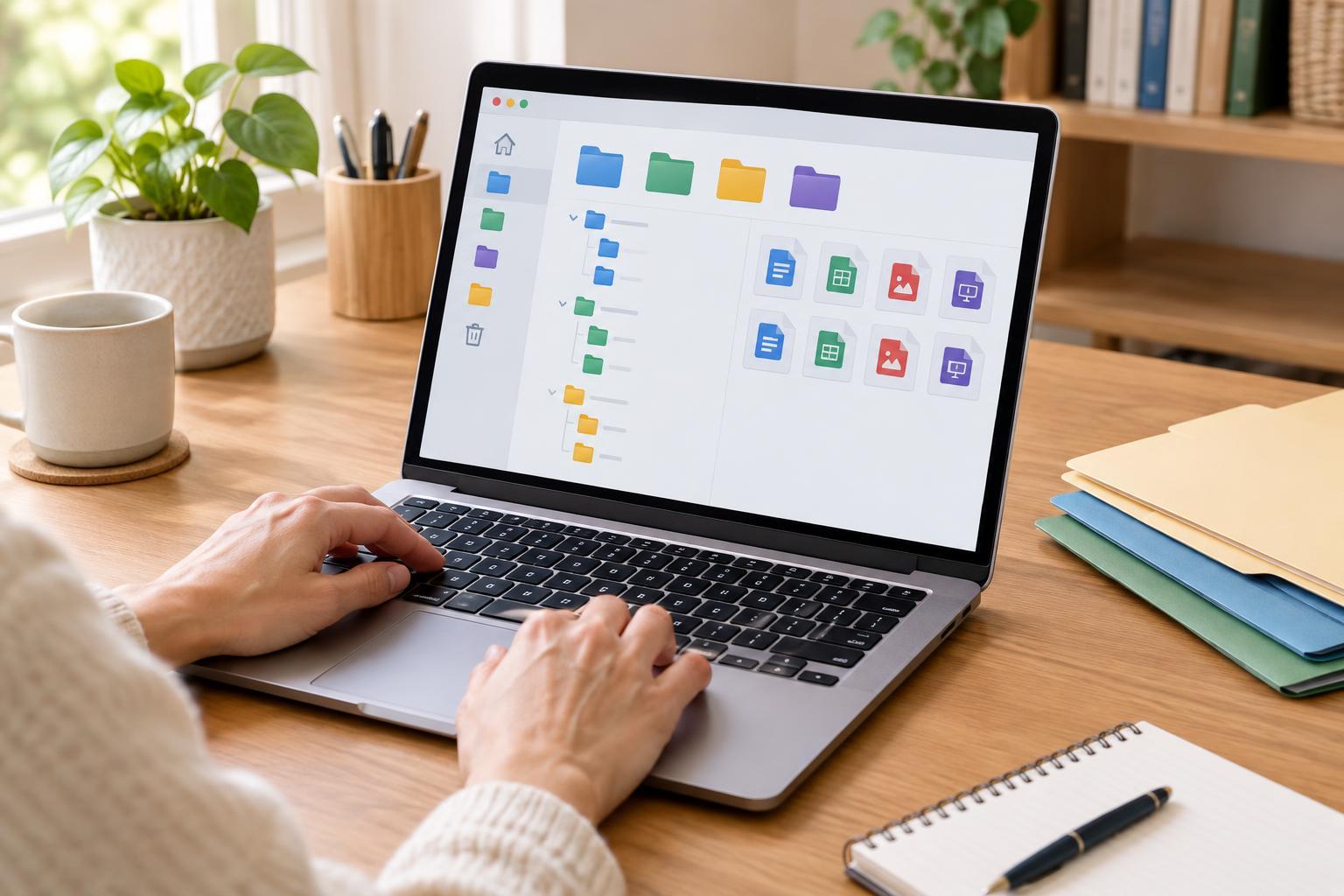
A folder system works best when it answers a simple question: where would I look first? Broad folders such as “Work”, “Home”, “Community” and “Photos” can be a starting point. Add a smaller folder when a group becomes difficult to scan, not simply because you could divide it. For example, “Community” might contain separate folders for a garden project and a volunteer group.
Try not to bury files many levels deep. A path such as “Community / Garden / Meetings” is often easier to navigate than a chain of folders for every year, season and event. If you regularly browse by year, year folders can help; if you usually search by project, keep the project together and include dates in file names. There is no perfect structure for everyone. Pick the route that matches how you actually look for things.
An “Inbox” folder can hold downloads and files you have not sorted yet. Give it a routine check so it does not become a permanent hiding place. During that check, rename files with vague names and move them to the folders where you would expect to find them.
Make versions and shared files understandable
Repeated names such as “final”, “final new” and “final latest” make it hard to know which file to open. For a document you revise, consider a name such as “Event plan draft 02” while it is in progress, then “Event plan approved” once the group has agreed on it. If several approved versions exist over time, add a date. Where your software keeps a reliable version history, you may not need a separate file for every small edit.
Shared folders benefit from a brief agreement about names and locations. Decide where completed files go, who can rename them and whether drafts should be kept separately. Avoid putting private details, such as a person’s full name and sensitive information, into a file name that others may see in a shared folder or search result. Use permissions appropriate to the files, and check who has access before sharing a folder link.
Test and maintain your system
You do not have to rename everything at once. Start with files you use often or would struggle to replace. Create a few main folders, move a small batch and then try to find one file without looking at your recent-files list. If you hesitate, adjust the name or location. That quick test is more valuable than building an elaborate system you cannot remember.
Search can support your folders, but it should not be the only way to identify a file. Search for a distinctive word in the name, filter by file type if your device allows it, or sort a folder by date when you know roughly when a file was saved. Finally, keep a backup of important files using a method you can check and restore from. Good names help you locate files; a backup helps you recover them if a device or account becomes unavailable.