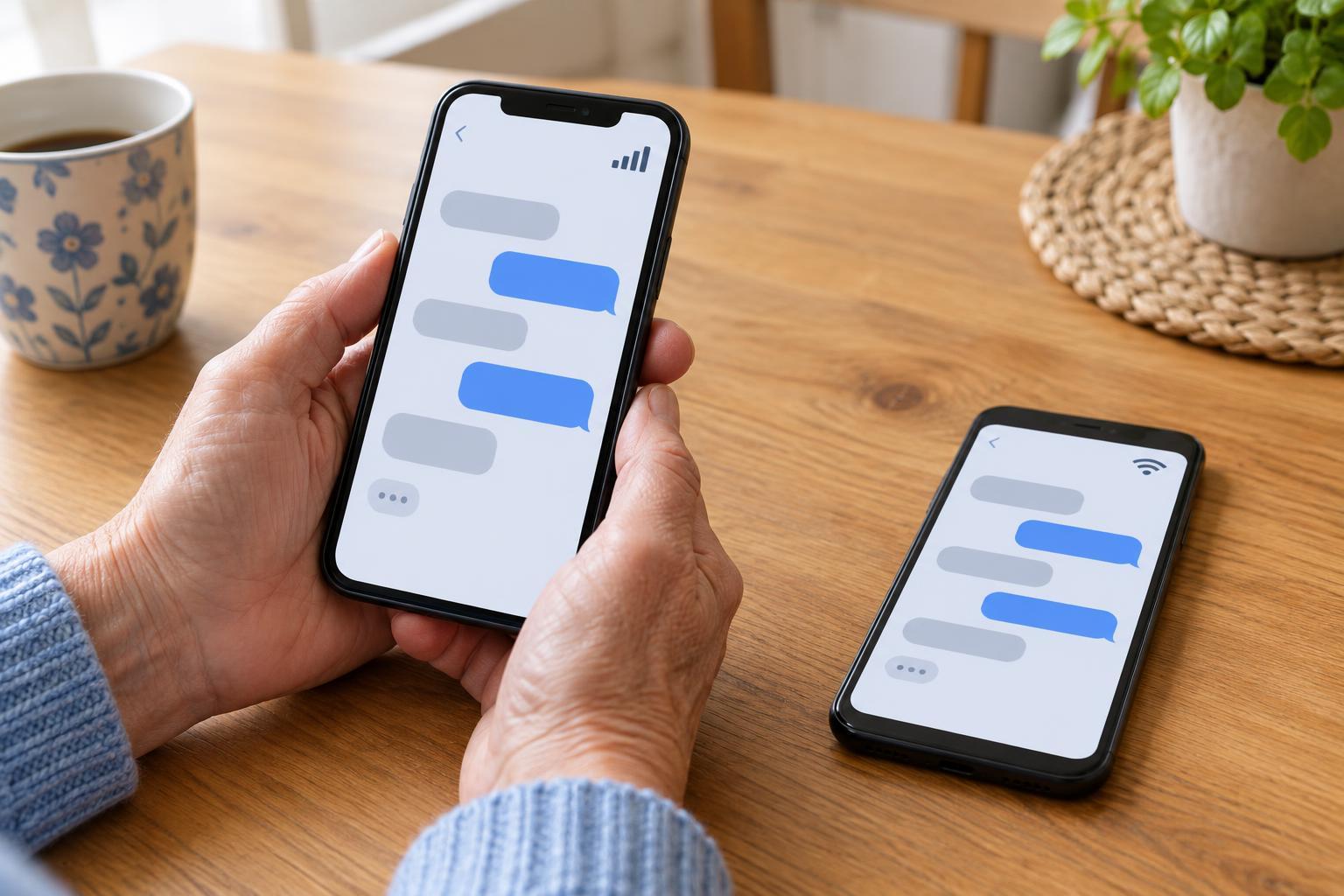
What a group chat is
A group chat is a conversation with more than two participants in a messaging app or online service. People use groups to coordinate activities, ask questions and share updates without contacting each person separately. Groups can be small and informal, or they can serve a class, workplace or community project. The exact features depend on the service, but one principle is worth remembering: a message sent to the group is not a private message to one person.
Before joining, find out what the group is for. A useful group name or description may explain its purpose and any expectations about what to post. If the invitation is unexpected, ask someone you know through another trusted contact method whether it is genuine. You do not need to open an unfamiliar link just because it appears to come from a group you recognize.
How to join and check the group
You might be added by a member, receive a direct invitation in an app, or follow a join link. Some services let you join immediately; others ask an administrator to approve your request. Read the invitation and check the group name before accepting. If you are joining through a link, make sure it leads to the service you intended to use. You can ask the person who invited you to send the invitation again if anything looks unclear.
Once inside, open the group information screen, often reached by tapping or clicking the group name. Look for a member list, group description and available settings. Check whether you recognize the participants or understand why they are there. In a large group, you may not know everyone; that is a reason to share less personal information, not necessarily a reason to leave.
It is also worth checking whether members can invite others and whether the group has a shareable join link. A link passed beyond its intended audience may allow additional people to request access or join, depending on the settings. If a group seems different from the one you expected, pause before posting and ask an administrator or the person who invited you.
Who can see a message you send?
Usually, other members of the group can read messages you send there. The member list can change: someone may join after you, and someone who leaves may still have copies of messages they received. Whether new members can read earlier messages varies by service and group settings. If the answer matters, check the app’s group information or ask an administrator before sharing.
Visibility can extend beyond the conversation in practical ways. A member may forward a message, copy its text, take a screenshot or show their screen to someone else. Deleting a message may remove it from some views, but it cannot reliably take back a copy another person has saved. For that reason, treat a group chat as a shared space even if it is labeled private or invitation-only.
Your profile may also reveal information to group members. Depending on the service and your settings, they might see your display name, photo, username, phone number or online status. Review your profile and privacy settings if you would rather limit what unfamiliar members can see. Changing those settings may affect other conversations too, so read the options before saving them.
Post with the group in mind
Start by reading a few messages to understand the tone and topic. When you are ready to contribute, check the destination shown above the message box; it is easy to type in the wrong conversation when several chats are open. Keep personal details out of the group unless they are needed and you are comfortable with every member receiving them. If you need to send an address, account detail or personal update to one person, use a separate direct message after confirming you have the right contact.
Think about other people’s privacy as well. Ask before posting someone else’s photo, contact information or sensitive news. A group can be convenient for planning, but convenience does not mean everyone involved wants their details shared with all its members. If a discussion moves into a personal matter, suggest continuing it one-to-one or in a smaller group.
Manage notifications or leave when you need to
A busy group can produce more alerts than you want. Most services offer a mute or notification setting for each group, so you can stay a member without being interrupted by every message. Check notification previews too: a message may appear on your lock screen or shared computer even when the app itself is closed. You can often adjust previews in the app or device settings.
If the group is no longer useful, look in its information screen for an option to leave. Leaving generally stops new group messages from arriving, but it does not erase messages others have already received. If you are unsure what happens to your own chat history or profile after leaving, check the service’s options before you go. Joining a group should help you communicate, not make you feel obliged to share or stay.