Start with the files you actually receive
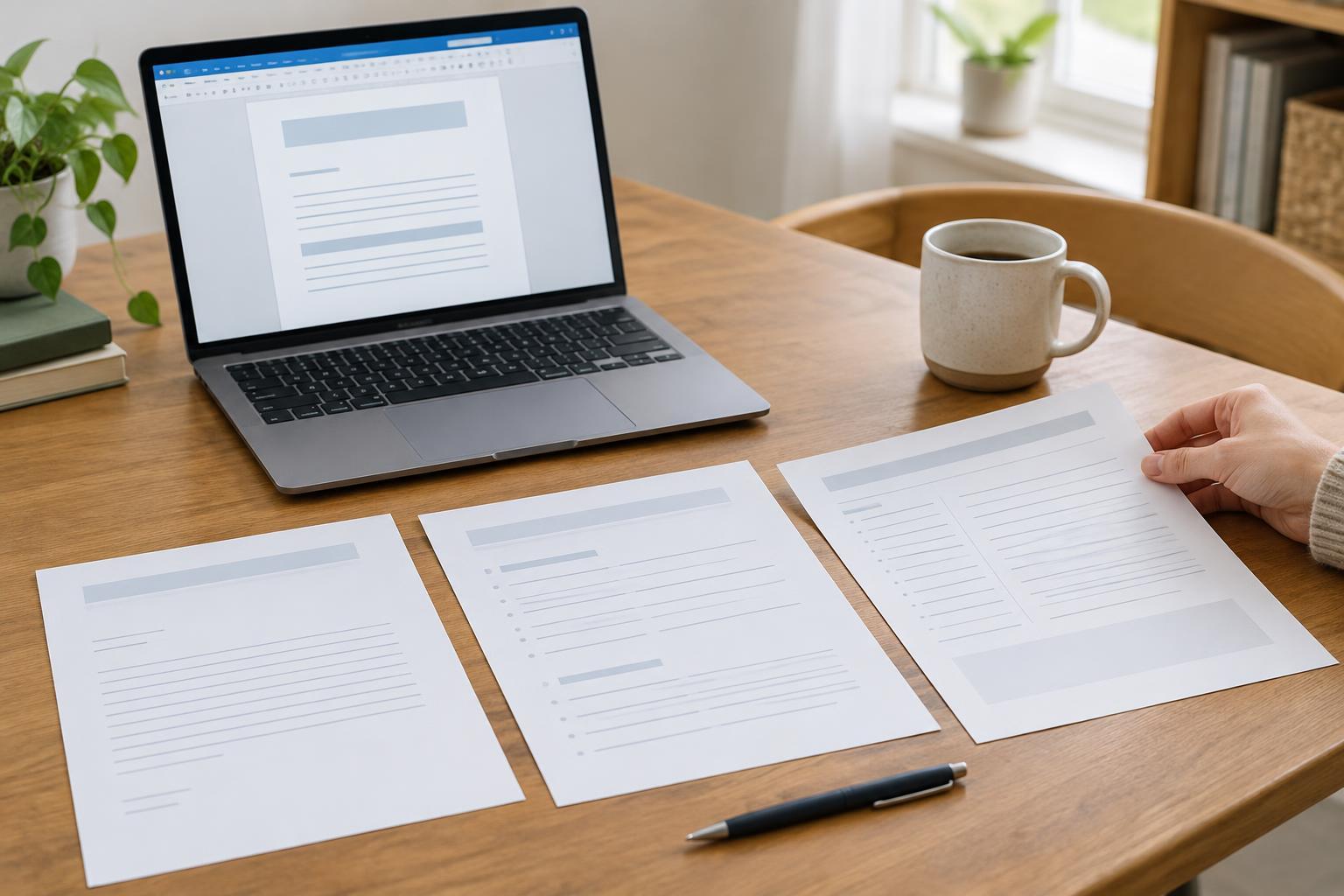
An office suite usually includes a word processor, spreadsheet, and presentation tool. Most can open common files, but “opens” can mean different things: a file may display correctly, allow editing, or save without changing anything important. Before comparing suites, collect a few typical files from people you work with. Include a document with a table, a spreadsheet with formulas, and a presentation with images if those reflect your everyday tasks.
Check the file extensions as well as the content. You may encounter DOCX, XLSX, and PPTX files, or open formats such as ODT, ODS, and ODP. A PDF is different: it is generally intended for viewing and sharing a fixed layout, not for routine editing. If someone regularly sends you PDFs that you must change, ask whether they can also provide the original editable file.
Test a full round trip, not just the first opening
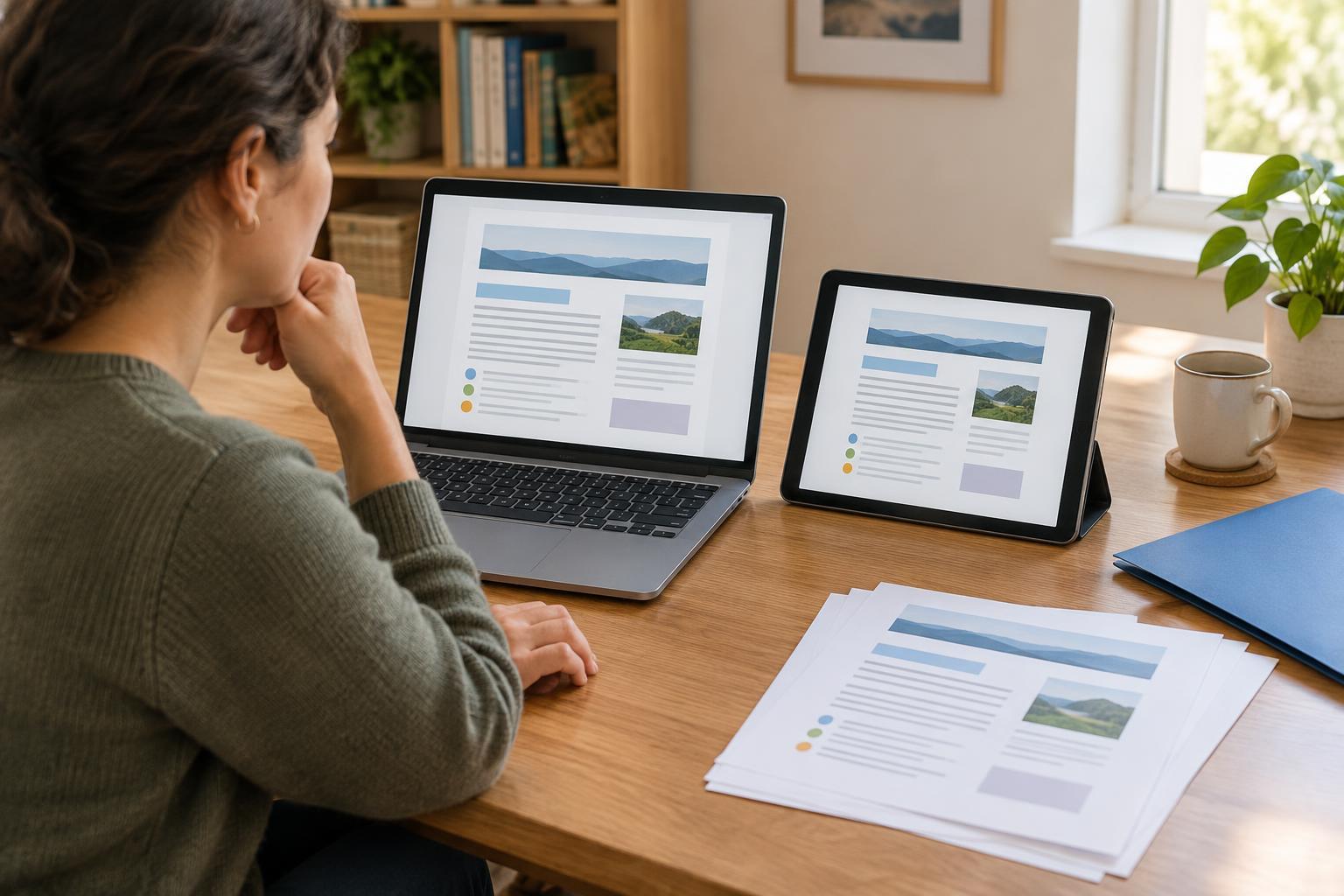
Try opening a copy of each sample file in a candidate suite. Look for shifted page breaks, replaced fonts, missing images, altered charts, and formulas that produce errors. In presentations, check whether text still fits on slides. In documents, inspect headers, footnotes, comments, and tracked changes if you use them. A quick glance at the first page may miss problems near the end.
Next, make a small edit and save the file in the format your colleagues expect. Close it, reopen it, and inspect it again. If possible, ask someone using the recipient’s usual software to check the saved copy too. This round-trip test matters because a suite may read a feature but not preserve it when saving. Always test with copies so the originals remain untouched.
For simple letters and lists, minor layout differences may not matter. For shared templates, complex spreadsheets, or slides that will be presented elsewhere, they may matter a great deal. Choose the level of compatibility your work requires rather than assuming every file needs a perfect match.
Match the suite to how you work with others
If several people edit the same file, find out how the suite handles sharing. Some tools let people work together in a browser, while others are built mainly for files stored on a device. Check whether collaborators need accounts, whether comments are easy to find, and whether you can see or restore earlier versions. If your group sends attachments back and forth, agree on a file format and a clear way to name revisions.
Consider internet access as well. A browser-based suite can be convenient across devices, but confirm what you can open and edit when you are offline. A desktop suite may suit unreliable connections, though you will still need a dependable way to share files. If you switch between a phone and a computer, test the tasks you actually do on both; a mobile app may be fine for reading but awkward for detailed editing.
Check access, privacy, and ongoing cost
A suite should be comfortable for everyone who needs to use it. Test keyboard navigation, screen-reader support if relevant, zoom and display options, and how clearly it marks spelling suggestions or comments. Accessibility features can vary between the desktop, browser, and mobile versions of the same product, so try the version you plan to use.
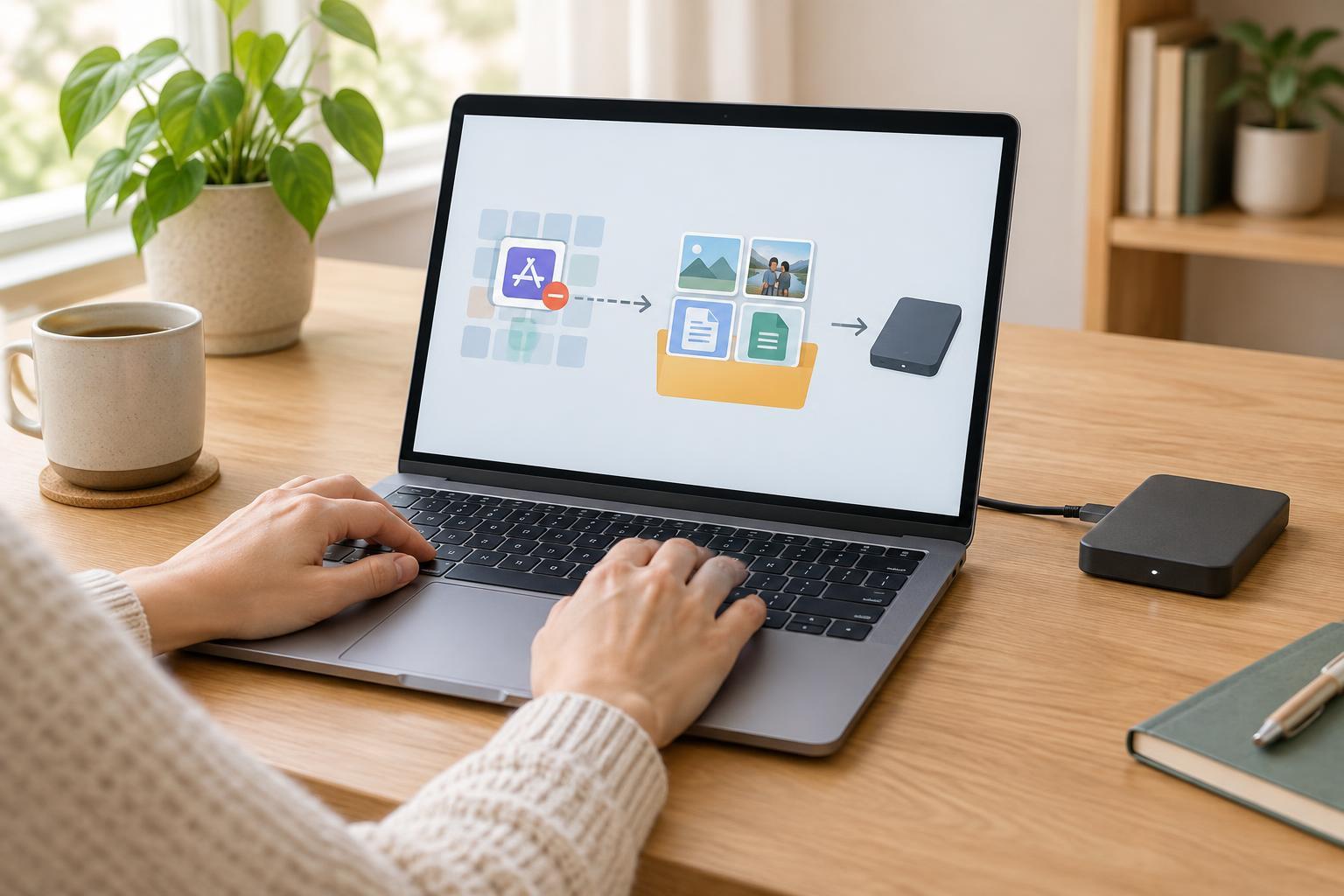
Think about where files are stored. If the suite saves to an online account, review the sharing settings before uploading private material. Check who can access a shared link and whether you can restrict or remove access later. If you prefer local storage, make a plan for backups; keeping files only on one device creates a different risk.
Compare the total cost of the features you need, not just the initial price. Some suites offer basic editing at no charge but require payment for extra storage, particular devices, or team features. Before paying or moving a large collection of files, confirm that you can export your work in formats other people can use.
Make a small trial your deciding step
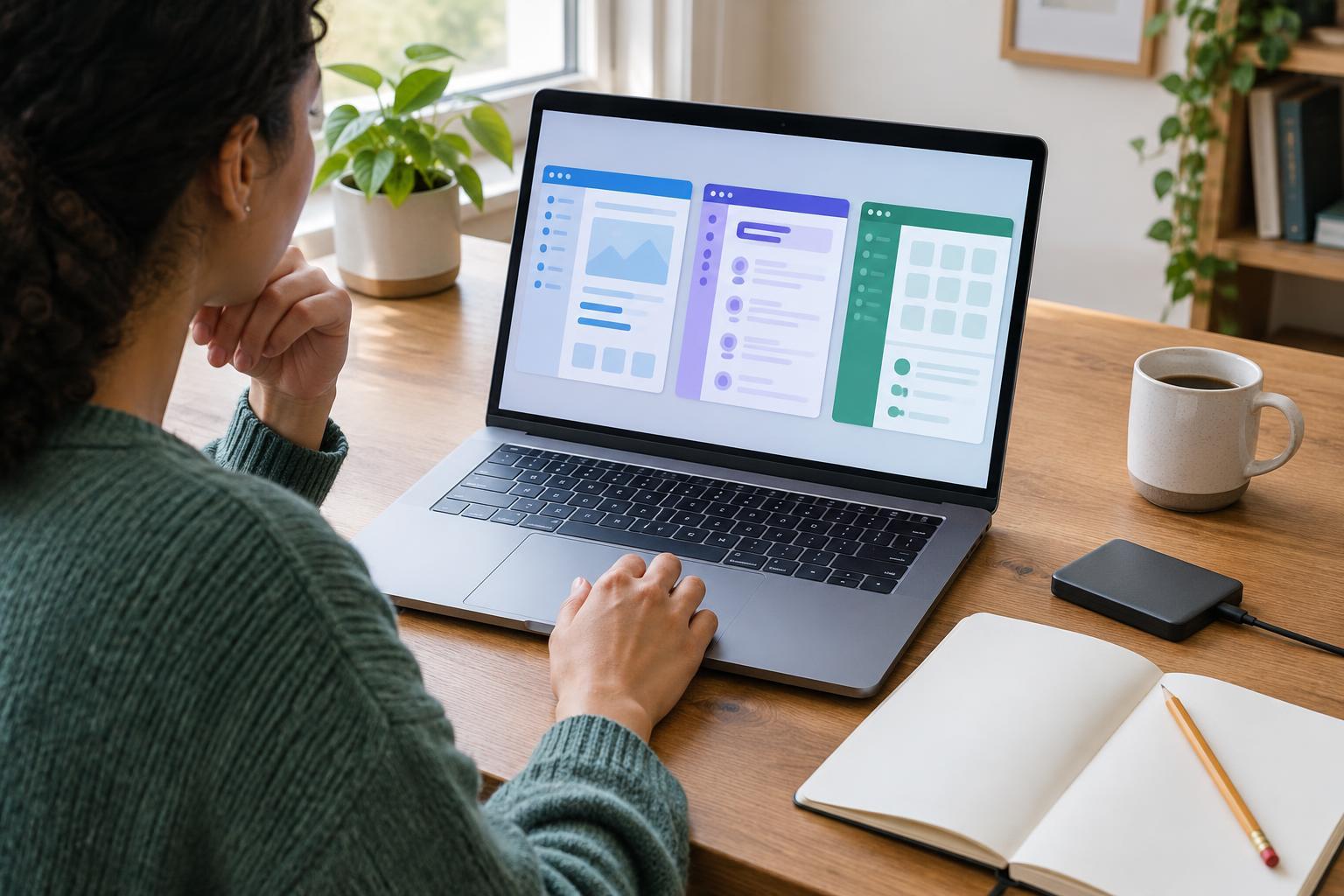
There is no single best suite for every household, workplace, or community group. Make a short checklist: the file types you receive, the editing features you rely on, the people you share with, and whether you need offline access. Then use each promising option for one ordinary task, such as revising a letter or updating a budget.
Keep the option that lets you complete that task and send it back without avoidable confusion. When a file is especially important, retain an original copy and review the exported version before sharing it. A modest test now is often easier than repairing a document after several people have edited it.