Start with how you work
A desktop app is software you install on your computer. A web app usually runs in a browser, though some can also be installed or saved as shortcuts. The difference matters less than what you need to accomplish. Writing a letter, filling in a form and editing a shared schedule may each call for a different tool.
Begin with three questions: Will you need to work without internet access? Will other people need to edit the same material? Which devices will you use? Your answers can narrow the choice before you compare features. It is also reasonable to use both types: a desktop editor for a long document and a web app for coordinating changes with a group.
When a desktop app is a good fit
Desktop apps are worth considering when your connection is unreliable or you often work while travelling. Once installed, many let you open and edit files without going online. They can also be convenient for tasks involving large files or equipment connected to your computer, such as a printer or scanner. Offline use is not automatic, however: an app may still require a sign-in, a subscription check or a download before you can do certain things.
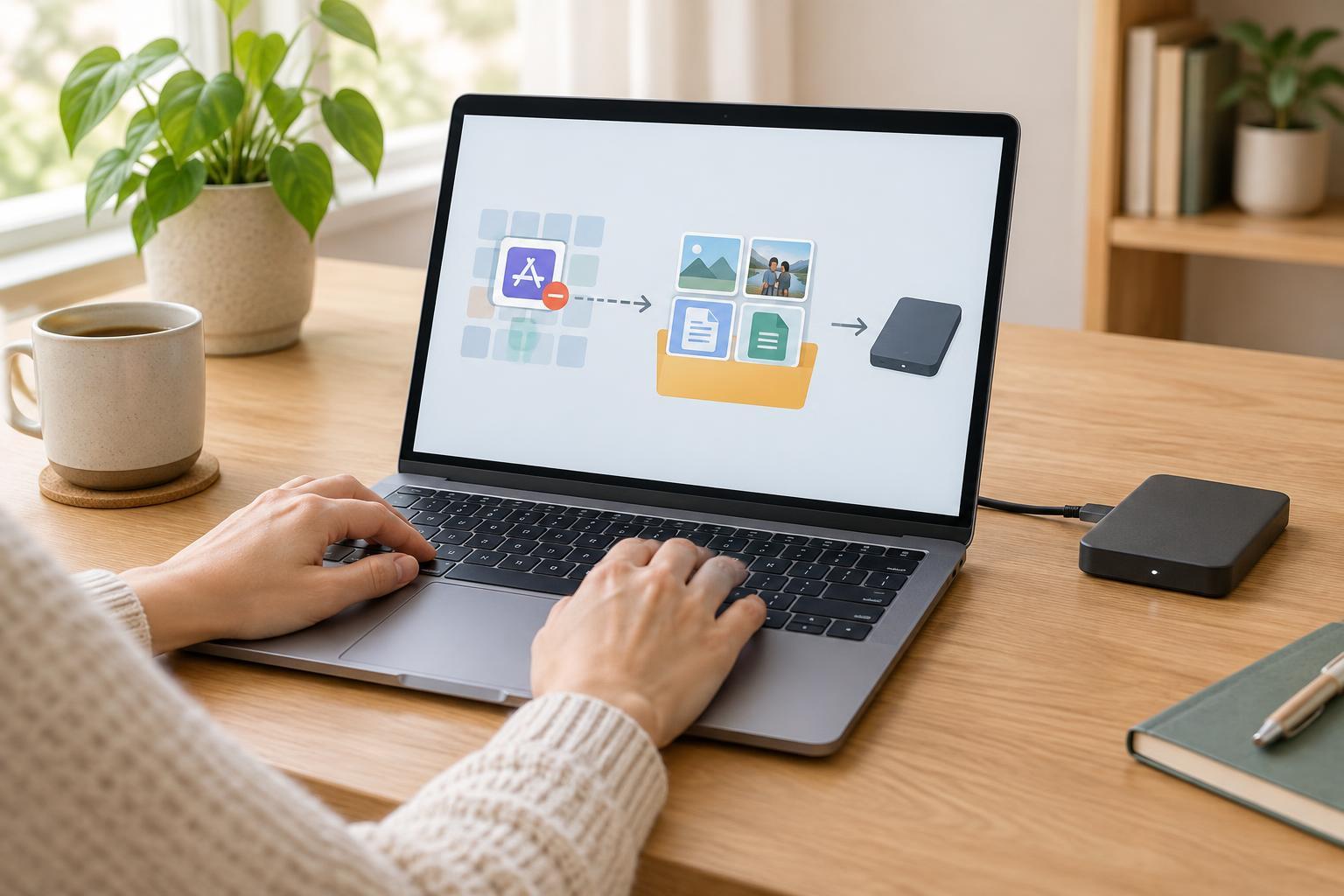
If you keep files on your computer, you can choose when and how to share them. That may help when you are drafting something you do not yet want others to see. But local storage brings responsibility: make a backup, know where your files are saved and keep the app and operating system updated. A computer failure or lost device can otherwise take your work with it.
When a web app makes things easier
Web apps are often convenient when you switch between a home computer, a library computer and a phone. You can generally sign in through a browser rather than install a full program on each device. They are especially useful for shared calendars, group documents and forms, where several people need access to the same version. Some web apps allow offline editing, but this may need to be enabled in advance, and changes may not sync until you reconnect.
Easy access comes with trade-offs. You may depend on a stable connection, an account and the provider’s service to reach your work. Before putting important information into a web app, check who can view it, whether a shared link gives access to anyone who has it and how to export your files. If you use a shared computer, sign out when finished and avoid leaving sensitive downloads behind.
Check the details that affect daily use
Try a familiar task in each option before committing. Can you find the commands you need, read the text comfortably and use the app with a keyboard or assistive technology if needed? Test features you actually rely on, such as captions in meetings, document navigation or zoom controls. An app that looks simple in a feature list may feel awkward in regular use.
Also check how saving and sharing work. Look for clear file names, common export formats and a way to recover an earlier version if you make a mistake. If you work with others, confirm that they can open the files you send and understand their access permissions. Finally, compare the full cost for your needs: a free version may be enough, or a feature you depend on may require payment. Review renewal and cancellation terms before subscribing.
Choose by task, not by label
For private notes or lengthy writing on an unreliable connection, a desktop app with a reliable backup plan may be the simpler choice. For arranging a community event, a web-based shared calendar or document may reduce the need to pass files back and forth. For an application form, you may have no choice of platform; focus instead on saving a copy of what you submit, if the service allows it.
You do not need one app to handle everything. Pick a small set of tools that you can use confidently, and make sure you know where each one stores your work. If your routine changes, revisit the decision. The better app is the one that lets you complete the task, protect the information involved and retrieve your work when you need it.