Two tools with different jobs
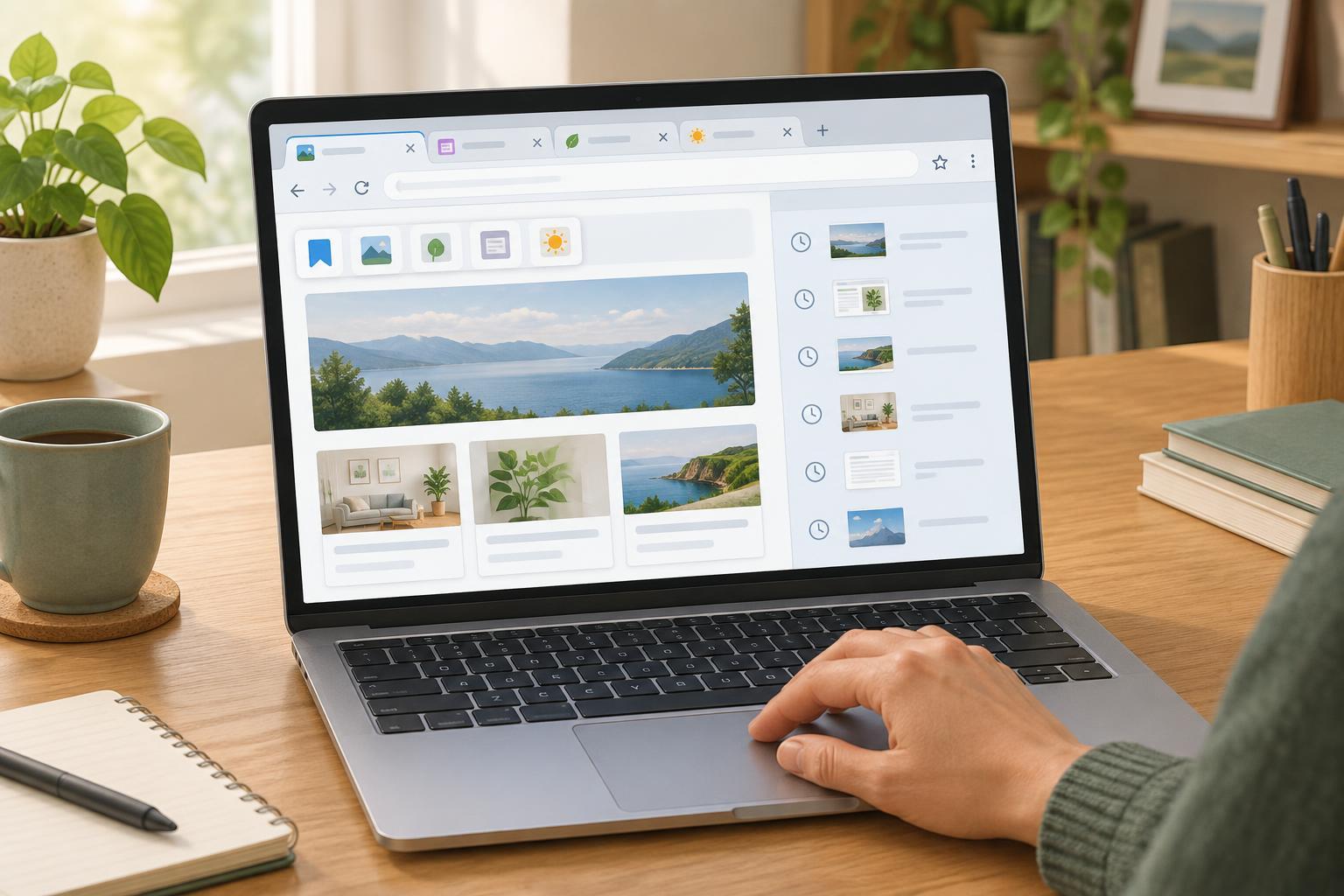
A web browser is the app you use to open and view websites. Chrome, Firefox, Safari and Edge are examples. You can use a browser to read a page, fill in a form, watch a video or sign in to an online service. Think of it as the tool that displays the web on your phone, tablet or computer.
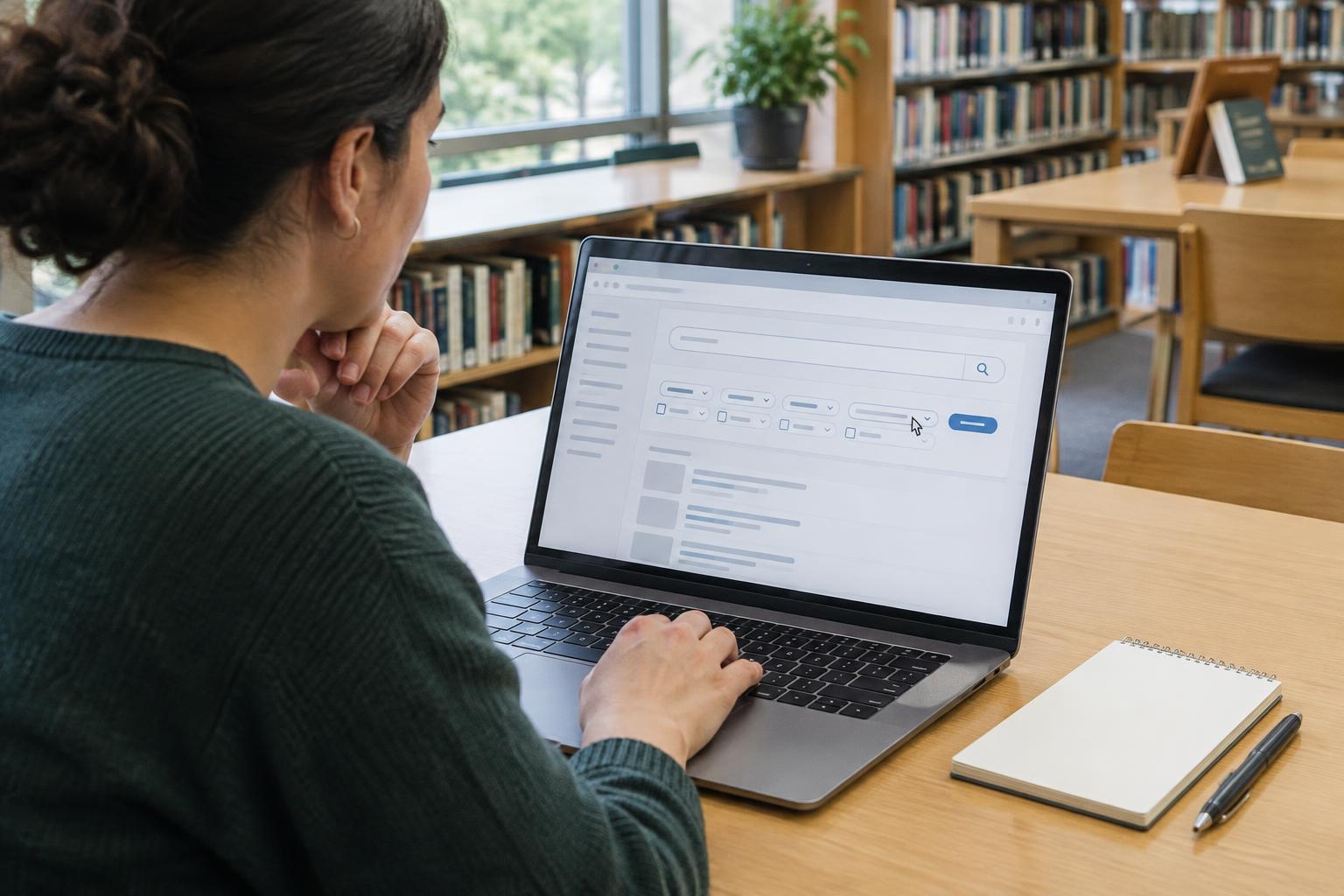
A search engine is a service that helps you find pages on the web. Google, Bing and DuckDuckGo are examples. You enter words describing what you need, and the service returns a list of possible matches. The search engine does not replace your browser: you usually visit the search engine in a browser and use that same browser to open the results.
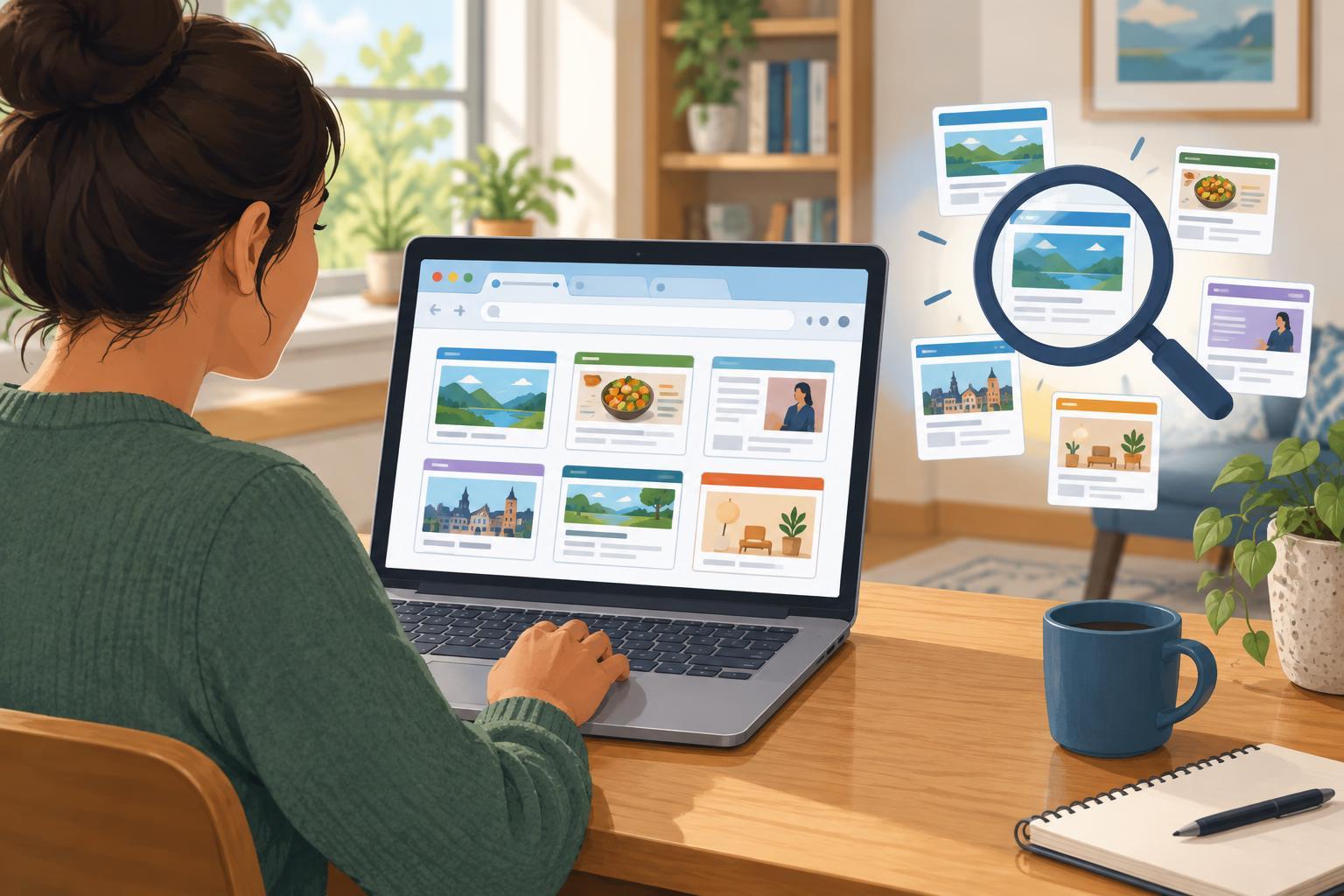
A useful distinction is that the browser opens pages, while the search engine helps you discover which page to open. You can use a browser without searching, and you can choose among search engines without changing your browser.
Why the address bar makes them easy to confuse
The long box near the top of a browser is often called the address bar. If you type a website address into it, the browser can take you directly to that site. If you type a question or a few keywords instead, most browsers send those words to a search engine and show you results. Because both actions begin in the same box, they can feel like the same task.
For example, entering a complete address for your local library’s website tells the browser which site to open. Entering “local library opening hours” asks a search engine to suggest relevant pages. What you see afterward may look similar, but the route is different: one goes to an address you supplied, while the other presents choices based on your words.
The search engine used by the address bar is usually set in the browser’s settings. If your searches keep opening in a service you did not expect, check the browser’s search settings. You generally do not need to install a different browser just to select a different search engine.
When to go directly and when to search
Go directly to a website when you already know and trust its address. This can be helpful for services you use regularly, such as a library catalogue, a workplace portal or a community group’s page. A bookmark can save the address so you do not have to type it each time.
Search when you do not know the address or want to compare several sources. Specific search terms can narrow the choices. For instance, adding the name of your town and the service you need may be more useful than searching for a broad word such as “classes.” Search results are suggestions, though, not proof that a page is accurate or appropriate.
You may also move between the two approaches. A search can help you locate an organisation’s website for the first time. Once you have checked that it is the right site, you can bookmark it for future visits.
Read the destination before you click
Whether you follow a search result or type an address, pay attention to the destination. Search results can include pages with similar names, and some results may be advertisements. Read the page title and website address rather than choosing the first item automatically. If a result asks you to sign in or enter personal details, take an extra moment to confirm that you are on the site you intended to visit.
Look closely at the address for unexpected spelling, extra words or an unfamiliar ending. A familiar logo alone is not enough to identify a site. If you are uncertain, return to a bookmark you trust or find the organisation’s contact details through a source you already know. These checks are especially useful before entering a password or payment information.
A quick way to remember the difference
Ask yourself what you are trying to do. If you need to open a page, you need a browser. If you need help finding a page, you can use a search engine inside that browser. The same browser can open many websites, and its search setting can often be changed.
Understanding that difference makes everyday web tasks less mysterious. It helps you recognise when you are viewing a list of suggestions rather than an organisation’s actual page, when a bookmark would save time, and when to check an address before sharing information.