Three ways to keep track of a web page
Imagine you are reading a community notice online, filling in a form, and looking up opening hours. Your browser offers three different ways to keep track of those pages: tabs, bookmarks, and history. They can lead you back to a page, but they do not do the same job.
A tab holds a page open while you work. A bookmark saves its address so you can return later. History is a record your browser keeps of pages you have visited. A useful rule is: use a tab for something you are doing now, a bookmark for something you expect to need again, and history for a page you forgot to save. The names or positions of these controls may differ between browsers and devices, but the distinction is much the same.
Tabs are your current workspace
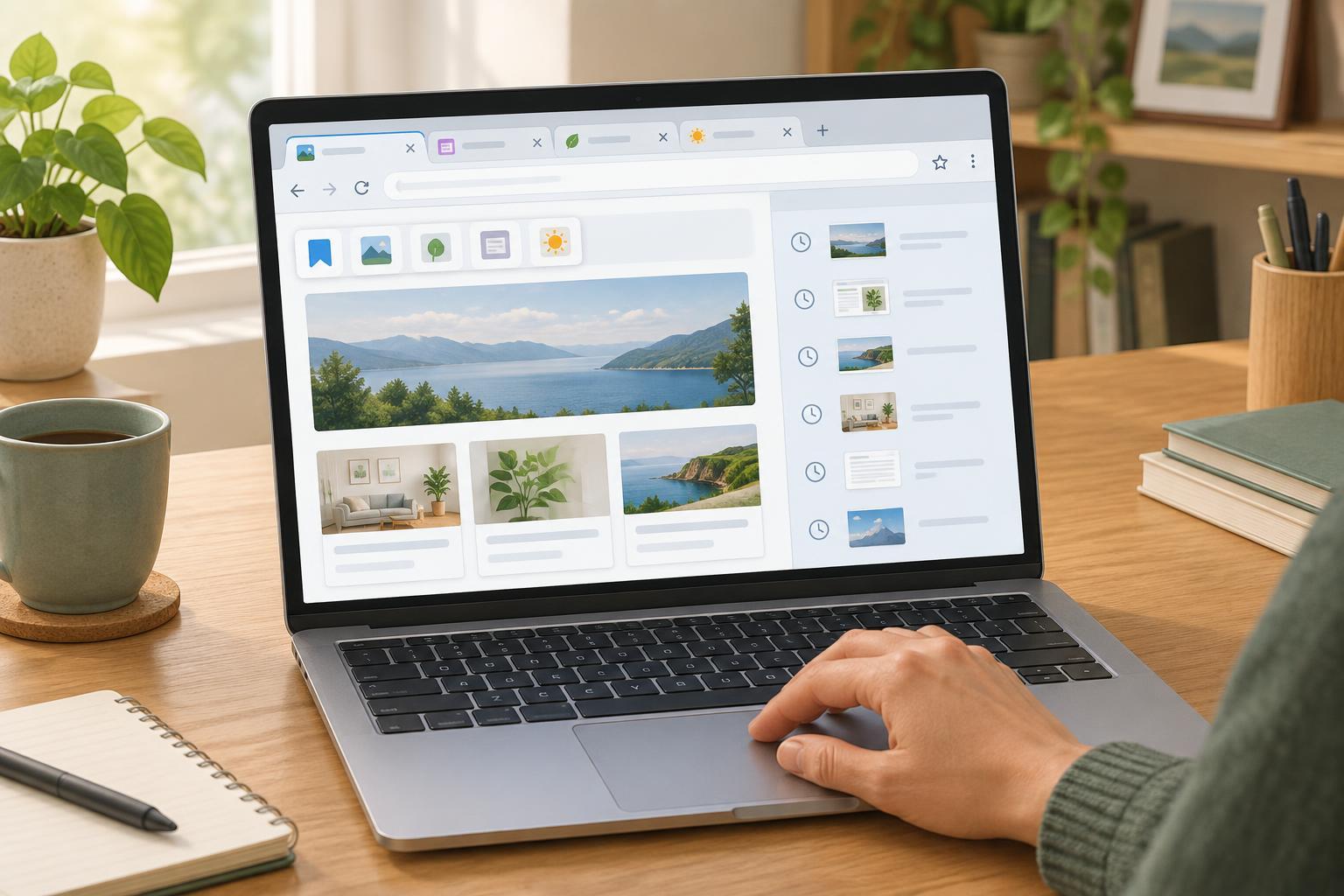
Each tab is a separate space within a browser window. You might keep instructions open in one tab while completing a task in another. On a computer, tabs usually appear along the top of the browser window. On a phone, a tab button often shows how many pages are open and lets you switch between them.
Tabs are handy for short-term work, but a large collection can make it hard to find the page you need. Some browsers may restore tabs after you close and reopen them, but it is safer not to rely on this for an important page. Bookmark the page or note its address if you will need it later.
Closing a tab removes it from your current workspace; it does not normally delete a bookmark for that page or erase its entry from history. If you close one by mistake, look for a “reopen closed tab” option in the tab menu or browser menu. Whether the page returns exactly as you left it depends on the site and browser.
Bookmarks are saved shortcuts
A bookmark stores a link to a page you choose. It is useful for a service portal you visit regularly, a helpful guide, or a form you plan to complete later. Most browsers let you create one with a star-shaped button or a menu option such as “Bookmark this page.” You can usually rename bookmarks and place them in folders.
Keep bookmark names recognizable: “Library opening hours” is easier to scan than a long page title. If you save many links, a few folders based on tasks, such as “Community services” or “Learning,” may help. Remove links you no longer use so the list stays useful.
A bookmark saves an address, not a permanent copy of the page. If a website moves or removes the page, the bookmark may stop working. Also, bookmarks may appear on other devices if you have turned on browser syncing. Check your browser’s sync settings if you want to know where your saved links are available.
History helps you retrace your steps
Browsing history is a list of pages your browser has visited. It can help when you remember reading something yesterday but did not bookmark it. Open the browser’s History menu and search for a word from the page or site, if your browser offers that option. History is less deliberate than bookmarks: it records visits automatically under normal browsing settings.
History is not a dependable archive. Entries may disappear when they are cleared, when a browser removes older records, or when you use a private browsing window. A page might also change after you visited it. If a link matters for an ongoing task, save it as a bookmark rather than assuming you will find it in history.
On a shared device, another person using the same browser profile may be able to see its history and bookmarks. Private browsing generally keeps visits out of that browser profile’s history after the private window is closed, but it does not make your activity invisible to websites or every network you use. Sign out of accounts when finished on a shared device.
A simple way to choose
Ask when you need the page again. If you need it while comparing information or completing a task, open a tab. If you expect to return next week or next month, make a bookmark. If you have already lost the page, check history. You can use more than one: keep a page open today and bookmark it for future visits.
For example, while applying for a local class, you might open the course details and timetable in separate tabs. Bookmark the main course page if you want to check it again. If you later forget where you found the timetable, history may help you retrace your route. Treat tabs as a desk, bookmarks as a collection of saved directions, and history as a trail of where you have been.