Prepare before you connect
When you need to book an appointment, submit a form or check an account, start by listing what the service is likely to ask for. This might include an account name, a reference number, contact details or a document you need to upload. Gather these items before opening the website so you spend less time waiting on pages while searching for information.
If you can, read the service’s requirements when you have a better connection and make a short checklist for later. Check accepted file types and size limits before scanning or photographing documents. Keep copies in a folder you can find easily, with clear filenames such as “proof-of-address.” Avoid storing passwords or sensitive personal details in an unprotected note simply to save time.
Use the lightest route through the service
Begin with the service’s official website or app, rather than a search result that may lead to an unrelated page. Look for a mobile, basic, text-only or low-bandwidth option if one is offered. A browser’s reader view may make information pages easier to load and read, though it usually will not work for interactive forms. If a page has optional videos or large images, leave them unopened unless you need them to complete the task.
On a limited data plan, pause automatic app updates, cloud backups and video streaming on your device while you work. Close other tabs or apps that are actively using the connection. If you have a choice of networks, use a reliable connection rather than repeatedly switching between mobile data and Wi-Fi during a form. These changes may not fix a poorly designed website, but they can leave more of your connection available for the task.
Make forms less vulnerable to interruptions
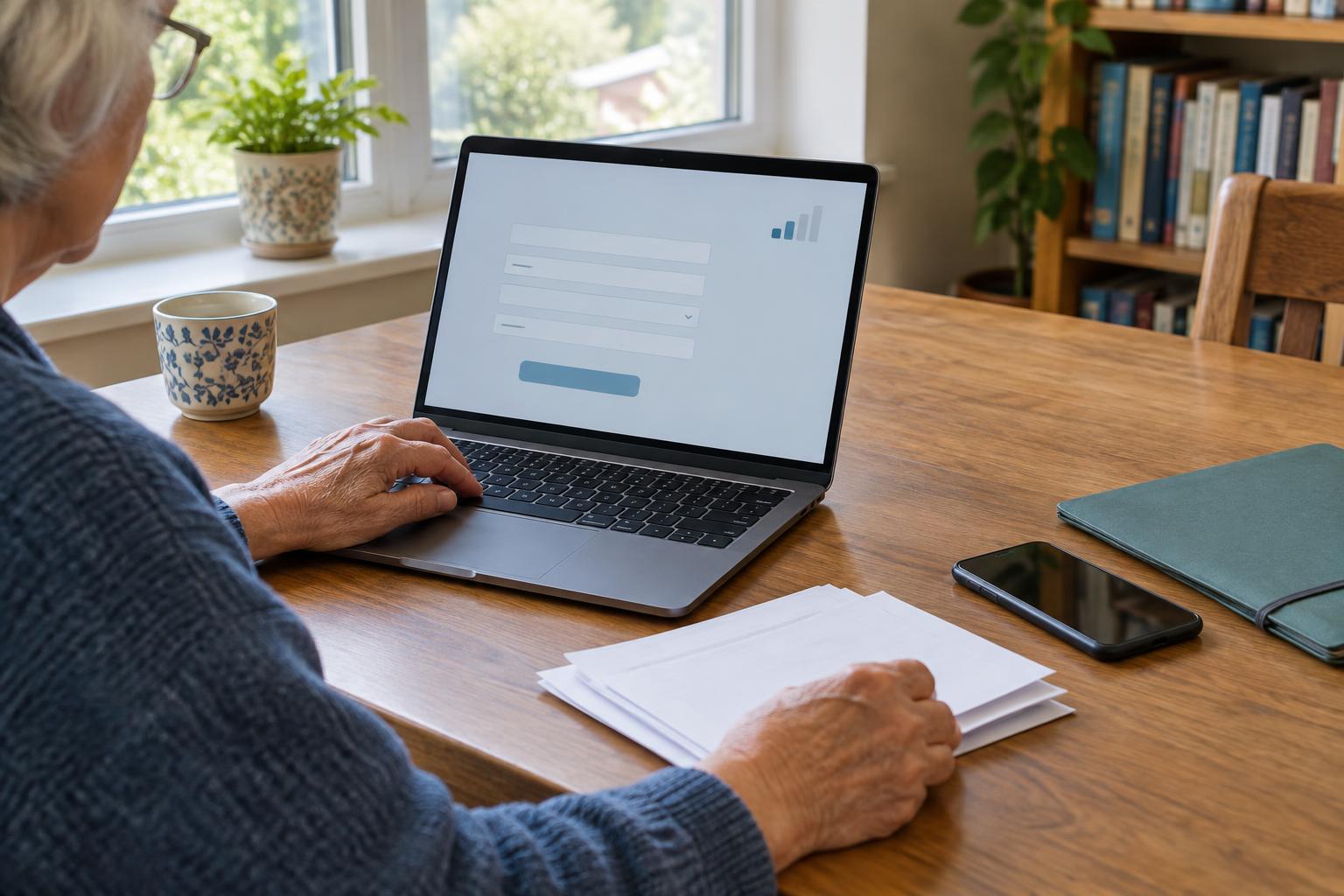
Long forms are particularly frustrating when a connection drops. Before you begin, see whether you can create an account, save a draft or return to an application later. Note any stated session time limit. Write longer responses in a separate document first, then paste them into the form; do not do this on a shared device unless you can remove the draft securely afterward.
Complete a form one page at a time and use its own Save or Continue button whenever available. Before pressing Submit, review the entries that matter most, including contact details and uploaded files. If the page stalls after submission, do not immediately send the form again: check for a confirmation screen, email or reference number first. A second submission could create a duplicate request. If there is no confirmation, use the service’s contact channel to ask whether it was received.
Keep uploads and downloads manageable
Documents and photos often use more data than the form itself. When a service accepts it, a clear, cropped image of the required page may be easier to upload than a large photo showing the whole desk. Use a device’s built-in scan or image-size option if available, but check that every word remains readable. Follow the service’s stated format and quality requirements rather than compressing a file until important details disappear.
For downloads, choose a smaller file or an accessible text version if the service provides one. Save essential instructions or confirmation pages for offline use, or write down the reference number and next step. On a shared computer, avoid saving personal documents to a public downloads folder. Sign out when finished and remove any files you saved there.
Know when to switch channels
A website may be too slow to use even after you simplify your setup. Look on the official service page for a telephone number, email address, in-person location or assisted digital support. If you cannot load that page, a printed letter or other communication you already have from the service may list a contact method. Explain which step failed and ask whether you can complete the task another way. If a deadline matters, ask how to record that you tried to get help.
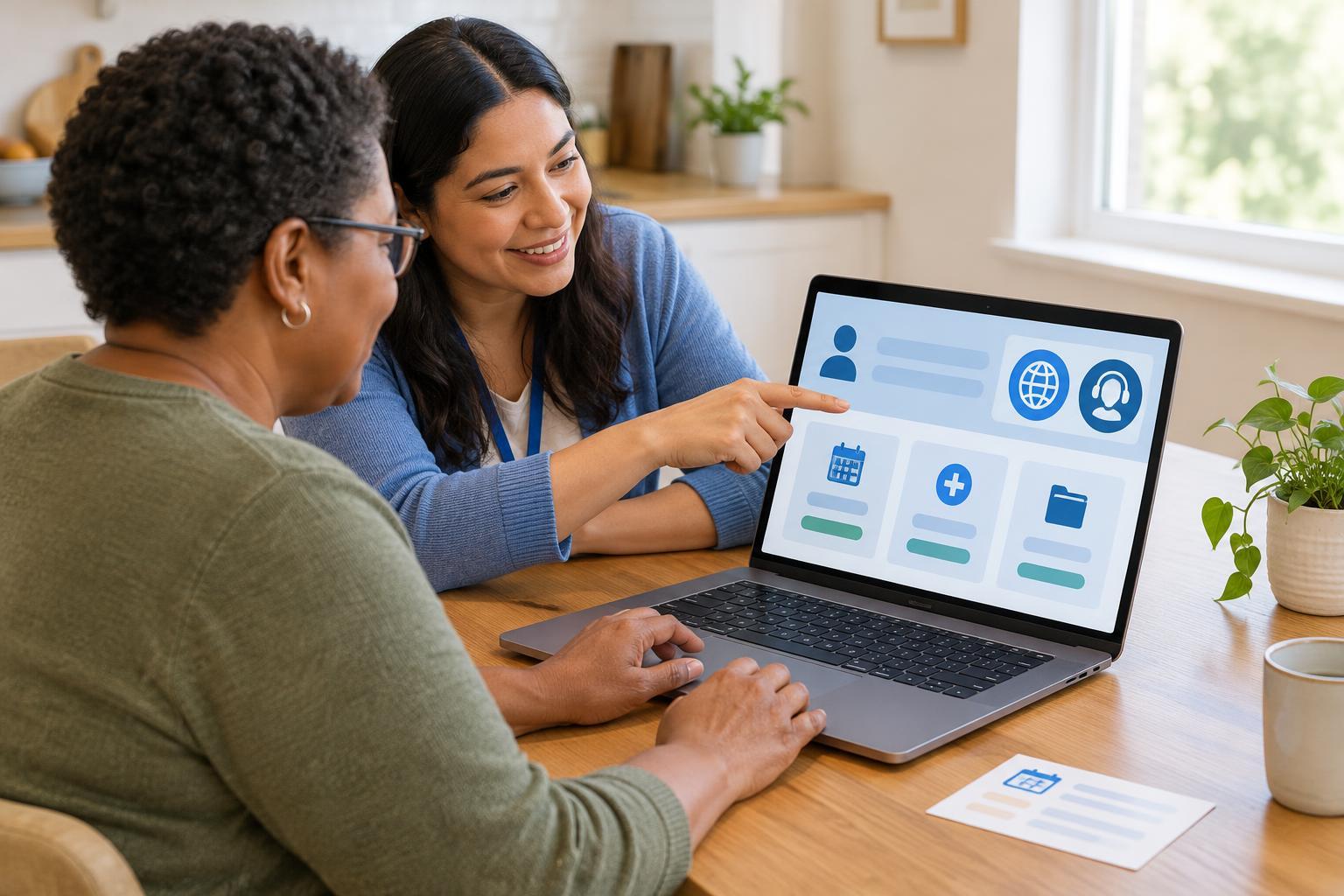
A library or community space may offer a more stable connection or help with basic digital tasks. If you use a shared device, protect your privacy: avoid letting a browser save your password, sign out of the service and close your session before leaving. Public Wi-Fi can be useful, but access sensitive accounts only through the service’s genuine site or app, and be alert to unexpected requests for personal information. The best route is the one that lets you finish the task accurately and safely—not necessarily the one that keeps you online the longest.